

LM Studio gives you a desktop interface for downloading and running language models on your Linux computer, while its separate llmster daemon suits servers and automated workloads.
Choose the desktop app or the headless daemon
Use the desktop app when you want to discover models, load one into memory, chat, and use the local API from a graphical Linux session. Use llmster when the machine has no desktop session or you need a daemon for a server, cloud instance, or continuous integration job.
They are related LM Studio products, but one does not replace the other. The desktop app can run its own local server, while llmster is the vendor’s standalone headless installation.
Install the LM Studio desktop app on Linux
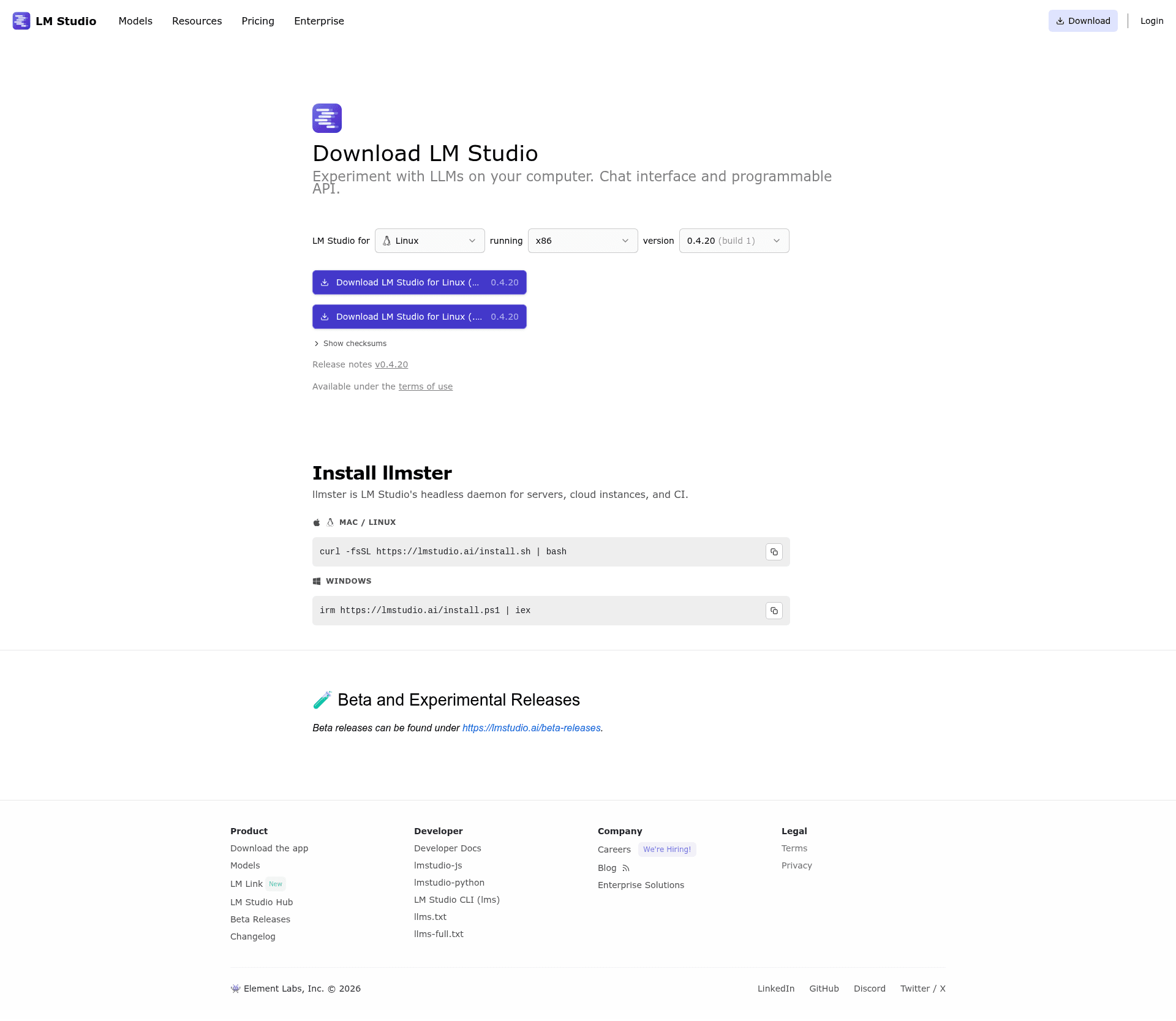
Open the official LM Studio download page in your Linux desktop browser and choose the Linux build offered for your machine. The page identifies the desktop app as LM Studio and lists version 0.4.20 at the time of this check.
- Download the Linux desktop build from the official page.
- Open the downloaded installer or application file through your desktop environment.
- Start LM Studio from its application entry after the installer finishes.
The vendor documents Linux support for x64 and ARM64 hardware. Check the architecture before downloading a build, especially on an ARM single-board computer or virtual machine.
Download and load your first model
Open the Discover tab in LM Studio after the desktop app starts, then select a model that fits the memory available on your machine. Downloading a model stores its files locally, and loading it reserves system memory for the model weights before you can chat with it.
Start with a smaller model if you are unsure how much memory is available, because a download can finish while loading still fails after the model exceeds the RAM and graphics memory your system can provide.
Use the local server from the desktop app
After you load a model, LM Studio can expose a local API for another application on the same computer, and you can start the server from the Developer area in the app before copying its displayed local address into the client that will call it.
Keep that server bound to the local machine unless you have deliberately configured network access and authentication. A language-model endpoint can accept prompts and return generated text, so it should not be exposed to an untrusted network by accident.
Install llmster for a headless Linux machine
LM Studio publishes a separate installer for its llmster daemon on Linux. Run it only when you want the headless product rather than the graphical desktop app.
curl -fsSL https://lmstudio.ai/install.sh | bash
The official installer places the daemon under your home directory and adds its binary directory to your shell path unless you pass its no-modify-path option. Its help output names the daemon llmster and documents the Linux installation directory as .lmstudio/bin or .cache/lm-studio/bin.
I ran the published installer in an isolated x64 Linux environment with libatomic available. The script identified the platform, then its download request failed at the vendor artifact endpoint, so treat a download failure as an installer or network problem rather than evidence that your local command syntax is wrong.
Fix the common installation boundaries
If the desktop app does not start, return to the official download page and confirm that you selected the Linux build for the machine architecture. Do not install unrelated Python packages, build tools, or a third-party Flatpak merely to repair an app installer problem.
If a model will not load, choose a smaller model or free memory before trying again. If you need a machine without a graphical session, switch to llmster and follow the vendor’s headless documentation instead of trying to run the desktop app through a remote shell.
What to do after installation
Install the desktop app when you want an interface for local models, then use Discover to download a model and load it before starting a chat or local server. Choose llmster only when the machine needs a headless LM Studio daemon.