
DuckStation Linux turns an old PlayStation 1 library into a fast, sandboxed emulator you can install with one command. The project is accurate and free, but its Linux story has gotten messier since the developer restricted the license and pulled Arch packaging in 2025. This guide covers installing DuckStation on Linux through Flatpak and AppImage, setting it up, what changed with the license and AUR controversy, and how to remove it if it turns out not to be for you.
Features of DuckStation Linux
This is a unique emulator which offers a lot of features. Some of them are listed below:
- Duckstation can run as a QT windowed application as well as in a full-screen TV like interface. This offers the users to run this emulator on devices like a Steam Deck and you would be able to control everything on the interface with a controller (or the Steam Deck controllers itself).
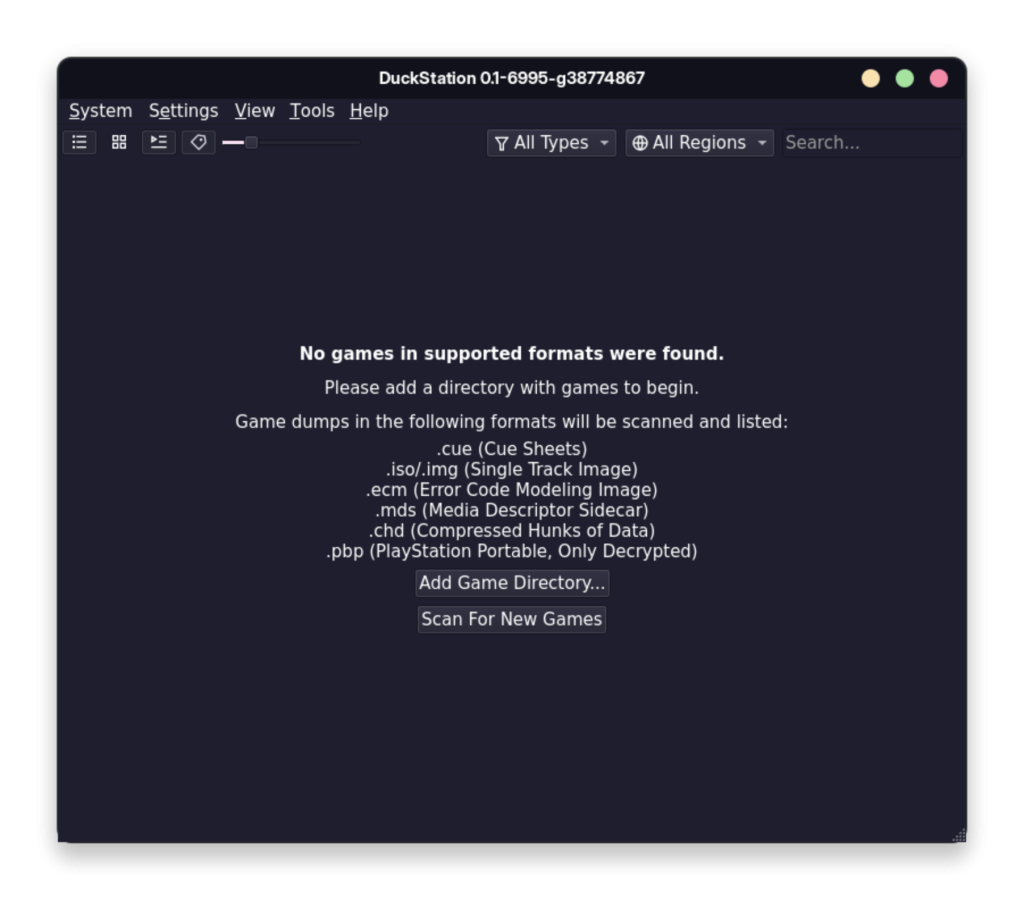
- This emulator can effectively run all your PlayStation games with numerous hardware acceleration techniques such as D3D11/12, Vulkan, Metal as well as OpenGL.
- Upscaling and texture filtering is supported as well, which allows you to play your games in a higher resolution.
- You can import your original save files as well from the PlayStation and continue your games where you left them.
- Multiple controllers can also be used simultaneously if you want to play local multiplayer games.
- It also allows you to skip BIOS splash/intro via a ‘Fast boot’ method.
- The Linux build covers more than x86-64. DuckStation’s recompiler also targets AArch32, AArch64 and RISC-V (RV64), so it runs natively on ARM boards and RISC-V single-board computers, not just desktop PCs.
Installing DuckStation on Linux
The easiest method through which you can install this emulator on your PC would be through Flatpak. Flatpak is a unique packaging format through which you can install this application on any Linux distribution with one single command. Any application installed with this method is ‘sandboxed’ and cannot access files on your system unless you specifically ask them to. Follow this guide if you want to enable Flatpaks on your distribution. Once you have done that, you can simply type the following commands in your Terminal window to install DuckStation on your PC:
flatpak install flathub org.duckstation.DuckStation
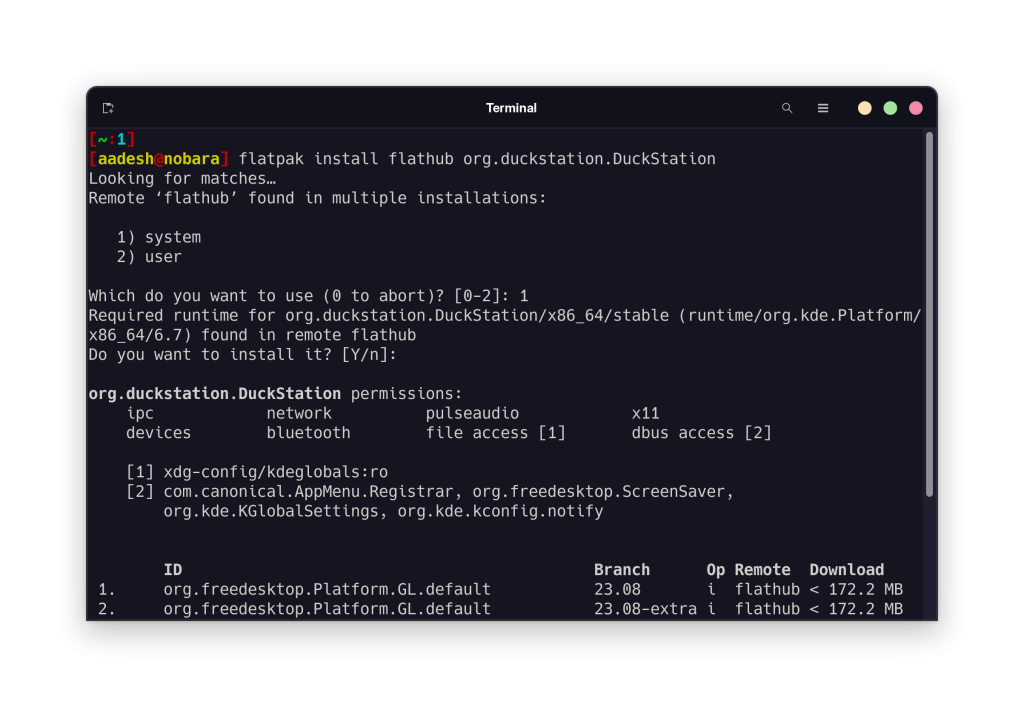
If you do not like typing command in the Terminal, then you can install the Duckstation emulator from the GUI software store instead. Note that the GUI stores have different names on different Linux distributions.
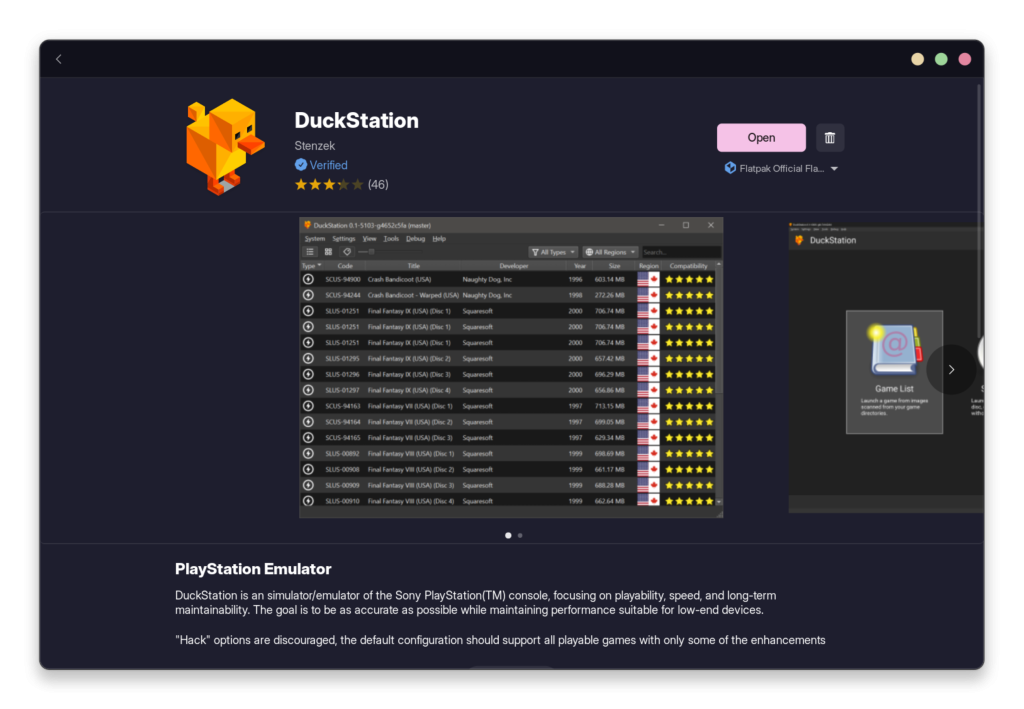
Once installed, you can launch the application from your Application Menu/App Grid.
This build on Flathub is the official one. The developer syncs it with every rolling release cut on GitHub, so you are not trading freshness for the sandbox.
System requirements for the Linux build
DuckStation runs on modest hardware, but the hardware renderers need a GPU driver that supports at least one of these:
- OpenGL 3.1 or OpenGL ES 3.1
- Direct3D 11 Feature Level 10.0 equivalent (via Vulkan on Linux)
- Vulkan 1.0
Practically, any GPU with working open-source or proprietary drivers from the last decade clears this bar. A game controller helps for the fullscreen interface, though the emulator runs fine with a keyboard alone.
Installing DuckStation with the AppImage
If you would rather skip package management, DuckStation also ships as a portable AppImage for x86_64 that needs a distribution roughly as new as Ubuntu 22.04. Download duckstation-x64.AppImage from the GitHub releases page, then make it executable and run it:
chmod a+x duckstation-x64.AppImage
./duckstation-x64.AppImage
There is nothing to uninstall later beyond deleting the file, which makes the AppImage a fair pick if you just want to try DuckStation before committing to it. If your system does not run AppImages out of the box, you may need the FUSE library installed first.
Running DuckStation on the Steam Deck
Since DuckStation ships a fullscreen “Big Picture” interface built for controllers, it works well on the Steam Deck and similar handhelds. Switch to Desktop Mode, open Discover and install the Flatpak from there, or use the same store on any Bazzite style gaming distribution. Add it as a non-Steam game so it shows up in Gaming Mode.
The DuckStation Linux license and AUR controversy explained
If you searched for an Arch package or an AUR entry for DuckStation and came up empty, that is expected right now. It is worth knowing why before you go looking for a workaround.
DuckStation started life under the GPLv3 license, the same license that lets distributions freely package and redistribute software. In September 2024, the developer switched the project to CC-BY-NC-ND, a Creative Commons license built for media rather than code. It bans commercial use and derivative works and treats repackaging, including the kind of build script a Linux distribution ships, as a derivative work.
- September 2024: the license changed from GPLv3 to CC-BY-NC-ND, ruling out community packaging without the developer’s sign-off.
- July 2025: the developer removed the official PKGBUILD for Arch Linux, saying repeated complaints from Arch users about broken unofficial AUR packages had worn him down.
- August 2025: in the same commit message, he floated dropping Linux support outright, then clarified on Discord days later that Linux support was not being pulled and that he had filed a takedown request for the offending AUR package instead.
As of writing, DuckStation continues shipping Linux builds through the official Flathub Flatpak and the GitHub AppImage. Development commits still land daily with Linux fixes included. The AUR and PKGBUILD situation is the part that stays unsettled, not the emulator itself.
If you want the last GPL version of DuckStation
Because the pre-2024 GPLv3 releases are still under the old license, a community member packaged that final GPL snapshot as a Snap called duckstation-gpl:
sudo snap install duckstation-gpl
The publisher is upfront that this is a frozen build from before the license change and will probably not receive updates or new game compatibility fixes. Treat it as a fallback for anyone who wants a fully open license over the latest features, not as a general recommendation.
Post Installation Setup
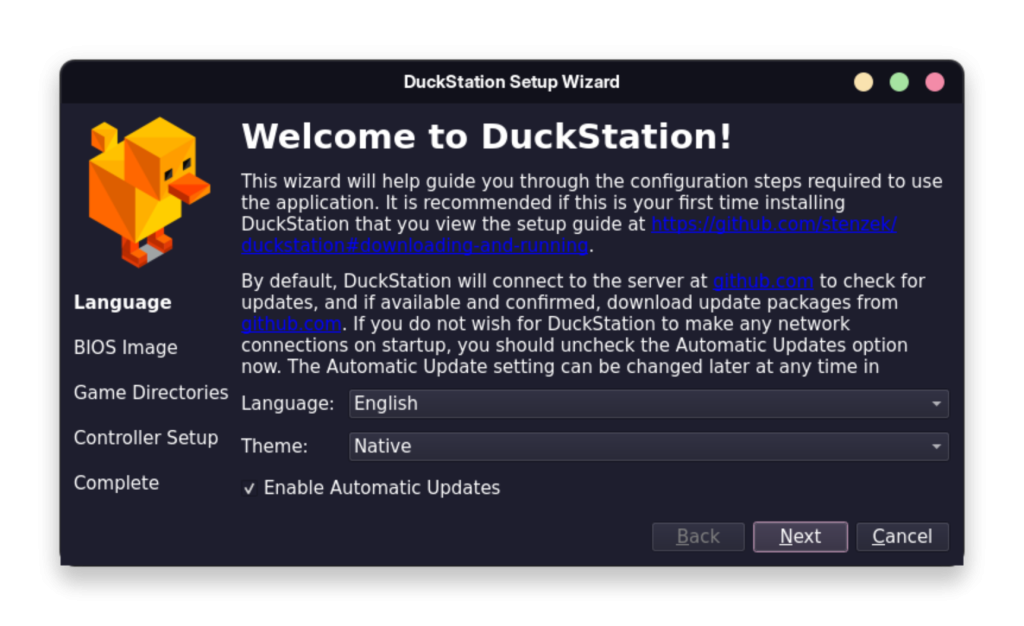
When you first launch the application, a dialog box will appear asking you to select your preferred language as well as theme, select according to your preference and hit next.
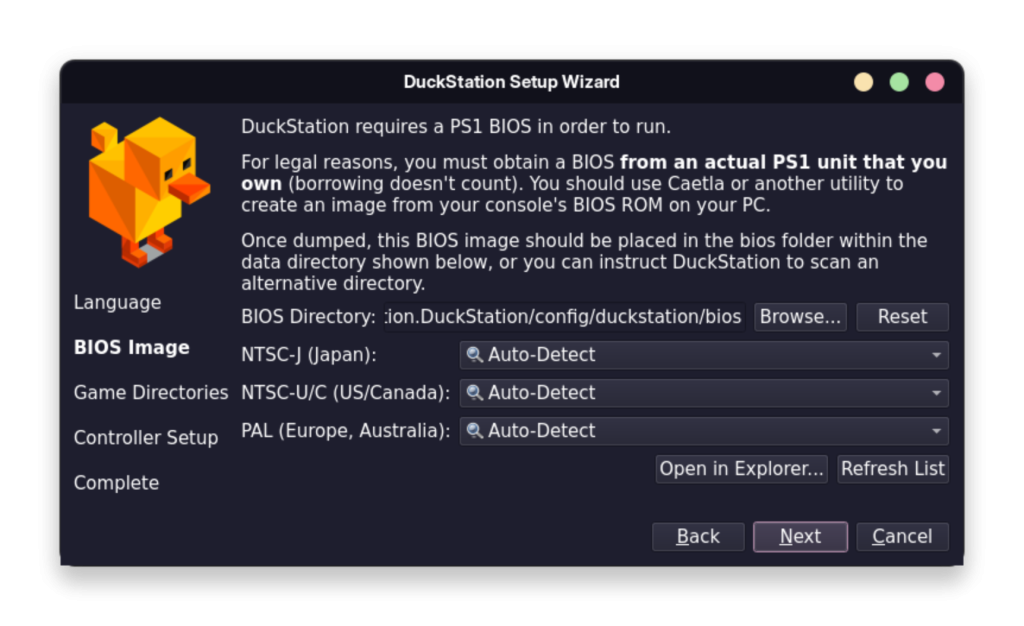
In the next step, you will be asked to import your BIOS files from your PlayStation 1 to the specified folder.
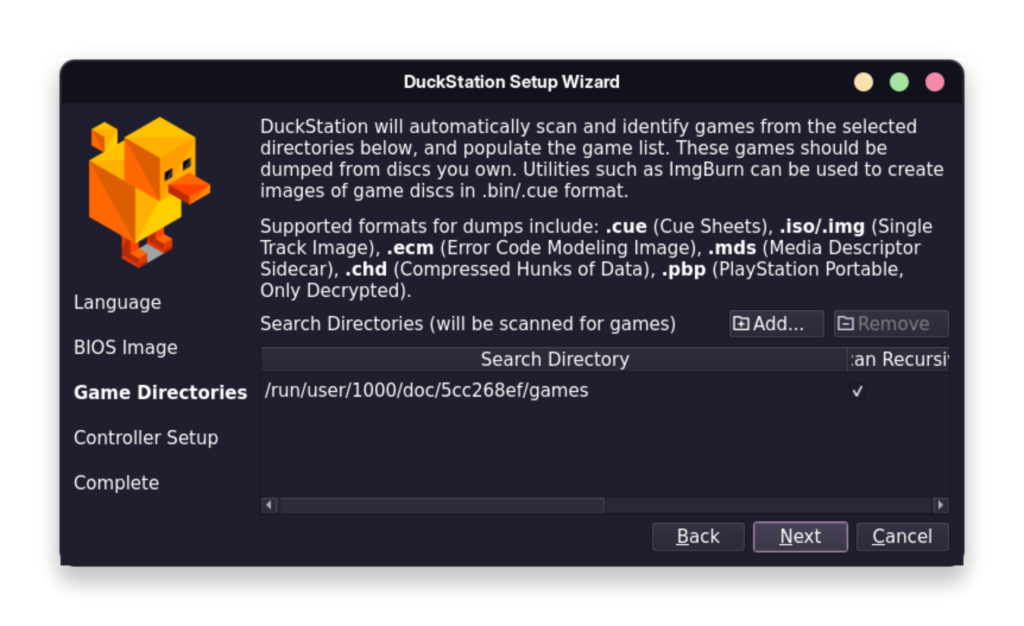
In the next step, you will be asked to specify a directory from where DuckStation will scan and import the games. Just create a folder in your Home directory and give it access.
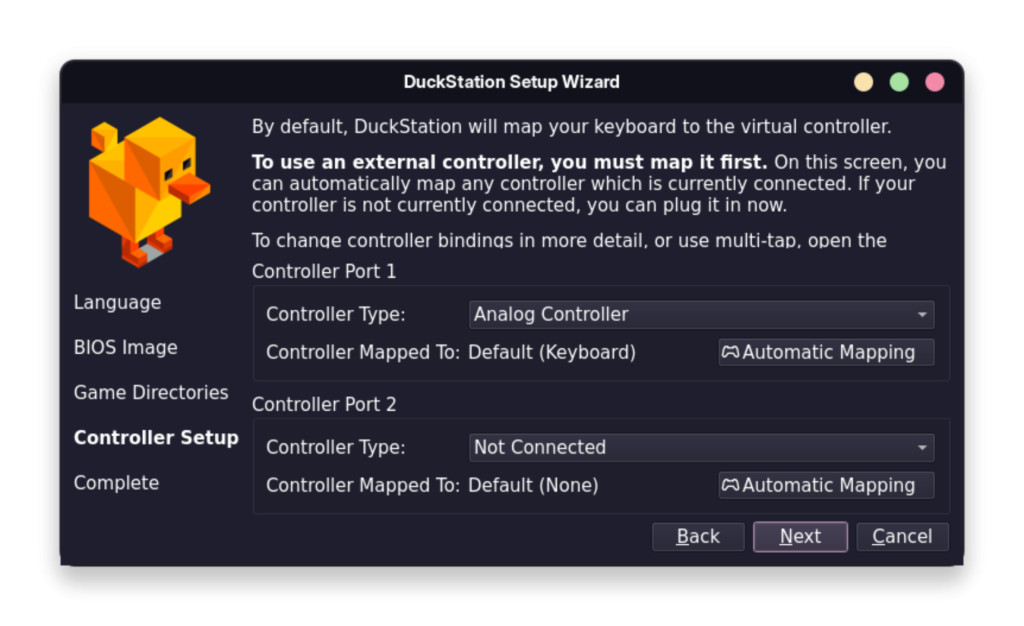
Finally, connect controllers to your PC and map them according to your preference. You can also just use the keyboard to play your games.
And that’s it, you can now play your old games easily with the emulator.
A note on BIOS files
DuckStation does not ship with a BIOS file, and it never will, since that image is Sony’s copyrighted firmware rather than open source code. You need to dump one from a PS1 you own using a tool like Caetla. Any region works, though matching your BIOS region to your game discs avoids some compatibility quirks.
Where DuckStation stores your files on Linux
The wizard writes your BIOS files, memory cards and settings to a “user directory” rather than your home folder root. On a native install this is:
~/.local/share/duckstation
So your BIOS images belong in ~/.local/share/duckstation/bios. Flatpak sandboxes this path differently, but Settings inside the app always shows the active location. For manual controller mapping, this guide to Linux gaming controllers covers driver installs for Xbox, PlayStation and generic pads.
Uninstalling DuckStation from Linux
Removing DuckStation depends on how you installed it. If you used Flatpak, open a terminal and run:
flatpak uninstall org.duckstation.DuckStation
Add --delete-data to the end of that command if you also want your save states and settings gone, since Flatpak keeps that data around by default so you can reinstall cleanly later. If you used the AppImage instead, there is no uninstaller to run. Just delete the AppImage file and, if you created one, the desktop shortcut that points to it.
Key takeaways
- Install DuckStation on Linux through the official Flathub Flatpak or the portable AppImage.
- The Flatpak build stays in sync with the developer’s rolling GitHub releases.
- DuckStation moved from GPLv3 to CC-BY-NC-ND in September 2024, which blocks community packaging.
- The official Arch PKGBUILD was pulled in July 2025 after ongoing AUR complaints.
- Linux support itself was not dropped, only the AUR-friendly packaging path.
- A community Snap preserves the last GPLv3 release for anyone who wants that license.
- BIOS files and saves live in
~/.local/share/duckstationon native installs. - Uninstall with
flatpak uninstallor by deleting the AppImage file directly.
Frequently asked questions
Why is DuckStation not on the AUR anymore?
The developer pulled the official PKGBUILD in July 2025 after frustration with broken unofficial AUR packages and support requests he felt belonged with those package maintainers instead.
Is DuckStation still supported on Linux?
Yes. Flatpak and AppImage builds are both current. The developer clarified in August 2025 that Linux support itself was not being removed.
What is the easiest way to install DuckStation on Linux?
Run flatpak install flathub org.duckstation.DuckStation in a terminal, or search “DuckStation” in your distribution’s GUI software store if you would rather avoid the command line.
Can I still get a GPL-licensed version of DuckStation?
Yes, through the community-maintained duckstation-gpl Snap, which freezes the last release made before the September 2024 license change.
Does DuckStation run on the Steam Deck?
Yes, DuckStation’s fullscreen interface is built for controllers, so it installs cleanly through Discover in Desktop Mode and adds smoothly as a non-Steam game in Gaming Mode.
Where does DuckStation store BIOS files on Linux?
Native installs use ~/.local/share/duckstation/bios. Flatpak installs sandbox this path, so check Settings inside the app to confirm the exact location.
Why did DuckStation change its license?
The developer switched from GPLv3 to CC-BY-NC-ND in September 2024, restricting redistribution after frustration with how third parties were packaging the emulator.
Conclusion
DuckStation remains one of the more capable ways to replay a PS1 library on Linux, licensing controversy aside. Install it and point it at your BIOS and game folders. The rest of the setup finishes in minutes.