
Pairing an Android phone with a Linux desktop sets up a connection for the features you want to use. KDE Connect lets the two devices communicate after you approve the pairing request.
This guide shows how to install KDE Connect on both devices and pair them. It also explains how to choose plugins for features such as file sharing.
TL;DR: Pair Android and Linux with KDE Connect
Install KDE Connect on Linux and Android, open both apps on a network where the devices can communicate, then request and accept pairing.
- Install the desktop package from your distribution’s software store or repository.
- Install the Android app from Google Play, Huawei AppGallery or F-Droid, as listed by KDE.
- Open KDE Connect on both devices and approve the pairing request on the other device.
- Enable only the plugins you plan to use and grant their requested Android permissions.
When automatic discovery fails, first check network isolation and the desktop firewall. KDE’s troubleshooting guide lists TCP and UDP ports 1714–1764 and UDP broadcast as relevant to discovery.
What Is KDE Connect?
KDE Connect is an open-source project for communication between devices, including an Android phone and a Linux computer. The desktop client and Android app exchange feature data after pairing, with each device approving the connection before plugins can act.
Each feature is implemented as a plugin, and available plugins vary by platform and permissions. Pair the devices first, then enable only the actions you intend to use. This keeps the initial setup focused and makes permission prompts clearer to associate with a feature.
| Plugin task | What it adds | Consider before enabling |
|---|---|---|
| File and link sharing | Send selected files or web links between devices | Choose the destination and review file access prompts |
| Notification sync | Show phone notifications on the desktop | Grant Android notification access only if you want mirroring |
| Clipboard sync | Share copied text between clients | Consider whether copied content should appear on both devices |
| Media control | Control playback across supported apps | Check which device is acting as the media player |
| Remote input | Use the phone as a remote input device | Android accessibility access may be required |
The KDE repository README explains the division between shared communication code and the interfaces that present it. A core library exposes interfaces that desktop components can use, allowing Plasma and other supported desktops to build different controls around the same device connection.
The source tree makes that separation visible. Directories named core and daemon hold shared components, app and plasmoid contain user-facing pieces, cli contains command-line code, and plugins groups feature implementations. A folder name is a navigation clue, not a promise that every component ships in every distribution package.
The GitHub repository is a mirror of KDE’s project repository. Its history and latest commit describe development activity, while a distribution package represents a selected release and its maintenance choices. Check your package’s version when comparing behavior, and do not treat the newest commit as a stable release recommendation.
The README lists capabilities such as notification sync, clipboard sharing, sending files or URLs, media control and remote input. It also mentions presentation control, SMS and remote commands. These examples show the scope of the project, but platform support and permissions determine which options a paired device actually offers.
Consider the privacy effect before enabling each one. Notification access can expose message content, clipboard sync can transfer copied text, and remote commands can trigger actions on the desktop. Keep the pairing approval intentional and enable features only for devices and tasks you trust.
How to Connect Android to Linux Step by Step
Install the desktop and phone apps before pairing, then keep both open until each side confirms the connection. On non-Plasma desktops, you may need to launch KDE Connect from the application menu.
Step 1: Install KDE Connect on Linux
Use your distribution’s software catalog to locate the desktop package. The repository can resolve dependencies and deliver updates through the same tools used for other software. Check the package label for your current release before proceeding.
Debian and Ubuntu-family systems commonly use kdeconnect. Fedora uses kde-connect, while Arch Linux lists kdeconnect.
On Debian or Ubuntu-family systems, install the package with this command. It requests administrator access and changes installed packages:
sudo apt install kdeconnect
The repository query returned this candidate version, with no installed version:
kdeconnect:
  Installed: (none)
  Candidate: 23.08.5-0ubuntu5
  Version table:
     23.08.5-0ubuntu5 500
        500 http://ap-mumbai-1-ad-1.clouds.ports.ubuntu.com/ubuntu-ports noble/universe arm64 Packages
Fedora and Arch users should use their distribution software tools and package names listed above.
GNOME users can choose GSConnect, which provides KDE Connect integration within GNOME Shell. That choice affects which desktop controls are available, while Android still sends the ordinary pairing request to the computer.
Step 2: Install the Android app
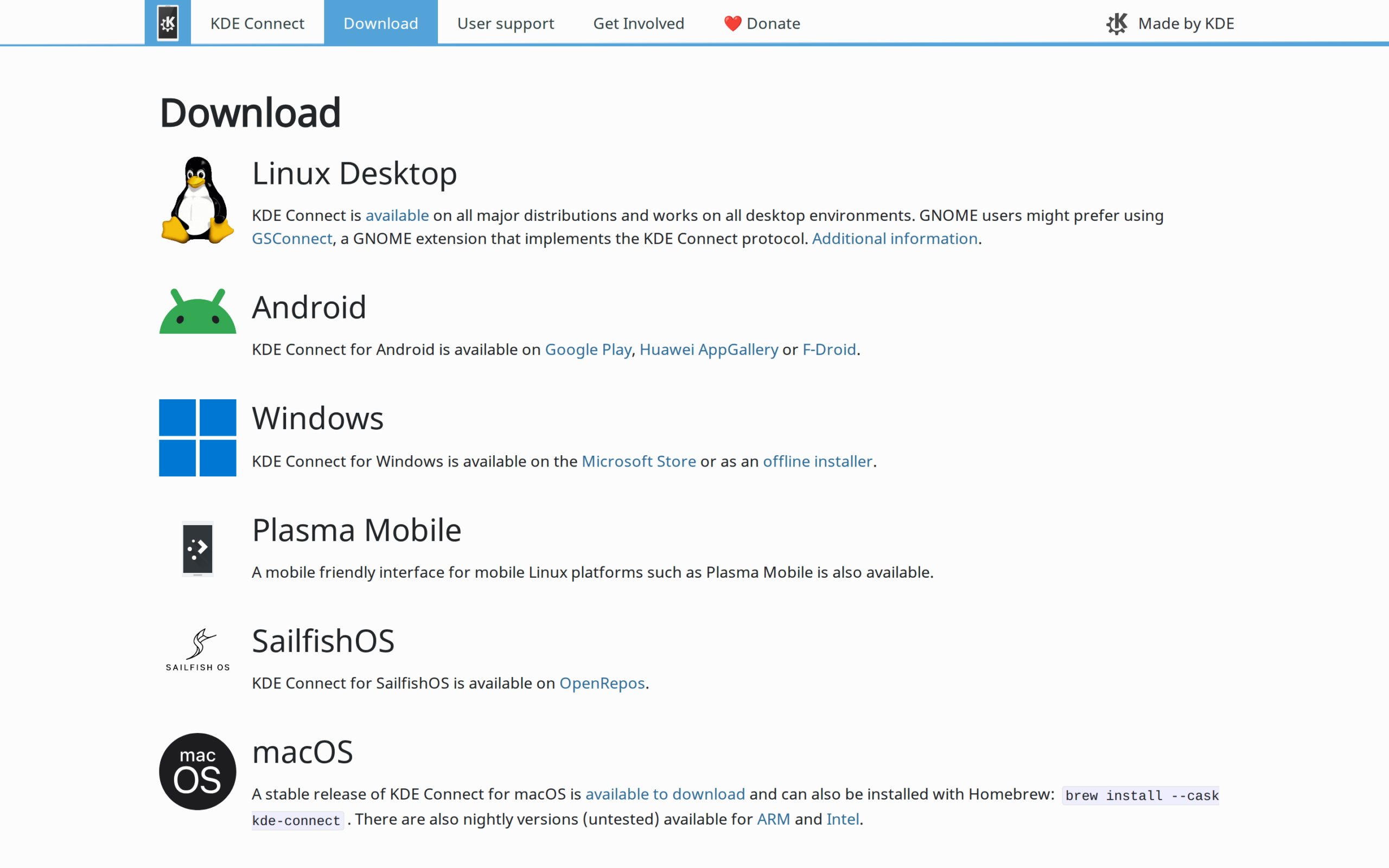
KDE’s download page links directly to supported Android stores. Follow one of those links and verify the app publisher on the store listing before installing.
Choose an Android source from KDE’s official download page, then install KDE Connect on the phone. Google Play, Huawei AppGallery and F-Droid are listed as destinations there.
Open the app and review its nearby-device prompt. Decide which optional permissions to grant after installation.
The desktop component may appear in an application menu after installation, while a Plasma session can expose it through system settings. On another desktop, open KDE Connect from the menu if it does not start automatically. The relevant check is that its device panel is running, not that the desktop environment has a particular name.
Step 3: Put both devices on a reachable network
Open both clients on the same local network. A matching Wi-Fi name is a useful first check.
Guest Wi-Fi may separate clients, and a VPN can route local traffic away from the desktop. Check those boundaries before editing firewall rules.
Step 4: Request and accept pairing
Select the Linux computer in Android and send a pairing request, or start the request from desktop settings. Wait for the other device to approve the request before moving to plugin setup.

Choose the computer by its displayed device name when several devices appear.

Open the desktop request and approve it. The desktop image shows the application panel. Labels can differ across releases.

After approval, confirm that the device status changes to paired in the app. If multiple computers appear, use their displayed names to avoid approving a request for the wrong desktop.
Step 5: Enable the plugins you need
Open the paired device settings and enable the feature you plan to use. Start with one plugin so its permissions and behavior are clear.
- Notification display requires notification access.
- Remote input may require Android accessibility access.
Android permission names and screens vary by release. Enable the access required for the selected feature, then test it from the device that starts the action.
Fix KDE Connect Discovery and Pairing Problems
KDE UserBase identifies TCP and UDP ports 1714–1764 for troubleshooting and notes that blocked UDP broadcast can prevent automatic discovery. Check the full documented range on the trusted local network rather than opening one port.
When broadcast discovery alone is blocked, a manual address can help the phone contact the desktop directly. The route and firewall still need to permit that traffic.
Before changing the firewall, check whether the phone is using mobile data, a guest access point, or a VPN while the computer uses a private network. These are different paths even when both devices have internet access. The useful test is local reachability between the two clients, not whether each can browse a website.
| Case | Symptom | Fix |
|---|---|---|
| Client isolation or guest Wi-Fi | Neither app lists the other device | Use a network that permits local device traffic |
| Filtered broadcast | Discovery fails although direct traffic is permitted | Add the desktop by its local IP address in Android |
| Firewall blocks KDE Connect | Devices remain invisible or connection fails | Review TCP and UDP 1714–1764 on the trusted local network |
| Pending approval | A request appears but status stays unpaired | Approve the request on the receiving device |
| GNOME integration conflict | Desktop integration behaves inconsistently | Check GSConnect and select one integration |
Keep any firewall exception limited to a trusted local network and the documented port range. Consult the firewall documentation before changing access rules.
To use manual discovery, find the desktop IP address and choose Add device by IP in Android.
If a request remains pending, look for the approval prompt on the other device and accept it there. If no prompt appears, reopen both clients and send a new request. Repeated failures after the network checks call for KDE’s troubleshooting guidance before removing configuration.
GSConnect is the GNOME Shell integration for KDE Connect. If it is already managing the desktop connection, use its controls for pairing rather than starting a second desktop integration. Avoid configuring both Plasma’s KDE Connect interface and GSConnect for the same desktop session.
Conclusion
The setup has two distinct checks: install clients from their official distribution and KDE sources, then confirm the local network allows traffic between them. Once pairing succeeds, enable the plugins you need and grant their requested permissions.
For the full feature list and advanced troubleshooting, see KDE’s KDE Connect UserBase guide and the official download page. LinuxForDevices also has a broader KDE Connect setup and feature guide and an Android USB file-transfer walkthrough for Arch Linux for the USB transfer task.
FAQ
These answers cover common installation and discovery questions.
Does KDE Connect work on Linux Mint?
KDE Connect is available for Linux distributions through their software repositories. Search Linux Mint’s Software Manager for KDE Connect or check its current package catalog, then install the Android app from a KDE-listed store.
Why does KDE Connect not find my phone?
Check that both devices are on a network that permits local communication. Guest-network isolation, blocked UDP broadcast, VPN routing or a desktop firewall blocking TCP and UDP ports 1714–1764 can prevent discovery. KDE’s documentation also describes adding a device by IP.
Where can I get KDE Connect for Android?
KDE lists Google Play, Huawei AppGallery and F-Droid as Android download sources. Use the official KDE download page to choose a store.