
Fedora and Red Hat Enterprise Linux install and update software with a command-line tool called DNF. It fetches packages from configured repositories and works out which other packages each one needs.
This reference shows you how to check which DNF version you have, then walks through package tasks from search to removal.
What is DNF?
DNF manages RPM software on distributions such as Fedora and Red Hat Enterprise Linux. RPM is the package format, and DNF resolves dependencies and downloads packages from configured repositories.
DNF keeps many familiar YUM command names. Its DNF4 and DNF5 implementations differ in some subcommands and options.
Current Fedora releases use DNF5 by default, so the examples below use DNF5 syntax when the implementations differ.
| Task | DNF5 | DNF4 |
|---|---|---|
| Show installed packages | dnf list –installed | dnf list installed |
| Show transaction history | dnf history list | dnf history |
| List enabled repositories | dnf repo list –enabled | dnf repolist enabled |
DNF commands apply on distributions that use RPM packages and provide the DNF tool.
Ubuntu uses APT to manage its system packages. For a separate RPM package, see the RPM guide for Ubuntu. Arch Linux uses pacman.
Prerequisites for using DNF
Before running DNF, confirm that the distribution and your account meet these prerequisites.
- You are using a distribution that provides DNF, such as Fedora or a compatible Red Hat system.
- The DNF command is installed and can reach at least one enabled repository for package searches or installs.
- Your account needs sudo for commands that change package state. If it cannot use sudo, ask an administrator to grant access rather than changing permissions by hand. The sudoers guide explains that authorization boundary.
How to use DNF for package tasks
Match each command to the task and review DNF’s proposed transaction before accepting a change.
Step 1: Check your DNF version
Check which DNF implementation your system exposes before relying on a version-specific option. The same dnf entry point can invoke DNF4 or DNF5, depending on the distribution and release.
dnf --version
Use the version line in the output to choose the matching command form in the comparison table. Fedora’s DNF quick documentation links its current DNF5 reference. Other distributions may package a different generation.
Step 2: Search for a package
Search before installing when you know what the software does but not the package’s exact name. Replace the example term with a product name or a useful feature word.
dnf search tigervnc
The DNF4 screenshot shows package names and repository results from an EL8-era system, with repository metadata dated 2020.
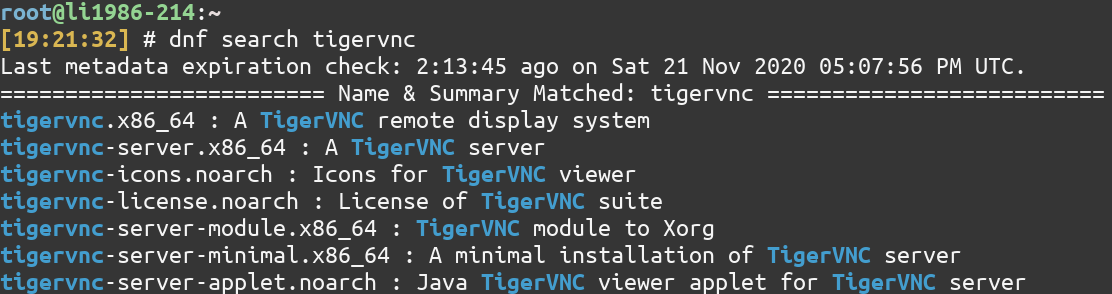
Choose a package name from your enabled repositories before checking its details.
Step 3: Inspect package details
The info command reports package details such as version and repository. It can describe an available package rather than one already installed.
dnf info tigervnc-server
The DNF4 screenshot identifies TigerVNC as an available package on an EL8-era system, with dated metadata.
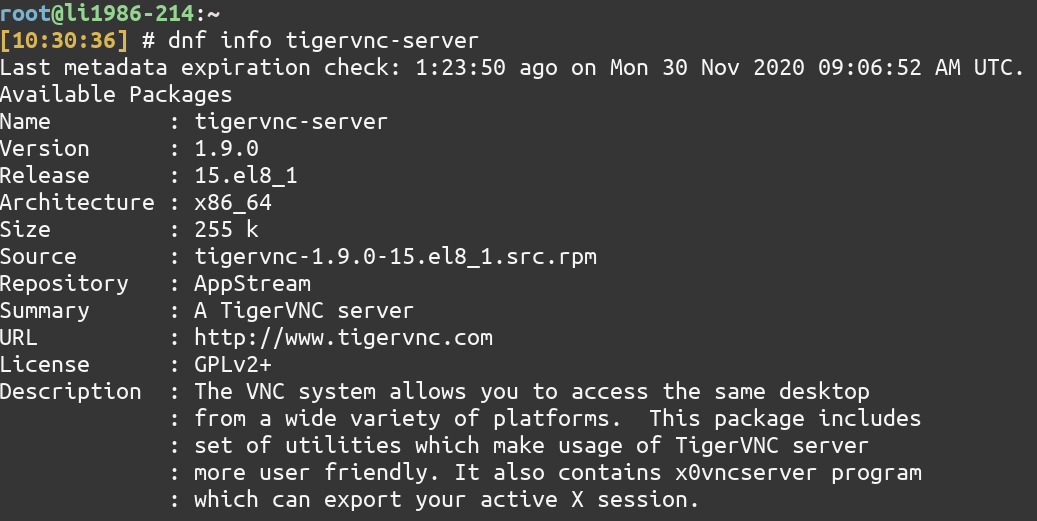
A repository label shows package availability from that source, not whether the package is installed.
Step 4: Install a package
Install the package by its repository name. DNF resolves dependencies and shows a transaction before changing the system.
sudo dnf install package-name
The image stops at a proposed DNF4 transaction on an EL8-era repository, before confirmation or installation.
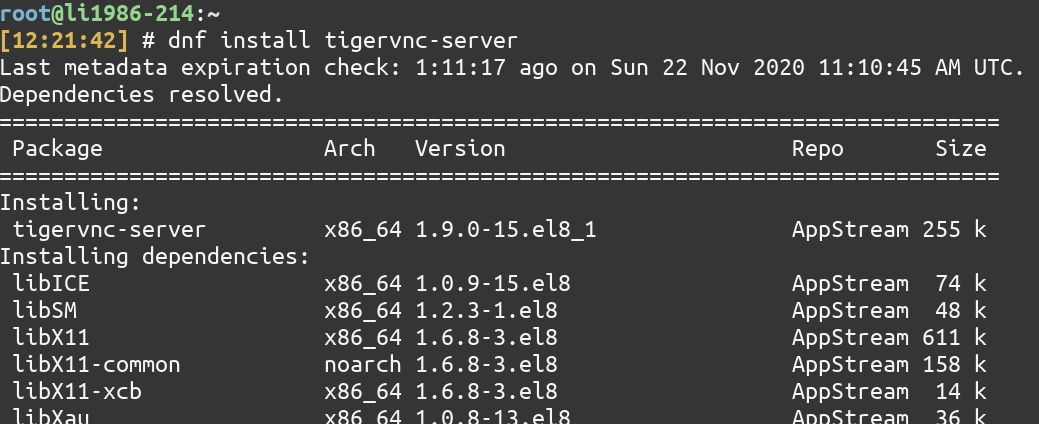
Accept only a package set that matches your task. Decline any transaction that includes unexpected software.
Step 5: List installed packages
DNF5 uses an explicit option to filter the list to installed packages. I chose that form as the main example because it names the requested state directly, and kept the older DNF4 spelling beside its screenshot.
dnf list --installed
The historical DNF4 command in this image is dnf list installed. Its package names and versions are from an EL8-era installation, not a current package inventory.
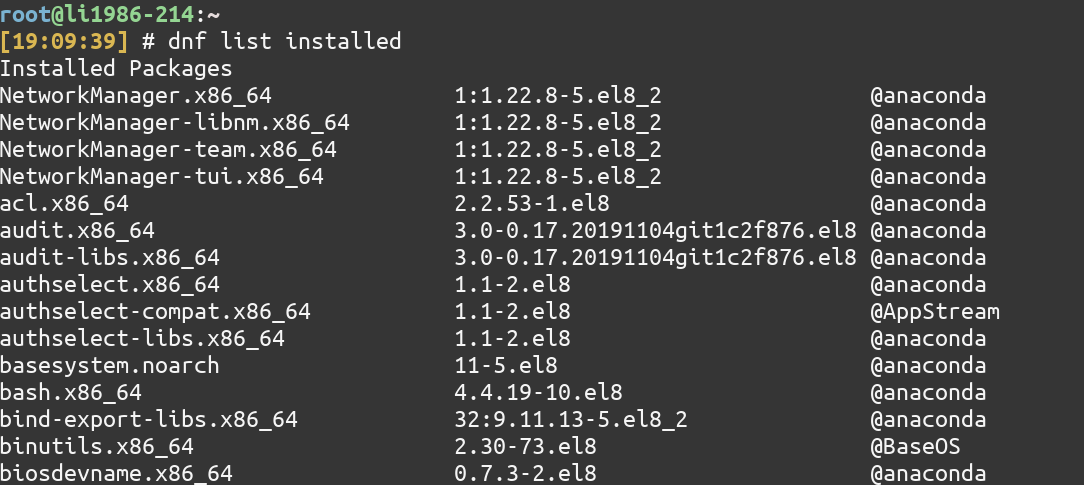
For the same inventory task on Ubuntu, use the instructions for listing installed packages with APT. DNF and APT query different package databases.
Step 6: Upgrade packages
Use upgrade for one package or the whole installed package set. DNF may include dependencies when the selected package requires them.
The Oracle DNF reference marks update as a deprecated spelling for this task, so the examples use upgrade.
sudo dnf upgrade package-name
sudo dnf upgrade
The image shows a named-package DNF4 upgrade paused at confirmation, with a package build from 2020.
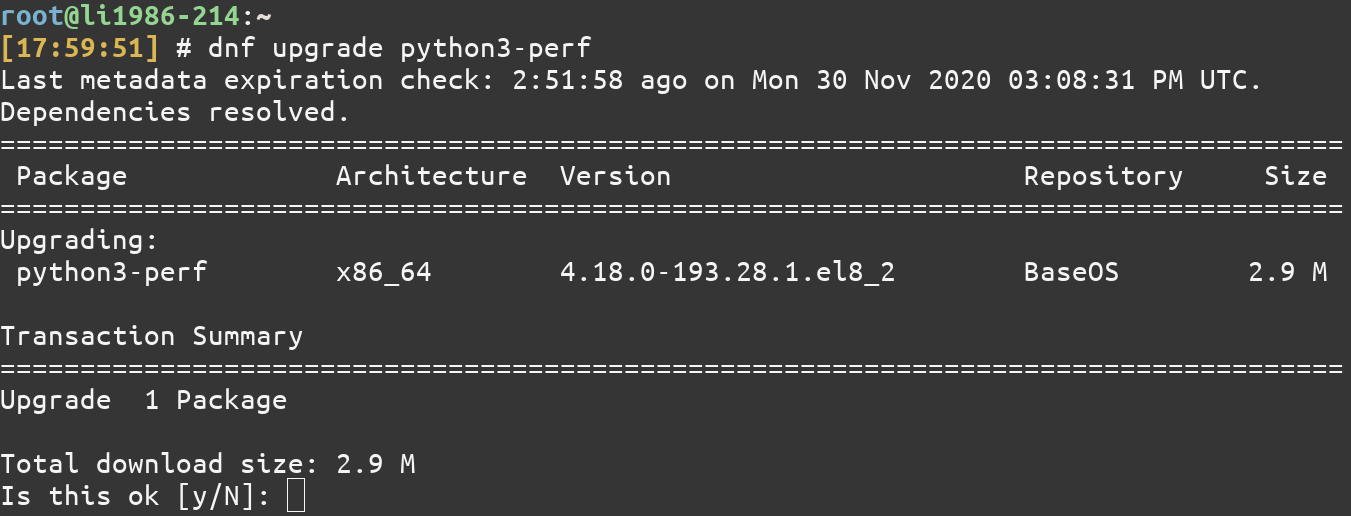
Check the proposed package versions and removals before confirming. The Fedora DNF guide also documents update checks.
Step 7: Remove a package
Remove a package by its installed name. Review the full proposed transaction because DNF can include dependencies that are no longer needed.
sudo dnf remove package-name
The DNF4 screenshot shows a proposed removal plan with unused dependencies. It stops before confirmation, so no package removal is shown as complete.
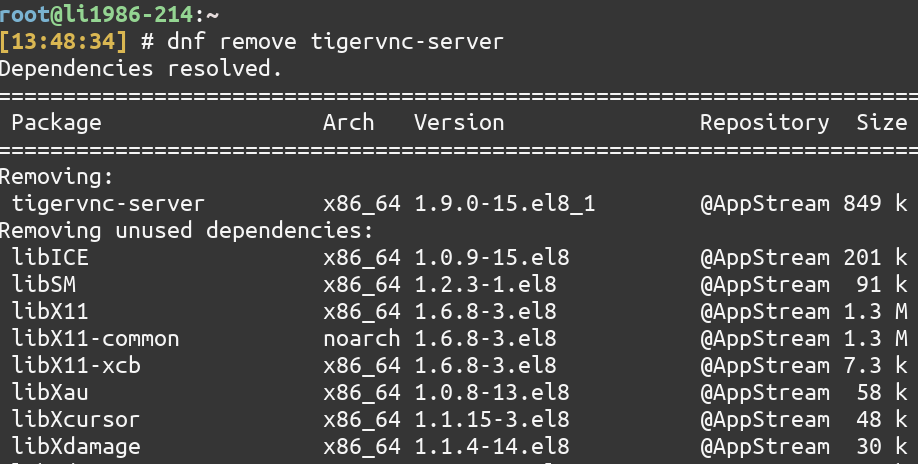
Ubuntu uses a different package database and removal workflow. See how to remove packages with APT.
Step 8: Review unused dependencies
Autoremove targets unneeded dependency packages, not the named application you choose to uninstall. I kept it separate from remove because DNF5 selects candidates by dependency reason and whether a user-installed package still needs them.
Read DNF’s candidate list before accepting an autoremove transaction. The DNF5 autoremove reference excludes install-only packages such as kernels.
sudo dnf autoremove
The retained DNF4 screenshot reports that there is nothing to do. No package qualified for removal in that system’s recorded state.

Check the displayed candidates before cleanup. DNF uses the dependency reason recorded at install time to determine which packages qualify.
Step 9: List enabled repositories
Repositories tell DNF where to find package metadata and files. DNF5 lists enabled repositories with the repo subcommand, while DNF4 uses repolist.
dnf repo list --enabled
If search returns no candidate, check that the repository is enabled and the package name matches the distribution. Repository results depend on that system’s configuration.
Step 10: Review DNF history
DNF5’s history command takes a subcommand, so use list to display recorded transactions. It is not a log of changes made outside DNF.
dnf history list
DNF4 displays history with dnf history, while DNF5’s undo and redo operations depend on recorded transaction data.
Verify a DNF transaction
A command that reaches a confirmation prompt has not yet completed its transaction. After you accept it, verify the resulting package state before treating the task as done.
- Read the final DNF message and check whether it reports completion or an error.
- Use the installed-package filter to confirm the package’s current state.
- Review the latest transaction in DNF history if you need to inspect what DNF recorded.
The package state is the evidence that matters. A plan or confirmation prompt describes an earlier point in the operation.
When a DNF command is unavailable or behaves differently
Start with the reported condition rather than repeating a package transaction. Check the version and configured repositories first.
dnf --version
dnf repo list --enabled
| What you see | What to check |
|---|---|
| “command not found” | Confirm the distribution uses DNF and the package manager is installed. Ubuntu uses APT, and Arch Linux uses pacman. |
| No package in search results | Check the package spelling and enabled repositories. Package names and repository contents vary by distribution. |
| An option is rejected | Check the DNF version and its manual. DNF4 and DNF5 do not use identical forms for every subcommand. |
APT and DNF query separate package databases. A package in Ubuntu’s repositories is not automatically available from Fedora repositories.
Review the transaction before accepting it
DNF’s preview is the last place to decide whether its planned changes match the task. The automatic no option lets you inspect an upgrade plan without accepting it.
sudo dnf upgrade --assumeno
The DNF5 manual defines –assumeno as answering no to confirmation questions. Read the proposed actions before running the upgrade without that option.
DNF command questions
What does DNF stand for?
DNF is short for Dandified YUM. It is a package manager for RPM-based Linux distributions.
Which Linux distributions use the DNF command?
Fedora and Red Hat Enterprise Linux use DNF tooling. The DNF generation and command details depend on the distribution release.
Why does DNF say that a package cannot be found?
The package name may not match the repository’s name, or the repository containing it may not be enabled. Check the spelling and enabled repository list for the distribution.
Can I use DNF on Ubuntu?
Ubuntu uses APT for its system packages. DNF is for RPM-based package repositories and does not replace Ubuntu’s native package manager.