
DOSBox-X runs DOS games and applications in an emulator instead of asking your Linux system to execute DOS programs directly. Install the current Flatpak build, choose a folder for your DOS files, mount that folder as C, then start the program you need.
Install DOSBox-X from Flathub
Flathub publishes DOSBox-X as com.dosbox_x.DOSBox-X, avoiding distribution package names that vary between repositories.
flatpak install --user -y flathub com.dosbox_x.DOSBox-X
The command installs a user-level copy, so install Flatpak through your distribution package manager and add Flathub before repeating it when flatpak is unavailable.
flatpak info com.dosbox_x.DOSBox-X
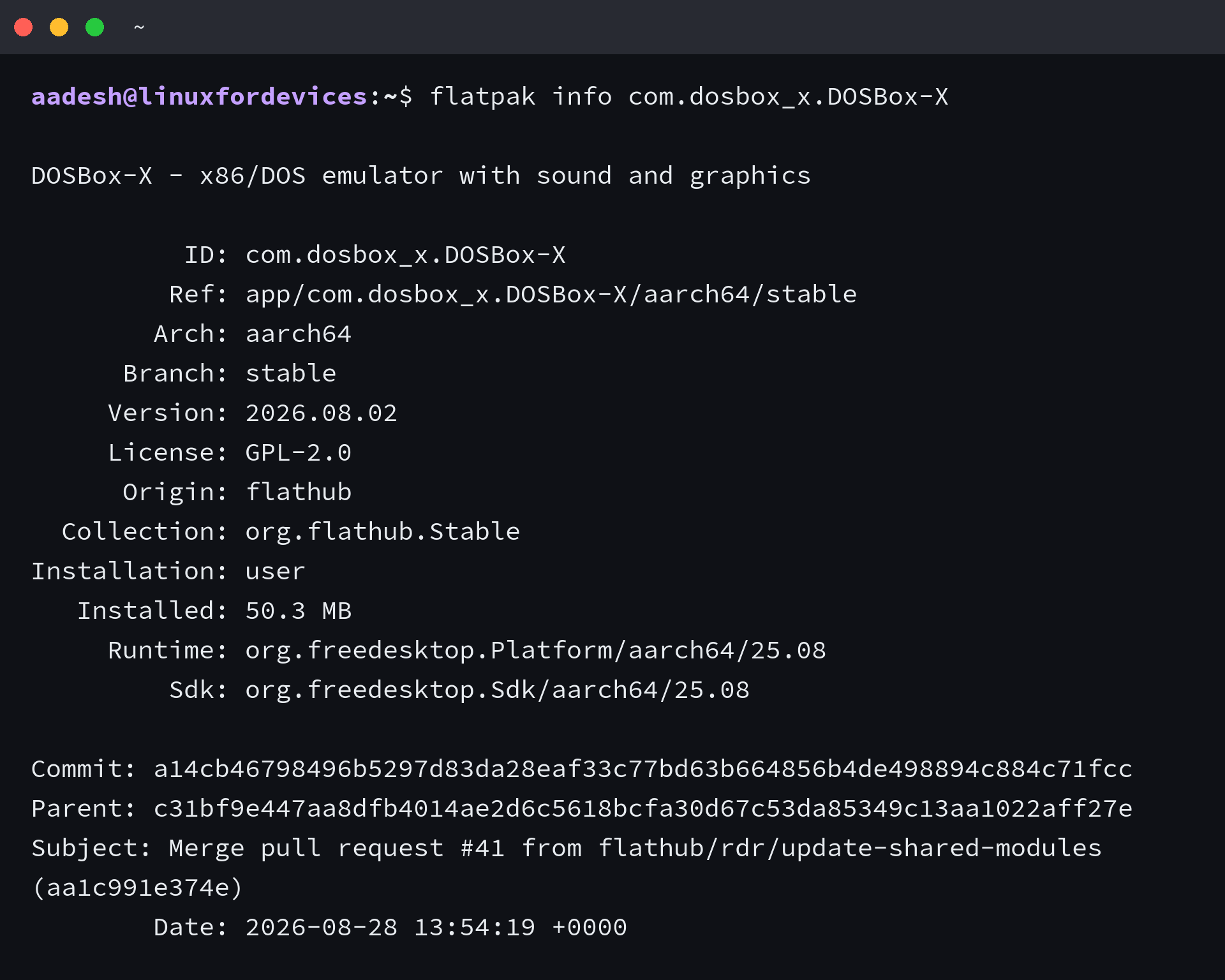
Package information names DOSBox-X and Flathub as the origin, then a graphical Linux session can start it from the desktop menu or with the command below.
flatpak run com.dosbox_x.DOSBox-X
Choose a DOS files directory
Until you mount a Linux folder as a DOS drive, DOSBox-X sees it only as a host directory. Put one game or application and its supporting files in a dedicated directory instead of exposing your whole home directory.
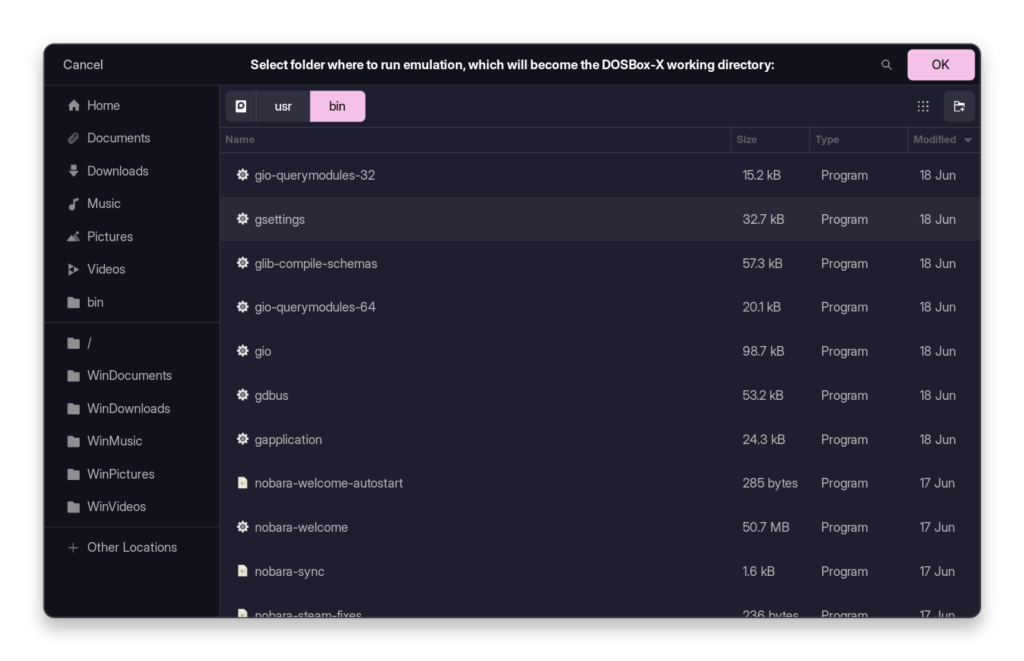
The folder picker selects the host directory, then the DOS prompt uses a drive letter for it after the mount.
Mount the folder as C
The mount command maps your selected Linux directory to a DOS drive letter. Replace the path, switch to C, and list the files before launching anything.
mount c ~/DOS
c:
dir

A successful mount reports the mapped drive and lets you switch to C. Use dir to confirm the selected folder contains a program when DOSBox-X cannot find it.
Save the mount command for later
For a folder you use often, save its mount command in DOSBox-X startup commands. The configuration tool opens that startup file directly.
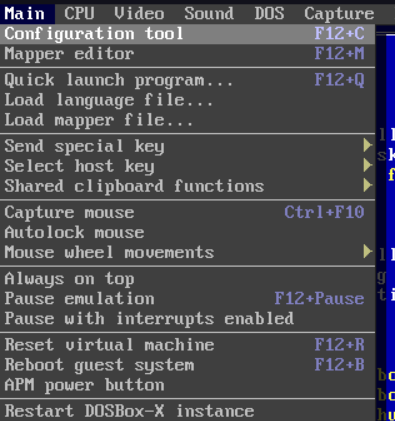
Open the configuration tool from the DOSBox-X interface before changing a persistent setting.
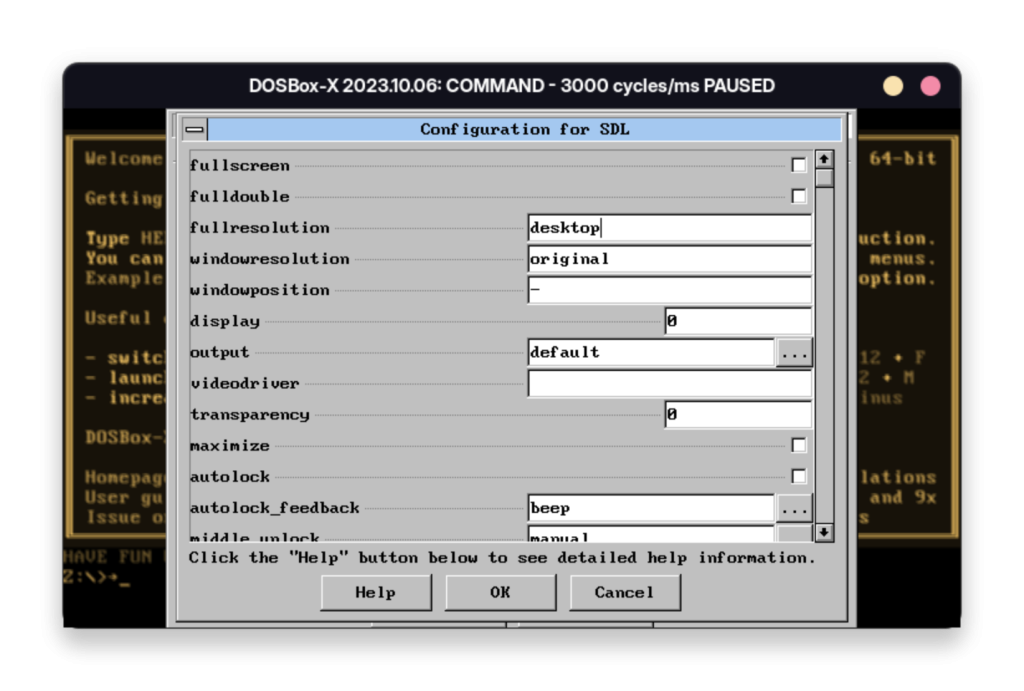
Use display settings only when a game needs a different window size or rendering mode.
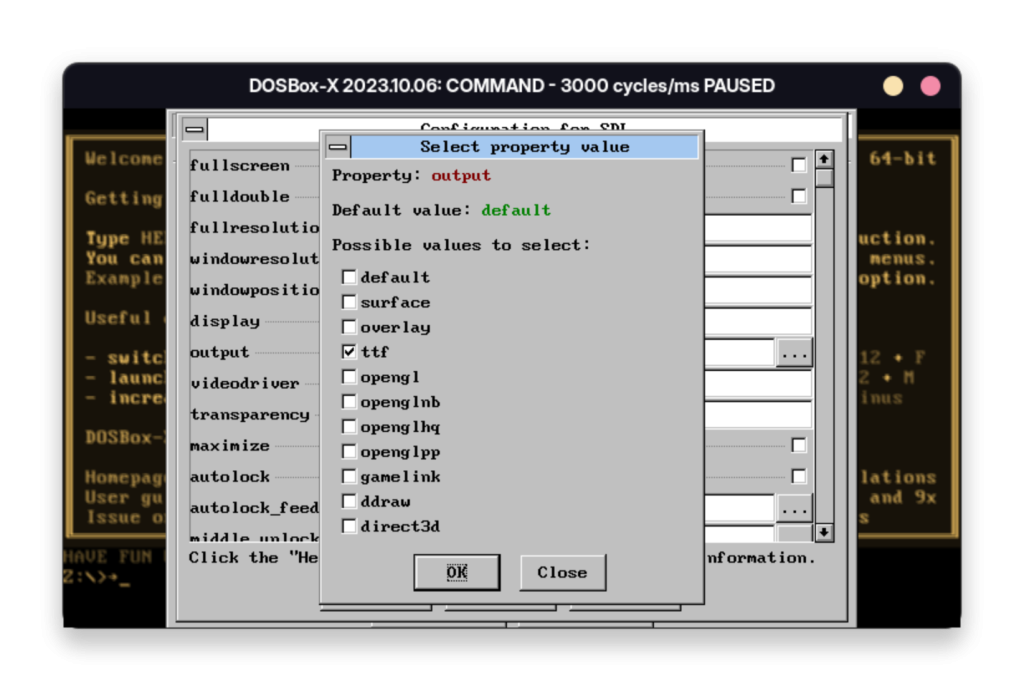
Appearance settings change the interface without changing DOS drive mapping or application compatibility.
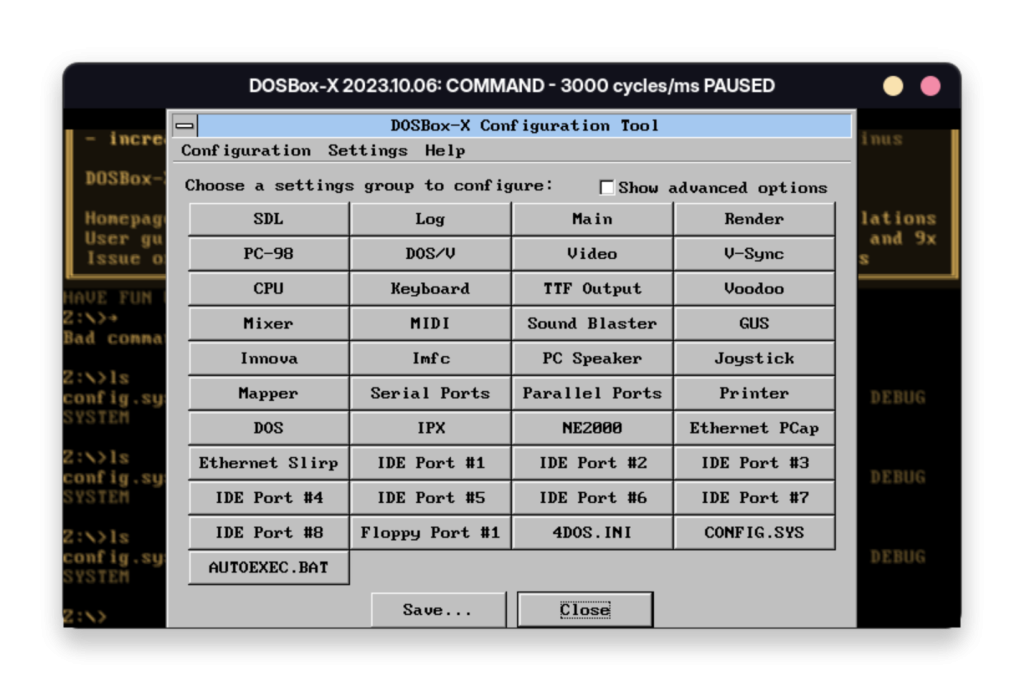
Open AUTOEXEC.BAT when the same C drive should appear whenever DOSBox-X starts.
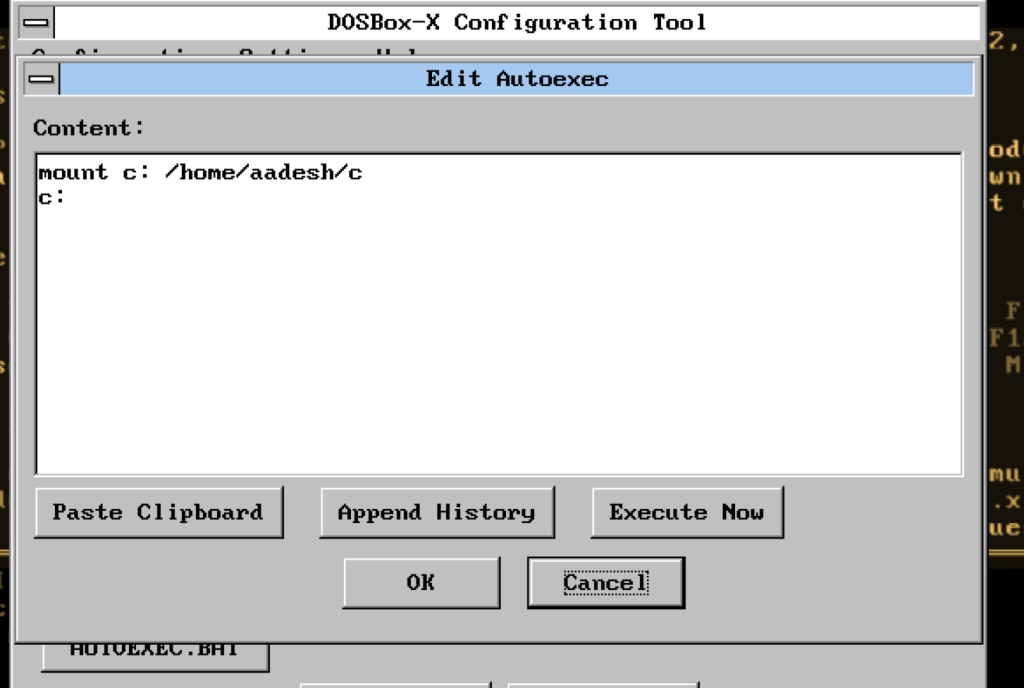
Add the mount command and the C drive switch on separate lines. Use only a directory you trust, because the emulator will receive access to that location.
Launch a DOS game or application
After C is available, move into the executable’s folder, identify its DOS filename with dir, then run that filename.
cd DOOM
DOOM.EXE
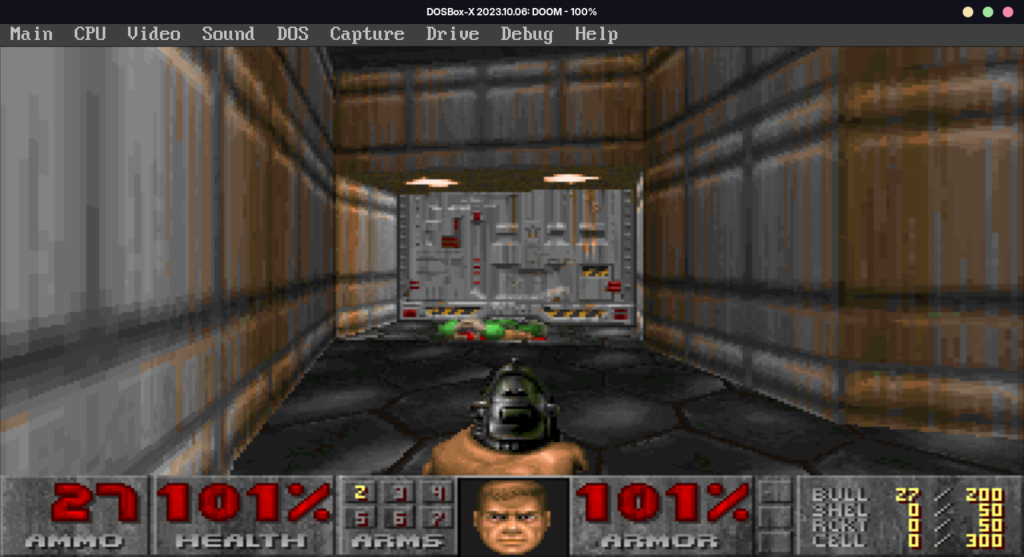
The running game window confirms DOSBox-X can read the mounted files and execute the DOS program, while each game or application controls its sound, controls, and display behavior.
Fix a missing file or wrong drive
A missing-file message usually points to a different host folder or an incorrect DOS path, so mount the intended directory again, switch to C, and inspect it with dir.
For the package-manager side of the setup, package management on Linux explains how Linux repositories and installed packages fit together. Linux command-line basics helps when you need to check a path from the shell.
Related Linux gaming tasks
DOSBox-X handles DOS programs. ProtonPlus on Linux covers compatibility-tool management for Steam games, while Moonlight on Linux serves game streaming from another machine.
If you are copying an older game directory from a Windows disk, mounting a Windows NTFS drive on Linux gives you the host-side access step before you choose the DOSBox-X folder.
FAQ
Can I install DOSBox-X on Linux with Flatpak?
Yes. Flathub publishes DOSBox-X under the application ID com.dosbox_x.DOSBox-X, which you can install with Flatpak.
Why does DOSBox-X not find my DOS game?
The game folder is not mounted as the DOS drive you are using, or the DOS path does not match the files in that folder. Mount the intended directory, switch to C, and run dir.
Can I make a DOSBox-X drive mount permanent?
Yes. Add the mount command and the C drive switch to the AUTOEXEC.BAT startup commands through the configuration tool when you always use the same folder.
Install DOSBox-X, mount the folder that holds your DOS files, and check its contents with dir before launching the executable. That sequence separates an installation issue from a DOS path issue.