
Running a project in containers on a Raspberry Pi starts with installing packages that match the Pi’s operating system. Docker Engine runs containers, and Docker Compose starts related services from a project file.
I’ll show how to check the Pi’s architecture and install Docker Engine with the Compose plugin from the matching Docker repository.
TL;DR: Install Docker Engine and Compose from Docker’s repository
Install Docker Engine and the Compose plugin from Docker’s apt repository, using the repository that matches your Raspberry Pi OS architecture.
- For 32-bit Raspberry Pi OS, use Docker’s Raspberry Pi OS instructions for armhf.
- For 64-bit Raspberry Pi OS, follow Docker’s Debian arm64 instructions.
- Install docker-compose-plugin with the Docker Engine packages. Run docker compose version to check the plugin.
What Docker Engine and Compose do on a Raspberry Pi
Docker Engine runs containers on the Pi. Docker Compose reads a project file and starts its related services through the same Docker Engine.
Compose is a plugin for the Docker command line, so the current command is docker compose with a space. Older guides may show the separate docker-compose command or a Python installation. The steps below use Docker’s repository package instead.
| Component | Role |
|---|---|
| Docker Engine | Runs containers and manages images, networks and volumes. |
| Docker Compose plugin | Lets the Docker CLI start and manage services defined in a Compose file. |
Install Docker Engine and Compose on Raspberry Pi
First identify the Pi’s OS architecture. Docker’s Raspberry Pi OS repository instructions apply to 32-bit armhf. For 64-bit arm64 Raspberry Pi OS, Docker directs readers to its Debian instructions.
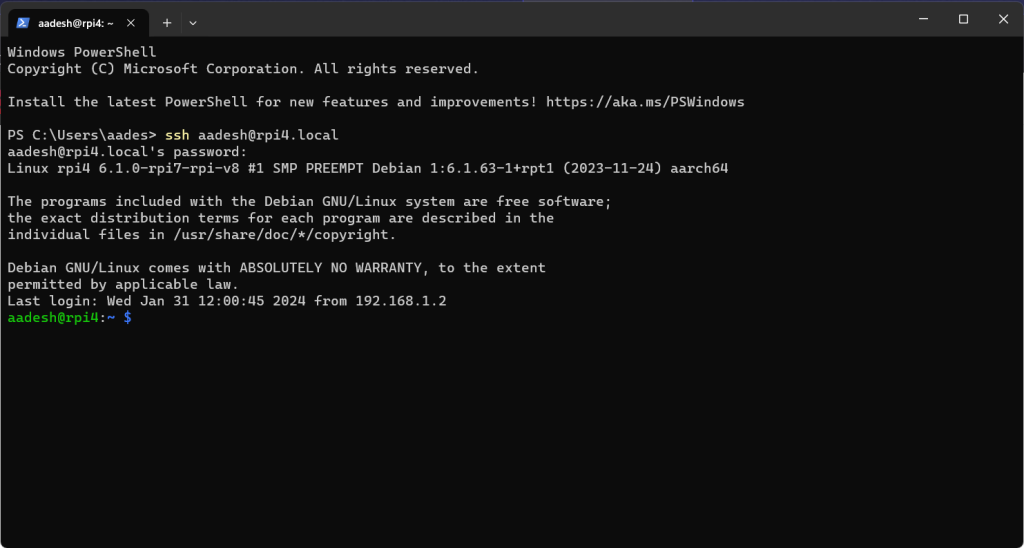
Step 1: Check the Pi’s architecture and OS release
Run these commands on the Pi to identify its package architecture and OS codename before adding a repository.
dpkg --print-architecture
. /etc/os-release && printf '%s %s\n' "$ID" "$VERSION_CODENAME"
Use the Raspberry Pi OS instructions when the architecture is armhf. If the Pi reports arm64, use the Debian instructions and its Debian-compatible release codename. Docker lists Bookworm 12 and Trixie 13 for Debian packages.
Step 2: Configure the Docker apt repository
Follow just one branch. The signing key and repository URL differ between Raspberry Pi OS armhf and Debian arm64, so do not combine the two sets of commands.
For 32-bit Raspberry Pi OS, run Docker’s documented Raspberry Pi OS repository setup. It downloads the signing key and uses the system’s architecture and release codename when it adds the apt source.
sudo apt-get update
sudo apt-get install ca-certificates curl
sudo install -m 0755 -d /etc/apt/keyrings
sudo curl -fsSL https://download.docker.com/linux/raspbian/gpg -o /etc/apt/keyrings/docker.asc
sudo chmod a+r /etc/apt/keyrings/docker.asc
echo \
  "deb [arch=$(dpkg --print-architecture) signed-by=/etc/apt/keyrings/docker.asc] https://download.docker.com/linux/raspbian \
  $(. /etc/os-release && echo "$VERSION_CODENAME") stable" | \
  sudo tee /etc/apt/sources.list.d/docker.list > /dev/null
sudo apt-get update
For 64-bit Debian-based Raspberry Pi OS, use Docker’s Debian repository setup instead. This current Debian source format records the detected architecture and release codename.
sudo apt update
sudo apt install ca-certificates curl
sudo install -m 0755 -d /etc/apt/keyrings
sudo curl -fsSL https://download.docker.com/linux/debian/gpg -o /etc/apt/keyrings/docker.asc
sudo chmod a+r /etc/apt/keyrings/docker.asc
sudo tee /etc/apt/sources.list.d/docker.sources <<EOF
Types: deb
URIs: https://download.docker.com/linux/debian
Suites: $(. /etc/os-release && echo "$VERSION_CODENAME")
Components: stable
Architectures: $(dpkg --print-architecture)
Signed-By: /etc/apt/keyrings/docker.asc
EOF
sudo apt update
The key is stored under /etc/apt/keyrings, and apt uses it to verify packages from Docker’s repository. The repository setup uses curl to download a file for Docker’s signing key. The next command installs Engine, its CLI, and the Compose plugin together.
Step 3: Install Docker Engine and the Compose plugin
After the repository setup completes, install the packages. Check Docker’s list of conflicts before removing anything from an existing setup. Removing packages does not automatically remove Docker’s stored data.
sudo apt-get install docker-ce docker-ce-cli containerd.io docker-buildx-plugin docker-compose-plugin
The docker-compose-plugin package adds the docker compose subcommand. Docker starts its service automatically on Debian-based systems. Check the service if the CLI cannot reach the daemon.
Step 4: Verify Docker and Compose
Check the service first, then run Docker’s hello-world container. These checks verify that the daemon is active and can start a container.
sudo systemctl status docker
sudo docker run hello-world
The service status should show Docker running. The hello-world image prints a confirmation and exits. That checks more than the CLI version alone.
Now check the Compose plugin. I ran this version command during this refresh and got Docker Compose version v5.5.1 on the run host. Your Pi may show a different version.
docker compose version

Check architecture support and Docker permissions
Docker’s package support depends on both the CPU architecture and OS release. The documented Raspberry Pi OS apt path is for Bookworm or Bullseye armhf, while the 64-bit path follows Debian’s supported releases.
- Docker Engine v28 is the last major version with packages for Raspberry Pi OS 32-bit armhf. Docker says new major versions from v29 will not include those packages.
- Docker’s official packages do not support ARMv6 devices such as Raspberry Pi 1 or Raspberry Pi Zero and Zero W.
- Docker publishes arm64 packages for supported Debian releases. Check the release codename against Docker’s Debian requirements before adding the source.
If you publish container ports, Docker’s firewall behavior also matters. Docker warns that exposed container ports can bypass ufw and firewalld rules, so review Docker’s firewall guidance before exposing a service beyond the Pi.
Docker commands need root access by default. You can use sudo, or add your account to the Docker group and sign in again. That group grants root-level privileges, so only add trusted accounts.
sudo usermod -aG docker "$USER"
New group membership does not change an existing login session. Log out and back in, or run newgrp docker to open a shell with the new group. Check the account’s membership with our guide to checking a user’s groups, or see how to list Linux groups.
Prepare the Pi with our guide to updating Raspberry Pi OS. Check an existing setup before removing packages. Our guide to removing packages with apt explains that task.
What to do next with Docker Compose
Installing from Docker’s repository lets apt manage Compose alongside Engine. When you want to update the installed packages, refresh apt’s index and install the package set again.
sudo apt-get update
sudo apt-get install docker-ce docker-ce-cli containerd.io docker-buildx-plugin docker-compose-plugin
After the install, run docker compose version again to confirm that the CLI still finds the plugin. For a multi-container project, the next task is writing a Compose file for the services you want to run.
Conclusion
Choose the repository for the Pi’s architecture, install Docker Engine with the Compose plugin, then verify both the daemon and the docker compose command. Before exposing a service, review Docker’s firewall guidance and decide whether trusted local accounts should have Docker group access.
For the next step, write a Compose file for your services and follow Docker’s Compose documentation.
Frequently asked questions
These answers cover the package choice and command names that commonly differ between older tutorials and Docker’s current instructions.
How do I install Docker Compose on a Raspberry Pi?
Set up the matching Docker apt repository, then install docker-compose-plugin with Docker Engine. Run docker compose version to check the plugin.
Are Docker Engine and Docker Compose the same thing?
No. Docker Engine runs containers. Compose is a Docker CLI plugin that manages services described in a Compose project file.
Should I use docker-compose or docker compose?
Use docker compose with a space when following Docker’s current plugin installation instructions. Older tutorials may use the separate docker-compose command.