
mGBA runs Game Boy, Game Boy Color, and Game Boy Advance software on Linux through Flatpak or a current AppImage from the official mGBA downloads page.
Choose an installation route that fits your system
The official downloads page lists mGBA 0.10.5, x86_64 and ARM64 AppImages, and Ubuntu archives. Flathub publishes the application as io.mgba.mGBA.
Install mGBA with Flatpak
Choose Flatpak when you want the same application package across distributions and Flathub is already configured. The Flathub listing for io.mgba.mGBA identifies the package that Flatpak installs.
flatpak install flathub io.mgba.mGBA
Start it from your desktop launcher or run the application ID directly from a terminal.
flatpak run io.mgba.mGBA
The application ID matters because it tells Flatpak exactly which package to launch. Linux package management is worth understanding when you want to compare a Flatpak with a distribution package.
Use the official AppImage when you want one portable file
Download the AppImage for your CPU architecture from the official downloads page. This command uses the current x86_64 release filename.
chmod +x mGBA-0.10.5-appimage-x64.appimage
./mGBA-0.10.5-appimage-x64.appimage
The first command grants execute permission and the second starts that file. See how chmod works if file permissions are unfamiliar, and use the Linux file system guide to keep downloaded applications and game files in locations you can find later.
Load a game file and set controls
In mGBA, choose File, then Load ROM, select a game file you are permitted to use, and keep that file in a predictable folder so saves remain easy to back up and find.
Set the controls first. Before beginning a longer session, open Settings and choose Keyboard or Controllers so the controls are ready when the game loads.
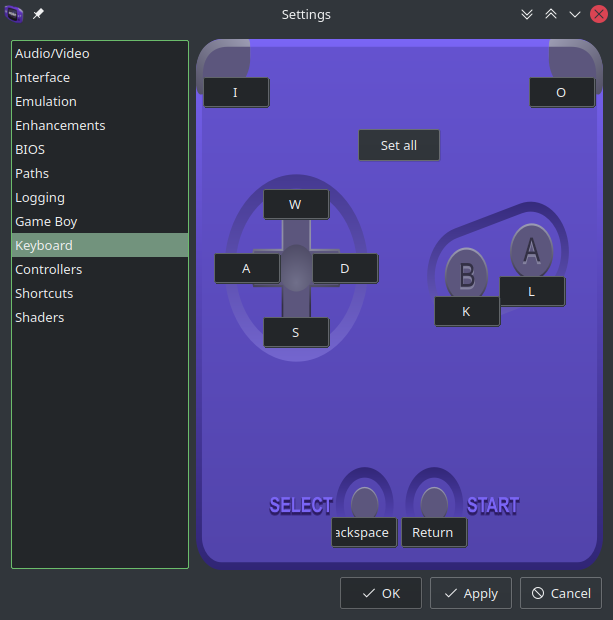
The Keyboard panel shows each binding and lets you capture a replacement key while the control is selected. Apply the change before closing the window.
Know the boundaries before adding a game file
mGBA does not supply games or BIOS files. Use only files you are entitled to use, and check a game’s requirements before adding optional BIOS files or relying on a save-state format.
The Linux command line guide helps you move into the download directory and check filenames before you start an AppImage. Installing and using a Linux session explains why a desktop launcher or input service may behave differently across sessions.
Verify the setup
- mGBA opens from the launcher or the command you chose.
- A game file you are allowed to use loads from File, then Load ROM.
- Keyboard or controller bindings respond in the game.
- You know where mGBA stores your saves before relying on them.
Use the Flatpak route when you want distribution-independent updates. Use the official AppImage when you want a portable build that stays in the folder you choose.