

Install draw.io Desktop when you need to open and edit diagrams without depending on a browser session. On Ubuntu and most Linux desktops, Flatpak is the clearest route because Flathub publishes the current stable application as com.jgraph.drawio.desktop.
Choose an installation method
draw.io Desktop is the offline desktop editor from diagrams.net. It stores diagrams where you choose, but offline editing does not automatically make a shared file private. Check the storage location and sharing settings for the service you use.
| Method | Use it when | Update path |
|---|---|---|
| Flatpak | You have Flatpak and Flathub available | Update with Flatpak |
| Snap | Your distribution has snapd configured | Update with Snap |
| Official release | You need a Debian, RPM, or AppImage package | Download a newer release yourself |
Pick one method. Installing more than one copy makes launchers and update checks harder to understand, while each route runs the same draw.io Desktop family.
Install draw.io on Ubuntu with Flatpak
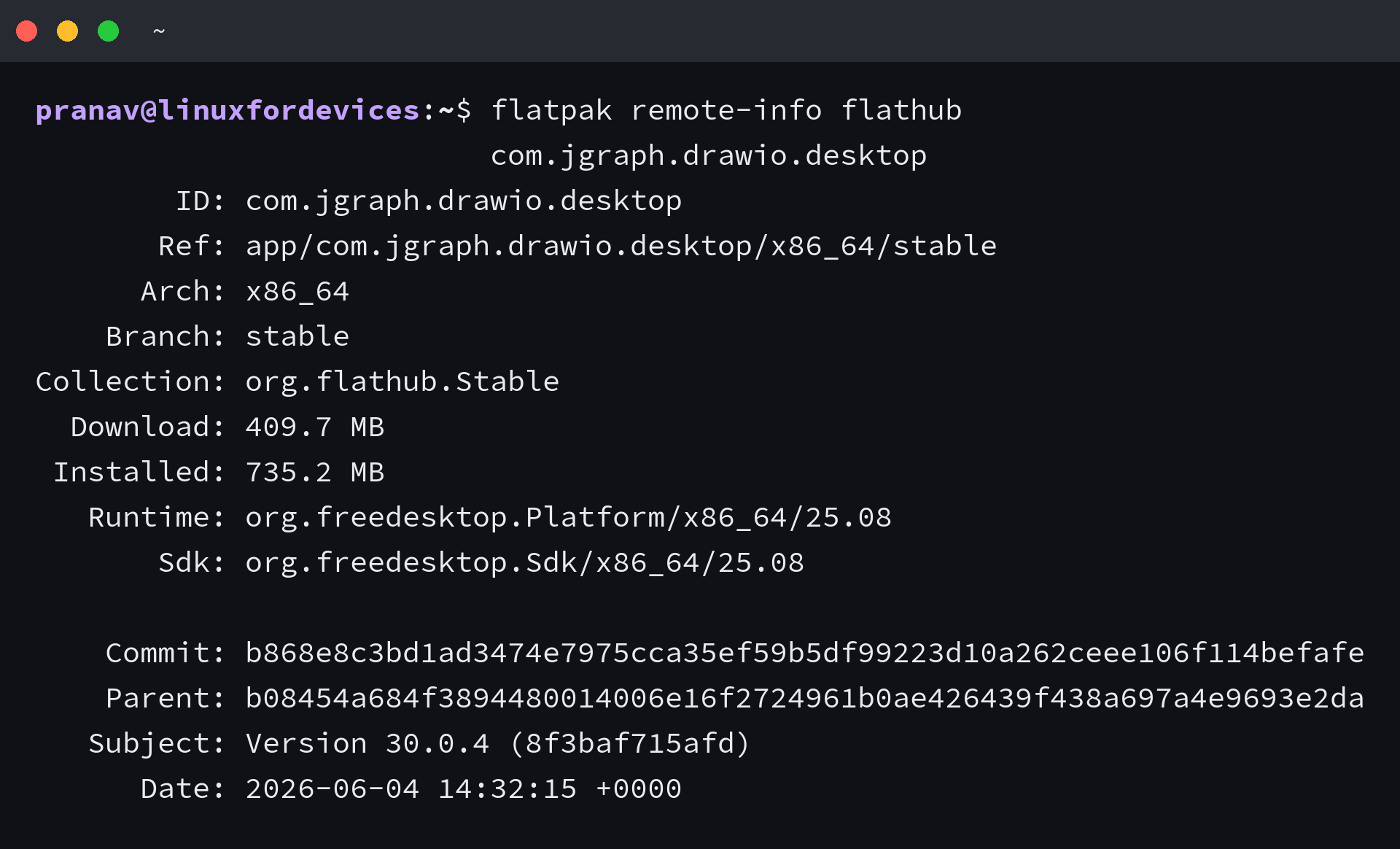
Flatpak is the best starting point when your system already has the Flathub remote. The published app ID is com.jgraph.drawio.desktop, which matters because searching for drawio can return related packages instead of the desktop editor.
flatpak install flathub com.jgraph.drawio.desktop
Confirm the prompt, then launch the installed app from your desktop menu or from the terminal.
flatpak run com.jgraph.drawio.desktop
Flatpak keeps the application and its runtime under Flatpak management. Update draw.io later with the same application ID so you do not update an unrelated package.
flatpak update com.jgraph.drawio.desktop
Use the Snap package when snapd is available
The Snap Store lists draw.io under the drawio package name for systems with snapd.
sudo snap install drawio
Use Snap only if your system already supports snapd or your distribution documents it as a supported package system.
Download an official Linux release when you need a native package
The official draw.io Desktop release page publishes Debian packages, RPM packages, and AppImages for Linux. Select an asset that matches your distribution package format and CPU architecture, then use your distribution’s package-installation guidance.
This route gives you direct control over the installer file, but it also makes update checks your responsibility. Do not copy an old versioned download URL from a forum post because release asset names change.
Check that draw.io opened correctly
When draw.io Desktop opens its template picker and saves a local blank diagram, you have confirmed that the installed desktop editor started rather than the browser version.
If Flatpak reports that Flathub is unknown, add the Flathub remote through your distribution’s documented setup process before retrying. For folder or cloud-account access failures, inspect Flatpak permissions and account settings before reinstalling.
Which method should you use?
Choose Flatpak when Flathub is available and you want one stable app ID with managed updates. Choose Snap only on a system that supports snapd, or use official release assets when your workflow calls for a .deb, .rpm, or AppImage.
Start with one installation method, open a blank diagram, and save a test file before moving production diagrams into the editor. Offline editing does not define how a shared file is stored or shared.