
The same desktop appearance greets you each time you sign in, even when you’d like a change. Cinnamon is a Linux desktop environment whose settings let you change its appearance and panel.
This article walks through choosing a theme and setting up the panel with an applet.
TL;DR
Cinnamon’s native settings control the desktop’s appearance and panel, while Cinnamon Spices provides optional additions for a specific task.
- Open System Settings, then Themes, to choose a desktop appearance.
- Right-click the panel to reach its settings and edit controls.
- Open Applets to add one panel tool, then check its position before adding another.
What Is the Cinnamon Desktop?
Cinnamon is a Linux desktop environment developed by Linux Mint and packaged with different defaults by other distributions.
Linux Mint’s download page lists version 22.3, codename Zena. The version details here refer to Mint, since other distributions can package Cinnamon with different defaults.
A theme changes the desktop’s appearance, while an applet adds a small control to the panel.
| Component | Where it appears | Use it for |
|---|---|---|
| Theme | Desktop interface | Changing the Cinnamon look |
| Applet | Panel | Adding a compact panel control |
| Desklet | Desktop surface | Showing a small desktop tool |
| Extension | Cinnamon session | Changing desktop behavior |
| Action | Nemo file manager | Adding a file context-menu task |
The Linux Mint Developer Guide traces Cinnamon from GNOME 3 extensions into its own desktop project. Its early extensions restored a panel, system tray, application menu and window list. After login, the session manager starts the visible Cinnamon process and nemo-desktop, which handles desktop icons and the desktop context menu.
Nemo opens when you browse files and stays active while a file-manager window is open. XApps include Xed, Xviewer and Xreader, generic programs intended to work across traditional GTK desktops. Linux Mint designed them to share features across editions, and they remain applications rather than Cinnamon Spices add-ons.
Cinnamon 6.6’s menu preferences let users hide sidebar sections and reposition the search bar or system buttons. The theme selector groups themes by family and variant.
How to Customize the Cinnamon Desktop Step by Step
Use the sequence below to change the appearance and panel before adding a Cinnamon component.
Step 1: Choose a Cinnamon theme
Open the application menu and choose System Settings. Select Themes to change the desktop appearance before adjusting icons or pointer artwork.
Its page shows theme previews and search controls.
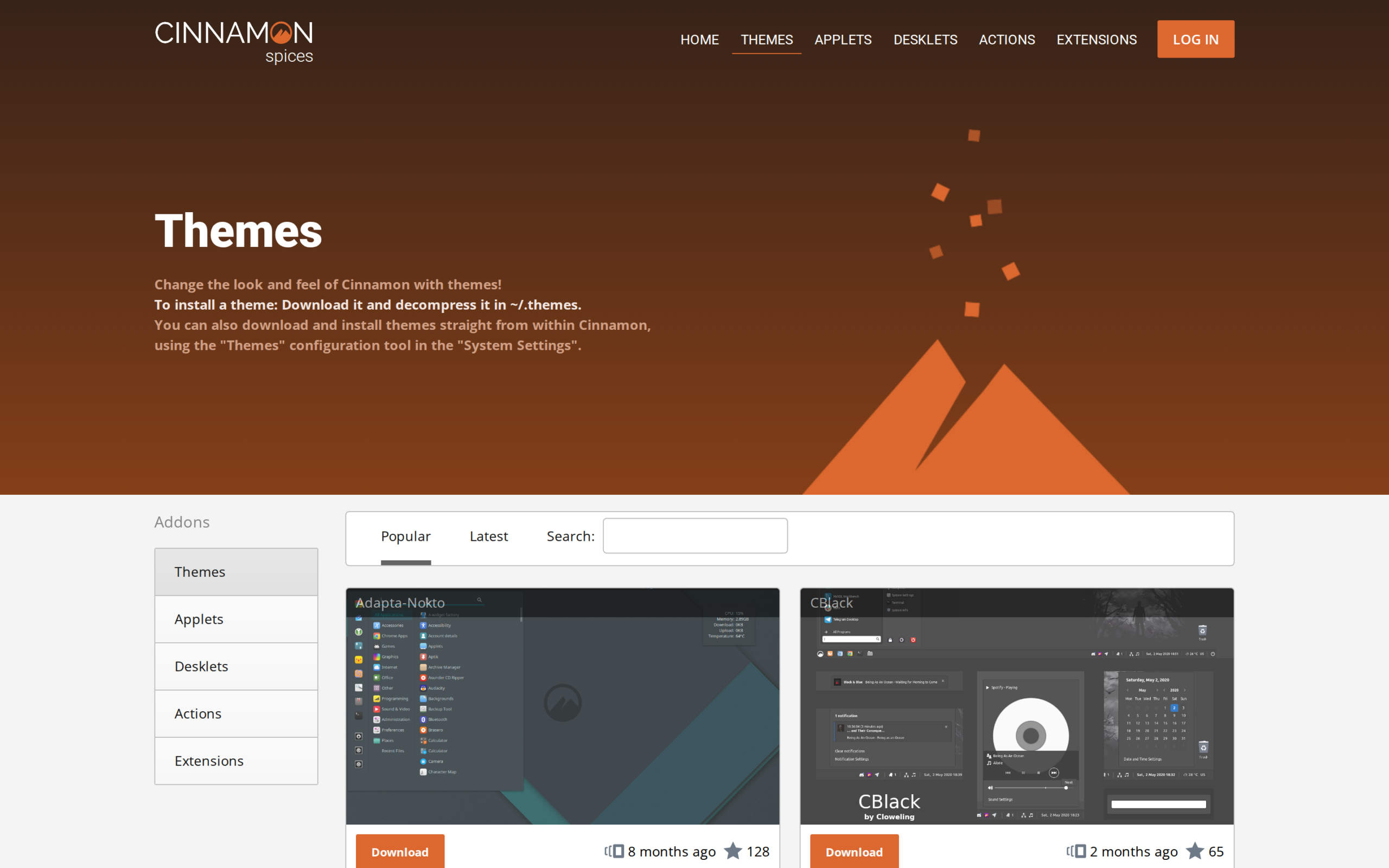
The catalog’s theme instructions say to unpack a downloaded theme in ~/.themes, then select it from Cinnamon’s Themes tool. Keeping it in your home directory avoids changing shared system files.
Open a theme listing to see its author, UUID, last-edited date and README. The README can explain which files or installation steps the theme needs. A preview alone does not establish compatibility with the Cinnamon version on your computer.
The CBlack entry describes its included GTK theme, which can affect application appearance beyond Cinnamon’s panel.
| Theme choice | What it changes |
|---|---|
| Cinnamon desktop | Panels, menus and desktop controls |
| Application | Application controls and window appearance |
| Icons or pointer | Application icons or mouse cursor artwork |
Keep the default available while you compare a new theme. Return to that choice in the Themes tool if a control becomes difficult to read.
Step 2: Set the panel layout
Right-click an empty part of the panel and open Panel settings to adjust its visibility and size. Change one control, then use the desktop for a moment before moving to another option.
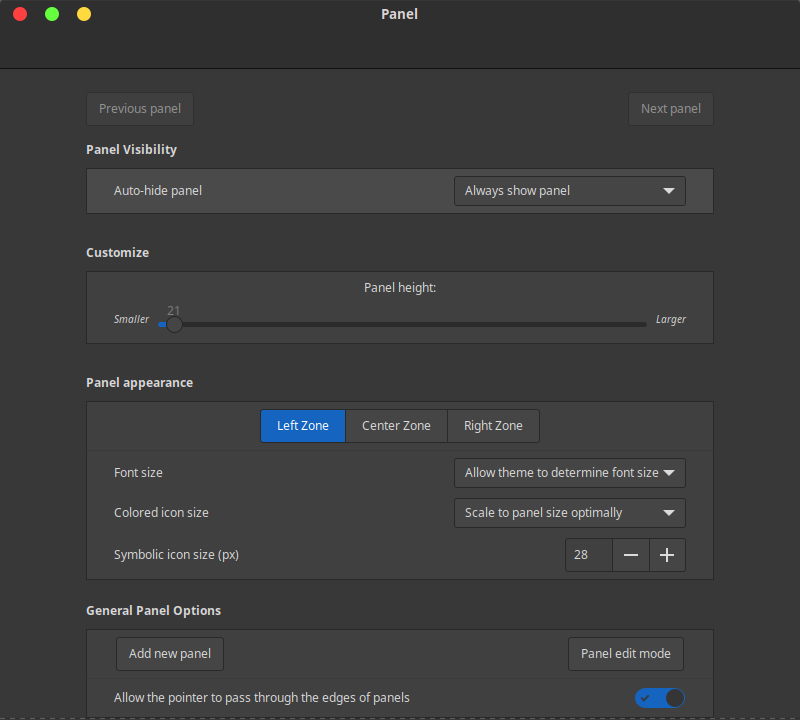
Panel edit mode lets you move items between colored zones. To move the panel itself to another screen edge, use its placement control in Panel settings.
Drop an applet in the target zone to place it. Auto-hide changes when the panel appears, while height controls its screen footprint.
Auto-hide changes when the panel appears, while height controls its screen footprint. A fixed panel suits a workflow that depends on visible launchers. View the result with a maximized window.
Step 3: Add and arrange an applet
Open Applets from the panel menu or System Settings. In Download, select an applet and click Install. Open Manage, select its entry and press the plus button to add it to the panel.
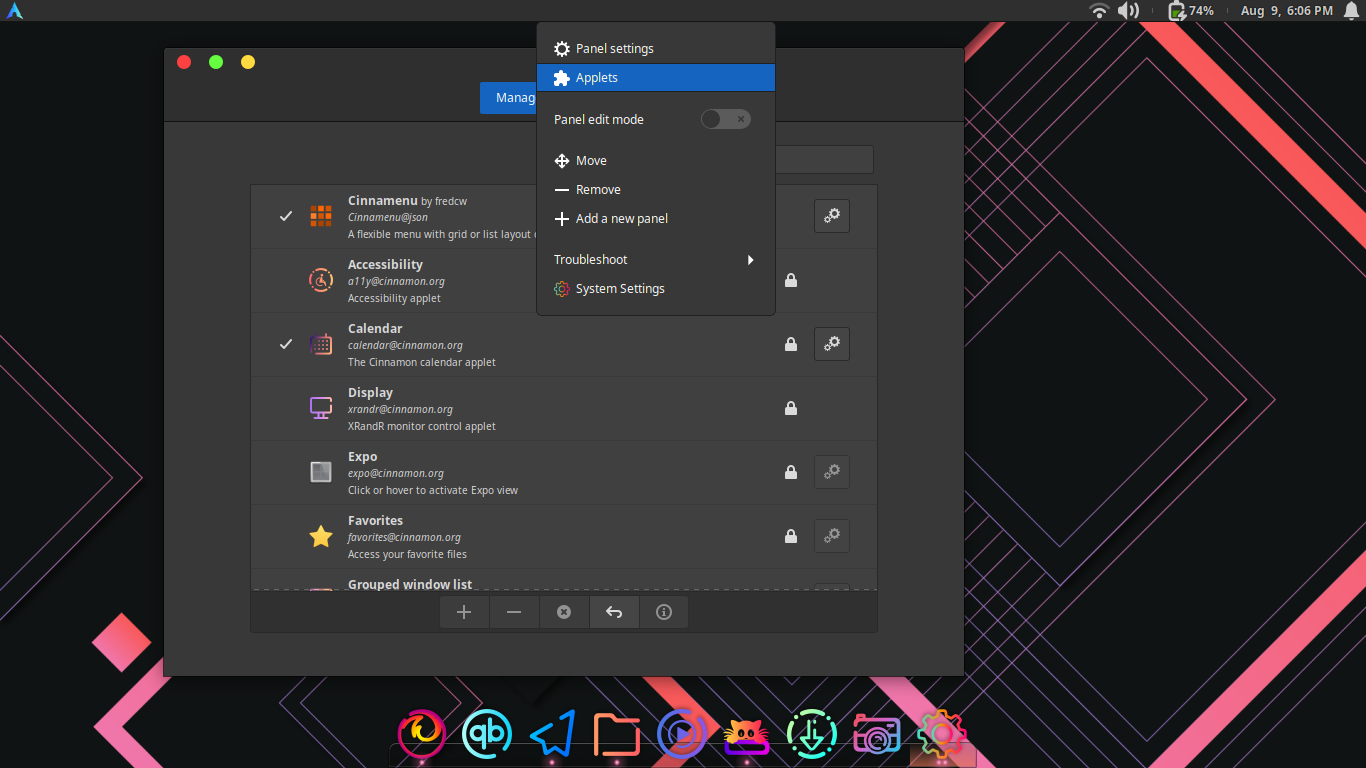
If an applet has a Preferences entry, open it to change that item’s behavior without adding another panel control.
Installing an applet and adding it are separate actions. Download puts it in Manage, and the plus button places it on the panel.
Read an applet’s description before adding it. The official Cassia Window List entry describes a window-list applet that requires Cinnamon 4.0 and recommends 6.0. If it does not appear, check the active panel and its zone before installing it again.
Step 4: Add other Cinnamon Spices only when needed
Open the Desklets or Extensions tool from System Settings when the task belongs on the desktop or changes Cinnamon’s behavior. Browse the matching category in the official Cinnamon Spices catalog. Manual downloads place desklets in ~/.local/share/cinnamon/desklets and extensions in ~/.local/share/cinnamon/extensions, under the user’s home directory.
A Nemo action adds a command to the file manager’s context menu when you right-click a file.
Common Problems When Customizing Cinnamon
When a theme, applet or panel change is missing, check the selected component and the active session before reinstalling anything.
| Symptom | Check | Next action |
|---|---|---|
| A theme changes applications but not the panel | Theme category | Choose the Cinnamon desktop category |
| A downloaded theme is missing | ~/.themes | Confirm extraction, then reopen Themes |
| An applet is absent | Manage list and active panel | Select it and use the plus control |
| Settings labels differ | Active session | Confirm that Cinnamon is running |
This check also helps when applications change but the panel does not.
When Cinnamon Changes Do Not Appear
The table maps symptoms to checks, including the theme category when application controls change but the panel does not.
- For a mismatch between application and panel appearance, check the theme category.
- If a downloaded theme is missing, confirm its archive is in ~/.themes.
- For an applet in the wrong place, use Panel edit mode to move it to the right zone.
- If the labels differ, verify that the Cinnamon session is active.
Conclusion: Change One Cinnamon Setting at a Time
Use the built-in panel for repositioning and arranging items, then add a Spices component only when a specific task calls for it.
For current release details, read the Linux Mint 22.3 notes and the Linux Mint download page. If you decide to switch sessions, compare Cinnamon and MATE or browse the Linux desktop environment overview first.
Linux Mint users considering another session can read the guides to install KDE Plasma on Mint and install Budgie on Mint. Installing another desktop is a separate change from customizing the Cinnamon session you already use.
FAQ
Cinnamon separates appearance themes from panel tools and session add-ons, so the answer depends on which part of the desktop you are changing.
Does a Cinnamon theme also change icon themes?
No. Cinnamon exposes the desktop appearance and icon theme as separate choices, so select the category you intend to change.
Where does Cinnamon store a theme installed for one user?
The official Cinnamon Spices Themes page says to unpack a downloaded theme in ~/.themes, then select it in the Themes tool.
Are Cinnamon applets and extensions the same?
No. Applets add tools to the panel, while extensions change how the Cinnamon session behaves.
How do I add an applet after downloading it?
Use Manage, select the installed entry and press the plus button. Download installs the applet; Manage adds it to the panel.