

When a network setting changes on Ubuntu, the effect can apply to the whole system or just one saved connection. IPv6 is the newer Internet Protocol Ubuntu can use alongside IPv4 to address devices and route traffic.
I’ll show you how to test a temporary change and choose a system-wide or connection-specific way to disable IPv6.
TL;DR
Use a temporary sysctl test to check whether IPv6 is involved, then choose a sysctl configuration file or GRUB kernel parameter for a lasting change and verify the active setting.
- Use a runtime sysctl change first when you are testing.
- Use a dedicated file in /etc/sysctl.d for persistent sysctl settings.
- Use NetworkManager when the change should apply to one connection profile.
- Keep a rollback path before changing boot settings.
What Is IPv6 on Ubuntu?
IPv6 is the newer Internet Protocol used to address devices and route traffic. Ubuntu can use IPv4 and IPv6 together. Turning IPv6 off changes which protocol the system can use, not just how an address is displayed.
Ubuntu can use IPv4 and IPv6 together. Disabling IPv6 changes which network protocol the system can use, not just how an address is displayed.
| Method | Scope | When it takes effect |
|---|---|---|
| sysctl -w | Kernel runtime setting | Immediately |
| NetworkManager profile | One saved connection | When the connection is activated |
| sysctl.d file | System kernel settings | When loaded, then at boot |
| GRUB parameter | Kernel boot | After updating GRUB and rebooting |
How to Disable IPv6 in Ubuntu Step by Step
Start with a read-only check, then choose a runtime test or a persistent configuration. The commands that write kernel settings or system files require administrator privileges, so run them on the Ubuntu machine you intend to change, not as an unreviewed copy-paste on a remote production host.
Step 1: Check current IPv6 addresses and kernel settings
Use ip to inspect IPv6 addresses and sysctl to read the current global setting. This check is read-only. The sysctl values report whether disabling is active, while the address list shows what interfaces currently have.
sysctl net.ipv6.conf.all.disable_ipv6 && sysctl net.ipv6.conf.default.disable_ipv6
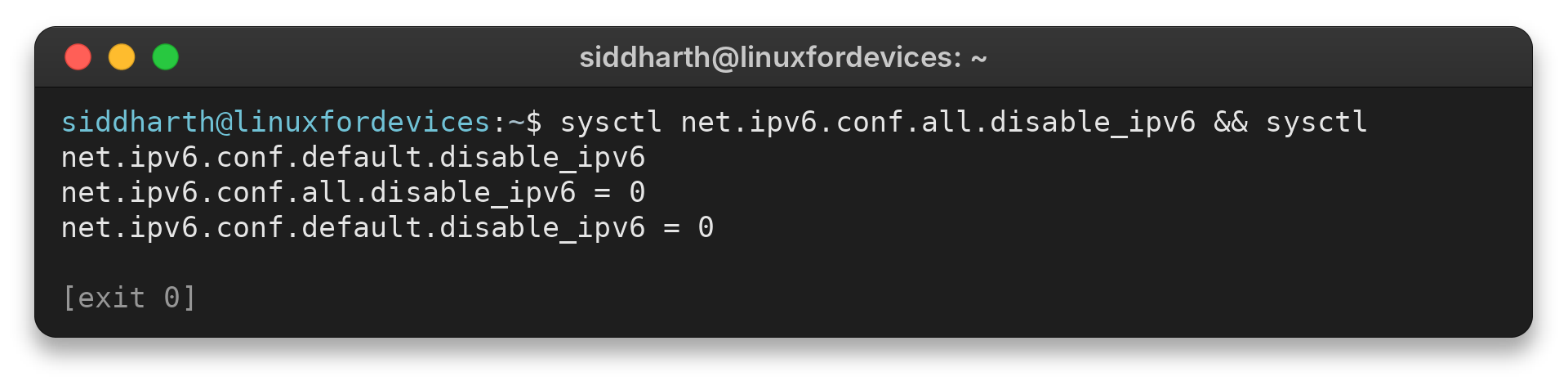
net.ipv6.conf.all.disable_ipv6 = 0
net.ipv6.conf.default.disable_ipv6 = 0
Both checks returned 0, so the disable switches are off. Link-local addresses may still appear in the address list.
Step 2: Test a temporary system-wide change with sysctl
The runtime test writes the IPv6 disable controls directly. Set the all, default, and loopback values to cover existing interfaces, newly created interfaces, and lo.
sudo sysctl -w net.ipv6.conf.all.disable_ipv6=1
sudo sysctl -w net.ipv6.conf.default.disable_ipv6=1
sudo sysctl -w net.ipv6.conf.lo.disable_ipv6=1
Read the values again and inspect addresses with ip -6 address show. This changes the running kernel and usually does not survive a reboot. Make the setting persistent only after confirming the change fits the task.
sysctl net.ipv6.conf.all.disable_ipv6
sysctl net.ipv6.conf.default.disable_ipv6
ip -6 address show
An empty-looking address result does not prove that every application or connection policy has changed. Check the affected service separately.
Step 3: Make the sysctl setting persistent
Store system-wide sysctl values in a named file under /etc/sysctl.d. A separate file can be reviewed and removed without changing a shared configuration.
sudo nano /etc/sysctl.d/99-disable-ipv6.conf
Add these lines, save the file, and load the configuration.
net.ipv6.conf.all.disable_ipv6 = 1
net.ipv6.conf.default.disable_ipv6 = 1
net.ipv6.conf.lo.disable_ipv6 = 1
sudo sysctl --load=/etc/sysctl.d/99-disable-ipv6.conf
sysctl net.ipv6.conf.all.disable_ipv6
The named-file load applies these values now. Ubuntu’s sysctl manual also documents loading the system configuration set with --system. Check other files under /etc/sysctl.d if the active value differs.
Step 4: Use a GRUB kernel parameter when you need a boot-level change
The ipv6.disable=1 kernel parameter disables IPv6 earlier in the boot process than a runtime sysctl setting. Choose this only when that boot-time scope is required, because changing GRUB requires regenerating its configuration and restarting the machine.
Edit the existing GRUB_CMDLINE_LINUX_DEFAULT line in /etc/default/grub and append the parameter inside its existing quotes. Preserve other arguments already on the line.
sudo nano /etc/default/grub
GRUB_CMDLINE_LINUX_DEFAULT="quiet splash ipv6.disable=1"
The example shows the parameter alongside common options. Keep existing options rather than replacing them blindly. Then regenerate the GRUB menu and reboot during a maintenance window.
sudo update-grub
sudo reboot
After the machine starts, check /proc/cmdline for ipv6.disable=1. Then inspect IPv6 addresses. Remove the parameter from GRUB and run update-grub again to reverse this boot-time setting.
Step 5: Disable IPv6 for one NetworkManager connection
If the requirement applies to one saved network connection rather than every interface on the system, set that NetworkManager profile’s IPv6 method to disabled. Find the exact connection name first. A profile name may differ from the Wi-Fi network name.
nmcli connection show
nmcli connection modify "Wired connection 1" ipv6.method disabled
Replace Wired connection 1 with the exact profile name shown in the first command. Reactivating the profile may be needed before its new setting takes effect, and doing so can interrupt the network session. To restore automatic IPv6 configuration on that profile, set ipv6.method back to auto.
nmcli connection modify "Wired connection 1" ipv6.method auto
What to Check After Disabling IPv6
Compare the available methods in the table before applying a change. Each row lists its scope and trade-off.
| Situation | Method | Trade-off |
|---|---|---|
| Testing a suspected IPv6 issue | sysctl -w | Runtime change. Restore values or reboot |
| One saved connection should not use IPv6 | NetworkManager ipv6.method | Reactivating can interrupt network access |
| System-wide setting should persist | sysctl.d file | Later configuration can override this value |
| IPv6 must be disabled from kernel boot | GRUB ipv6.disable=1 | Requires a GRUB update and reboot |
To undo the runtime test, write 0 to each value changed. Remove or edit the sysctl file separately and reload configuration. For GRUB, remove the parameter and regenerate the menu before rebooting.
Reversing one layer does not undo another.
sudo sysctl -w net.ipv6.conf.all.disable_ipv6=0
sudo sysctl -w net.ipv6.conf.default.disable_ipv6=0
sudo sysctl -w net.ipv6.conf.lo.disable_ipv6=0
sudo rm /etc/sysctl.d/99-disable-ipv6.conf
The rm command deletes the named file, so use it only if you created that file. Removing it does not reset values already written to the running kernel. Set those values back to 0, then check them.
A forum thread describes switching IPv6 off during APT work and restoring it afterwards. When APT alone fails, inspect the repository address and the network path before changing the host-wide protocol setting. Do not assume a global sysctl setting is required for every APT connection issue.
The Linux kernel networking documentation describes per-interface IPv6 controls, while the Ubuntu sysctl manual explains how settings are read and loaded. Use those references when a host has custom networking or when a distribution-specific configuration layer may override a setting.
Common Issues and What to Check Next
If the setting does not appear to take effect, check which layer controls it and whether a later configuration overrides it. I keep the check read-only until the source of the mismatch is clear.
A sysctl value returns to zero
Read the active values after startup, then inspect the files that assign them. A later file can override an earlier value. Use a distinct filename and review the loaded configuration before editing another setting.
grep -R "net.ipv6.conf.*disable_ipv6" /etc/sysctl.conf /etc/sysctl.d
The command prints matching assignments in the usual sysctl configuration locations. Check which paths exist if an optional file is absent.
A NetworkManager profile does not change immediately
Confirm that the intended saved profile was edited and is active. Reactivation can interrupt remote access. Use a local session or a second connection when network continuity matters.
nmcli connection show --active
nmcli connection down "Wired connection 1" && nmcli connection up "Wired connection 1"
SSH access or a package download stops working
A protocol-wide change can affect remote access as well as the application being tested. If only one client fails, inspect its route, resolver, proxy, or server configuration before widening the change.
ip -6 route
getent ahosts archive.ubuntu.com
Keep a second access path before changing a remote host. After the change, repeat the read-only checks and test the affected service before relying on the new setting.
Conclusion: Choose the Narrowest Change
Match the change to its scope: use a temporary sysctl test, a connection-specific NetworkManager profile, a persistent sysctl file, or a GRUB parameter. Verify the active values and keep the rollback steps for that method.
- How to restart a Linux system
- How to use the nano editor in Linux
- Ubuntu sysctl manual
- Linux kernel IP sysctl documentation
FAQ
How do I temporarily disable IPv6 on Ubuntu?
Use sudo sysctl -w net.ipv6.conf.all.disable_ipv6=1 and set default.disable_ipv6 and lo.disable_ipv6 to 1 as needed. Runtime sysctl values do not provide a persistent configuration across reboot.
How do I re-enable IPv6 after using sysctl?
Write 0 to the same net.ipv6.conf values you changed, then verify them with sysctl. Also undo any persistent sysctl.d or GRUB change separately.
Can I disable IPv6 only for one Ubuntu connection?
Yes. Set the relevant NetworkManager connection profile’s ipv6.method to disabled, using its exact name from nmcli connection show. Restore auto to enable automatic IPv6 on that profile again.