

On Fedora and other systems that install software as RPM packages, a program you no longer need is removed through the same package manager that installed it. Running yum remove takes the package out, and yum shows you every package it plans to remove before anything changes.
The steps below cover finding a package’s exact name, then removing single packages or whole package groups.
What is YUM package removal?
YUM is a command-line interface for managing software packages on RPM-based Linux systems. Its remove operation asks the package manager to resolve a change to the installed package set before applying it.
On RHEL 8, Red Hat documents package operations under YUM, while current DNF documentation describes a closely related command interface. See the Yum command reference for other subcommands and the DNF command reference for its current removal rules.
| Command form | Task |
|---|---|
| yum remove package_name | Request removal of one named package. |
| yum remove package_one package_two | Request removal of several named packages in one transaction. |
| yum autoremove | Find packages installed as dependencies that are no longer needed, where supported. |
Prerequisites for removing a package
Before you start, make sure the machine has an RPM-based distribution and a working Yum command. If it only provides DNF, use dnf with the same supported subcommands instead.
- Know the installed RPM package name. A desktop application label can differ from the package name shown by the package manager.
- Use an account allowed to change system packages. If your account has the required policy, run administrative commands with sudo. The sudo permissions guide explains how that authorization works.
Remove packages with YUM
First find the installed package name, then review the package list Yum prepares before accepting the removal transaction.
Step 1: Find the installed package
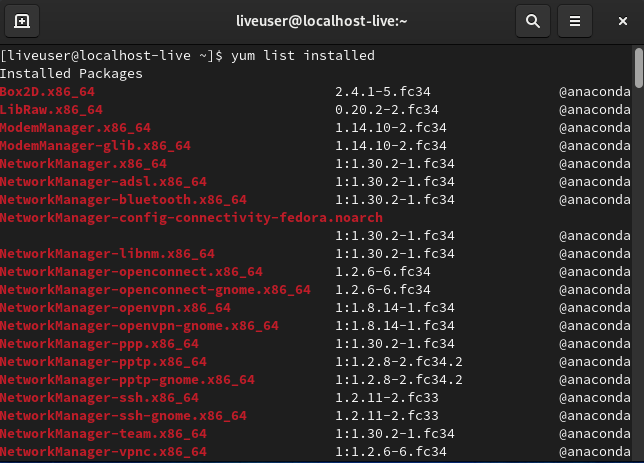
List installed packages to find the name that Yum recognizes. When you know a distinctive part of the name, filter the list with grep.
yum list installed
yum list installed | grep firefox

Step 2: Request removal of one package
Pass the installed package name to remove. This example uses the package name and architecture displayed in the screenshot.
sudo yum remove firefox.x86_64
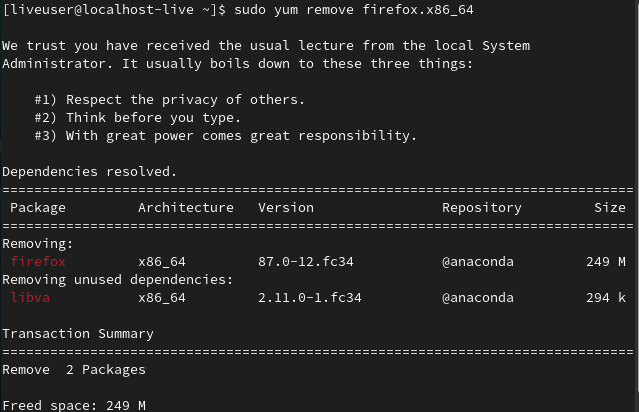
The package manager may include packages that depend on the target or dependencies it considers unused. Cancel if the proposal contains something you intend to keep.
Step 3: Request removal of multiple packages
Give each package name as a separate argument. Yum resolves them together and shows one proposed transaction.
sudo yum remove firefox.x86_64 gnome-maps.x86_64
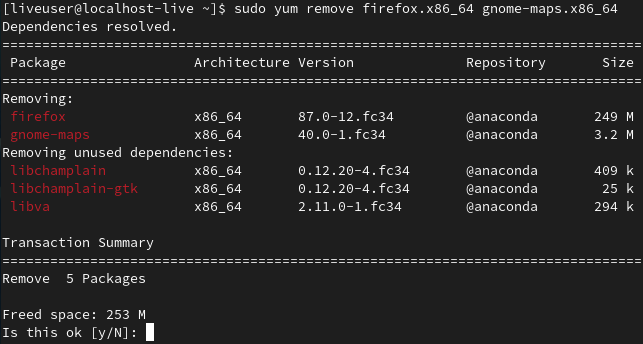
Use this form only when you want both named packages removed. Yum’s confirmation prompt is the point to check every additional package before the transaction runs.
Remove a package group
A package group is a named collection of packages, so removing one is broader than removing a single application. Look up its exact group name before requesting the change.
Step 1: Inspect the available groups
List known groups, then inspect the one you intend to remove. Replace the sample group name with the exact name reported by your system.
yum group list
yum group info "Development Tools"
Step 2: Request removal of the group
Group removal can affect the packages selected by that group. Check the proposed list carefully, especially when another task still relies on one of its packages.
sudo yum group remove "Development Tools"
If you prefer a graphical review of package actions on Fedora, Yum Extender NG provides a package queue to inspect before applying changes.
Remove unused dependencies safely
An unused dependency is a package that was installed to support other software but is no longer needed by installed packages. Current DNF documentation says this cleanup is enabled by default for packages installed as dependencies, while older Yum behavior can vary by version and configuration.
Where supported, autoremove without a package name finds orphaned dependencies, while DNF’s package-specific form requests the named removal with dependency cleanup.
sudo yum autoremove firefox.x86_64
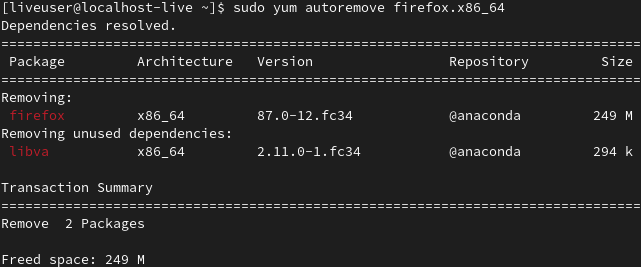
The DNF configuration reference sets automatic cleanup for no-longer-needed dependency packages by default, not packages explicitly requested by the user.
Verify the package state
After the transaction completes, query the installed-package database for the name you removed. A matching entry means that package is still installed, so check the transaction result before trying again.
yum list installed firefox.x86_64
Package names and architectures must match the database entry. If you used an application label instead of the installed RPM name, return to the package listing and query the exact name.
When removal leaves files or proposes extra packages
A package transaction does not guarantee that every file associated with an application will be deleted. Use the Ubuntu package-removal guide on Ubuntu or the Pacman package-manager guide on Arch Linux.
| What you see | What it means | What to do |
|---|---|---|
| Additional packages appear in the proposal. | The dependency solver includes related packages in the transaction. | Read the names and cancel if the list is broader than intended. |
| A dependency is absent from the removal list. | It may still be required by another installed package or retained by the manager’s rules. | Keep it unless you have checked what depends on it. |
| Application settings or personal files remain. | Package removal is not a general cleanup of user-created data. | Check the application’s own data location and instructions before deleting anything. |
A Fedora discussion about package files and user data explains why package-managed files and home-directory data need separate cleanup.
Review the transaction before confirmation
For a single package, the removal request is short, but the package list decides whether it is safe to proceed. Stop at the confirmation prompt until every listed package matches the change you intend to make.
sudo yum remove package_name
Yum package removal questions
Can Yum remove more than one package at a time?
Yes. Give each installed package name as a separate argument to one remove command, then review the complete transaction before confirming it.
Does Yum remove unused dependencies automatically?
It depends on the Yum version and its configuration. DNF enables cleanup of dependency-installed packages that are no longer required by default. Review the proposed package list because another system may resolve the transaction differently.
Does Yum remove personal files and settings?
No package-removal command guarantees deletion of user-created files or application data in a home directory. Check the application’s data locations separately before removing any leftovers.