

A file can be somewhere under your home directory even when you do not remember which folder it is in. The Linux find command searches a directory and its subdirectories for paths that match conditions such as a filename.
I’ll show you how to choose where the search starts and match files by name or extension.
TL;DR
Start with a directory, then add a name or type test. This command searches below the current directory for regular files with a .txt name:
find . -type f -name '*.txt'
./demo-files/docs/notes.txt
./demo-files/docs/Guide.txt
./demo-files/archive/Guide.txt
Replace . with the directory to search. The quotes keep the shell from expanding *.txt before find receives it.
What is the find command in Linux?
find walks a directory tree and tests each path against an expression, starting from the directory you specify.
When no action is specified, GNU find prints matching paths. That makes it useful for locating files. grep has a different job because it searches text inside files.
With no starting path, find begins in the current directory, as the output below shows.

What you need before searching
Choose a starting directory you can access and decide whether you want files, directories, or both. The path affects both how much find searches and how its results are written.
| Part | What it controls | Example |
|---|---|---|
| Starting path | Where traversal begins | . |
| Test | Which entries match | -name ‘*.txt’ |
| Action | What happens to a match | Default output prints paths |
In the examples below, demo-files is a directory containing docs and archive subdirectories. Use a path from your own files in place of that example directory.
A relative starting path begins in your current working directory, while an absolute path begins at the filesystem root.
How to search for files in Linux with find
Build the command from its starting path and the condition you want to test. I ran the following commands in a small directory tree and show their output beneath each command.
Step 1: Choose a starting directory
Give find the directory that contains the search area. The output paths are relative to this starting point when you use a relative path.
find demo-files -type f -name 'Guide.txt'
demo-files/docs/Guide.txt
demo-files/archive/Guide.txt
Both matching files appear because find searches subdirectories as it traverses the tree. A narrower starting path limits the search.
Step 2: Match a filename or extension
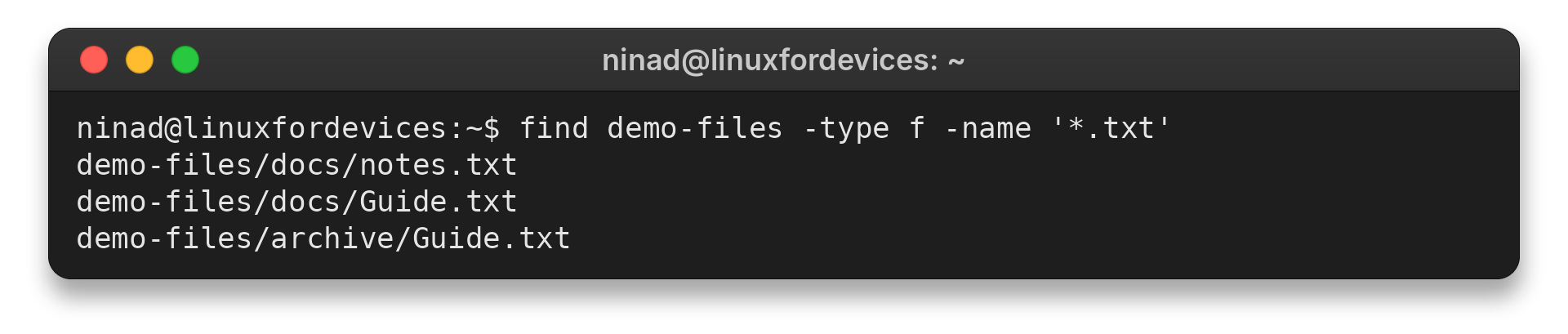
-name tests the basename, the final component of a path. Quote a wildcard such as ‘*.txt’ so your shell passes it to find unchanged.
find demo-files -type f -name '*.txt'
demo-files/docs/notes.txt
demo-files/docs/Guide.txt
demo-files/archive/Guide.txt
Linux filenames are case-sensitive in this search, so Guide.txt does not match guide.txt. Use -iname when you want case-insensitive matching.
Step 3: Select files or directories
Add -type to choose what kind of filesystem entry should match. Use f for regular files or d for directories.
find demo-files -type d -name 'docs'
demo-files/docs
Without a type test, both files and directories can match a name expression.
Add -type f to return regular files only.
Hidden files in Linux explains why dot-prefixed names may also appear in a path search.
Step 4: Narrow by depth, size, or modification time
GNU find can limit how far it descends or test file attributes. Here, -maxdepth 2 includes files no more than two levels below the starting point.
find demo-files -maxdepth 2 -type f -name '*.txt'
demo-files/docs/notes.txt
demo-files/docs/Guide.txt
demo-files/archive/Guide.txt
The same tree also supports size and modification-time tests. GNU find’s -size uses units and rounding rules described in its manual, so choose a bound that matches the files you need.
find demo-files -type f -mtime -2
demo-files/docs/notes.txt
demo-files/docs/Guide.txt
demo-files/tiny.log
This example compares entries with file.txt instead of using a relative time window.

For options such as -mtime and -size, check the GNU Findutils manual for exact boundaries.
find demo-files -type f -size -2k
demo-files/docs/notes.txt
demo-files/docs/Guide.txt
demo-files/tiny.log
demo-files/archive/Guide.txt
The -size predicate tests file size, and the screenshot shows -size 0M selecting a zero-size match.

-mtime -2 selects files whose data was modified less than two 24-hour periods ago. A reference file offers another time filter: -newer selects entries modified later than that file.
Common errors with find
A broad starting path can take longer and produce unrelated results. Search a relevant directory instead of starting at / unless you need a system-wide search and understand the extra paths it includes.
A missing result can come from a misspelled starting path, letter case, or a directory you cannot read. GNU find reports a nonexistent start path on standard error and exits with a nonzero status.
For example, this search uses a starting directory that does not exist:
find missing-start -type f -name 'Guide.txt'
find: ‘missing-start’: No such file or directory
The error names the missing starting path. A valid path with no matches produces no result lines, which is different from a failure to enter the search directory.
If you need to skip a subtree, use the find -prune method. For a name lookup backed by an index rather than a live tree traversal, see the locate command in Linux.
| What you see | What to check |
|---|---|
| No matching paths | Starting directory, spelling, and letter case |
| Permission denied | Whether your account can read the searched directory |
| Too many unrelated paths | Use a narrower starting directory or a GNU -maxdepth limit |
To review the paths before counting or acting on them, see how to count files in a directory. The man command guide explains how to open find’s local manual.
Conclusion
Set the starting directory first, then add one test at a time. That keeps the results tied to the part of the filesystem you intended to search. For expression details, use the GNU Findutils manual.
For options beyond these name and attribute searches, use the GNU Findutils manual or the local manual page opened with the man command.
How do I search for a file by name in Linux?
Give find a starting directory and use -name with the filename, for example: find demo-files -type f -name ‘Guide.txt’. Quote wildcards such as ‘*.txt’.
Does find search subdirectories?
Yes. find traverses below its starting path by default. GNU find’s -maxdepth can limit how many levels it descends.
What is the difference between find and grep?
find searches filesystem paths and metadata. grep searches text inside files.