
Steam installs in one command on the distributions that package it, and the instructions that fail name a package their release dropped. Valve’s published apt line for 32-bit OpenGL support still asks for libgl1-mesa-glx, a name Ubuntu kept only as an empty leftover in 22.04.
What you install first is a launcher rather than the client, and it fetches the rest of itself once it starts. Proton, the layer that runs Windows-only games, is a setting inside Steam instead of a package you add afterwards.
What Steam Installs on Linux
The package you install is small on purpose. I ran dpkg-deb -I against the current launcher from Valve’s archive, and the whole 20,379,390-byte package is a bootstrapper: a launcher script, two sets of udev rules, its own apt source list, and a 20,285,684-byte payload archive named bootstraplinux_ubuntu12_32.tar.xz.
That payload exists so the client can update itself, which is why the package ships the minimum needed to reach Valve’s update service and nothing beyond it. I compared the two numbers, and almost all of the 20 MB is the payload archive itself.
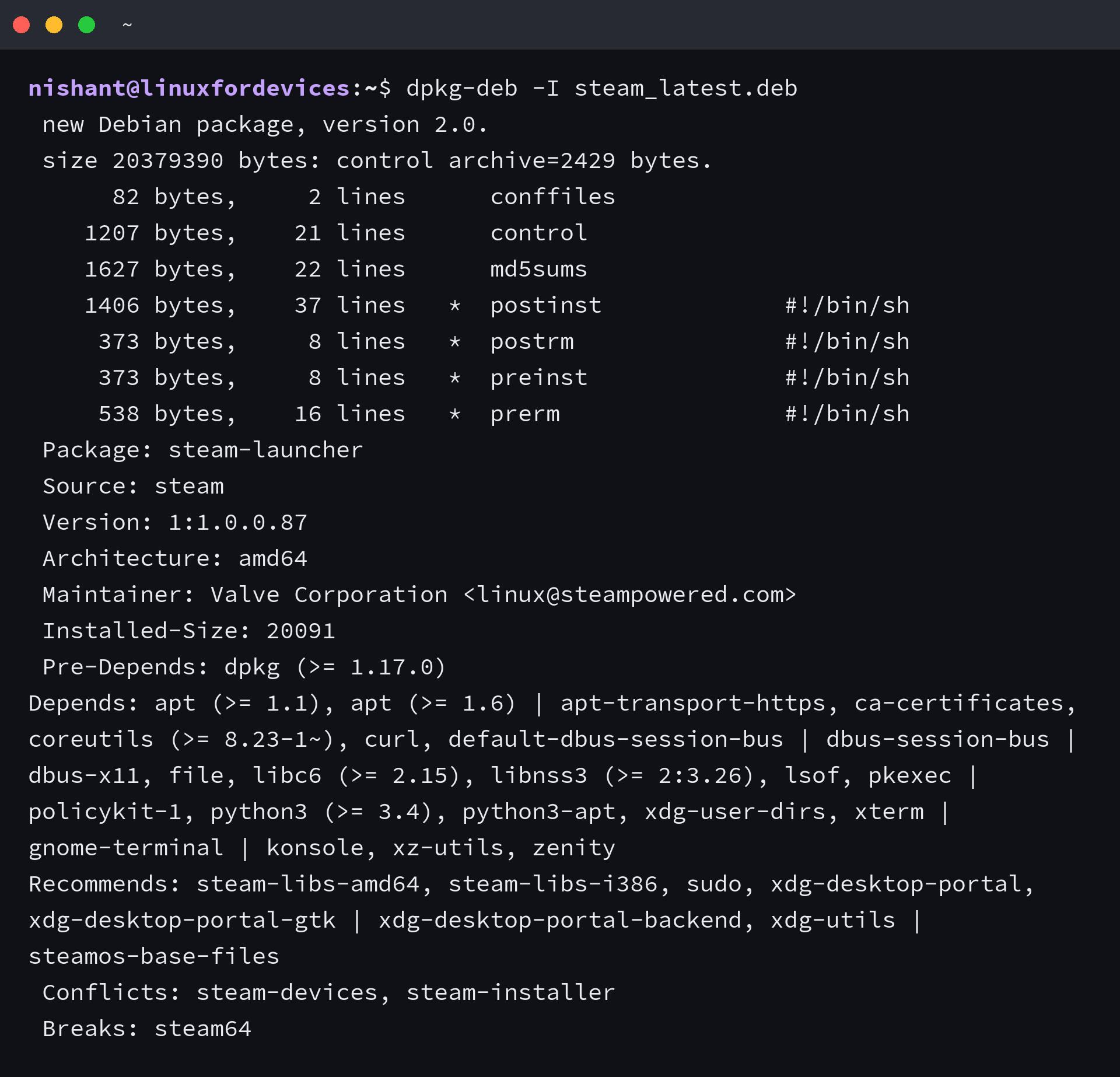
The control file answers the question a package name cannot, because Depends lists what the launcher itself needs while Recommends names the packages that carry the rest, steam-libs-i386 among them. Those udev rules are the reason a controller works without extra setup, and the same listing covers pads and VR headsets.

| Stage | What arrives | Where it comes from |
|---|---|---|
| The package | launcher script, udev rules for controllers and VR, an apt source list | your distribution or Valve’s repository |
| First launch | the client, the Steam runtime, the Proton versions | Valve’s content servers |
| Each game | the game files, a Proton prefix, shader cache | Valve’s content servers, into the library folder |
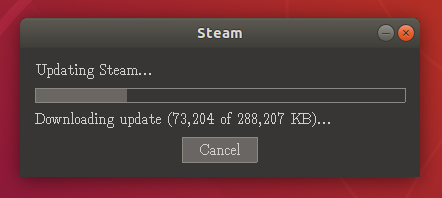
The first launch is the slow one. The window that appears before the sign-in screen belongs to the updater, and cutting it short leaves a launcher that starts with nothing to draw.
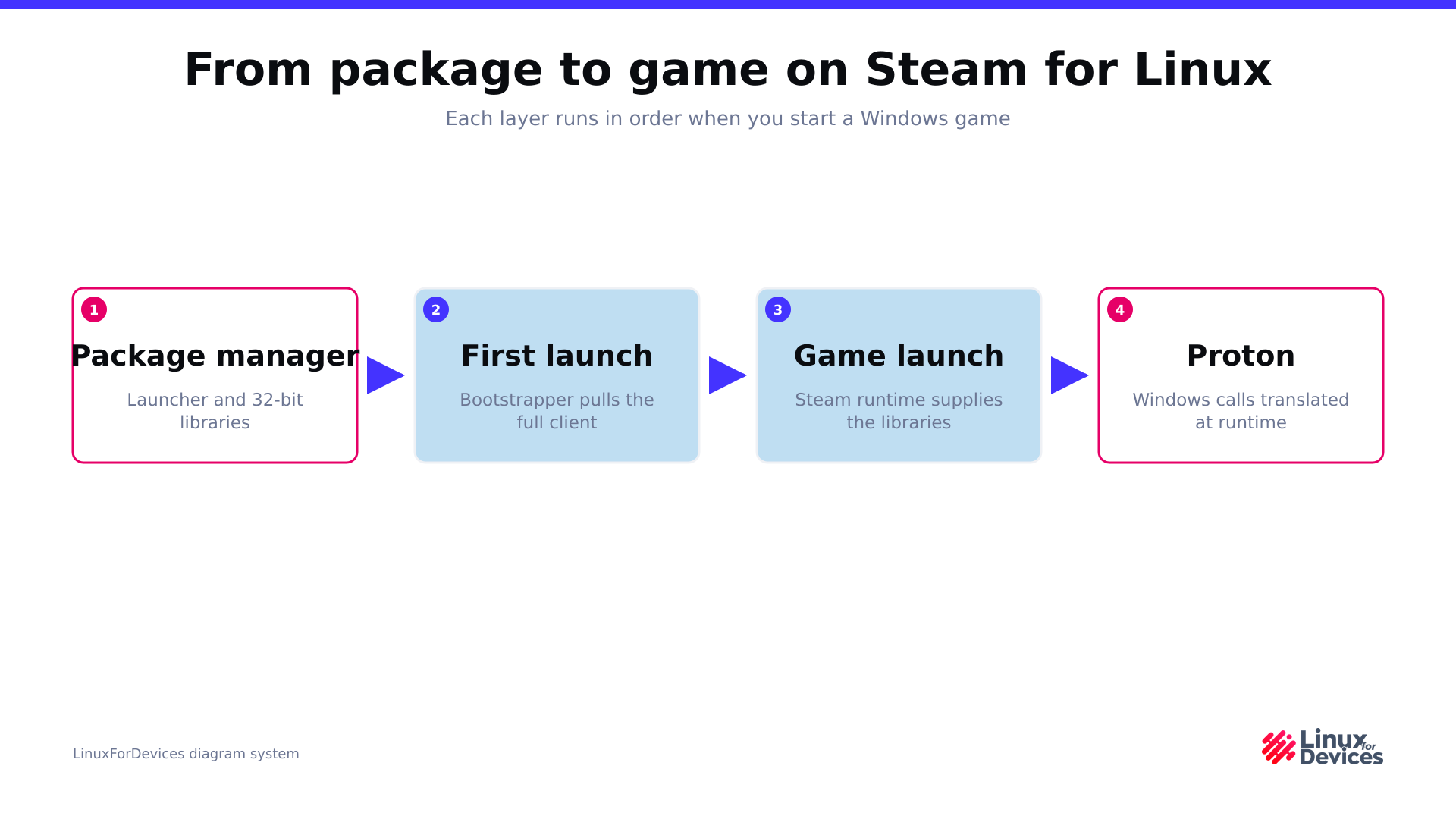
The launcher starts as a 32-bit binary, which is why every route below mentions an i386 or multilib step and why the libraries have to sit beside it rather than inside it. Expecting a 64-bit application is the trap here.
What to Check Before You Install
Steam for Linux is an x86 application. I rechecked Valve’s package index while writing this, and it publishes i386 and amd64 packages and nothing else, so a 64-bit Intel or AMD desktop is the supported ground and an ARM board is not.
Whether the first game launches comes down to three things, and each one has a different fix.
- Disk space for the client and its runtime, which land in your home directory by default.
- A graphics driver with Vulkan support, because Proton’s renderer path is Vulkan-based. On AMD hardware that means a current Mesa or the vendor driver.
- A Steam account, which is free, plus a decision about whether the games library stays in your home directory or moves to another drive.
The driver question comes before anything else, and current driver packages for AMD cards are covered in the AMD driver installation guide, which handles the repository and the reboot the driver needs.
Distribution packages also need an extra repository switched on first, whether that is multiverse on Ubuntu, multilib on Arch, or RPM Fusion nonfree on Fedora. Each install route starts there, so switching it on is not an optional extra.
How to Install Steam on Your Distribution
The command depends on where your distribution keeps 32-bit packages, not on Steam itself. Pick the section that matches your system and run the whole block, because the i386 or multilib line is what makes the launcher start.
Debian, Ubuntu, and Linux Mint
Ubuntu 24.04 carries steam-installer in multiverse at version 1:1.0.0.79~ds-2, and I checked its dependency list on Canonical’s package page: steam-libs and steam-libs-i386, so a single install brings the 32-bit runtime with it. Linux Mint follows the same repositories.
Valve’s own repository is the second route, and it is the one Debian users take, because Valve publishes those packages for Ubuntu and Debian together. Its launcher is newer than the distribution build at 1:1.0.0.87, and it declares that it replaces and provides steam-installer.
sudo add-apt-repository multiverse
sudo apt update
sudo apt install steam-installer
Valve’s page also lists a four-package mesa line to install beside the launcher. Do not paste it on 24.04, because libgl1-mesa-glx survived only in 22.04 as a transitional package and apt refuses the line outright.
The libraries that line was meant to supply arrive with steam-libs-i386, which the launcher recommends and apt installs by default. So the rest of the apt command set applies here unchanged, from adding a repository to holding a package back.
Fedora and other RPM systems
Fedora keeps Steam outside the official repositories, in RPM Fusion nonfree. Enable that repository first, then install the package, because dnf will not find it otherwise.
I found the Fedora 42 build listed at steam-1.0.0.82-3.fc42.i686, so the i686 suffix carries the same 32-bit story as everywhere else on this page.
sudo dnf install https://mirrors.rpmfusion.org/nonfree/fedora/rpmfusion-nonfree-release-$(rpm -E %fedora).noarch.rpm
sudo dnf install steam
Arch Linux
Arch ships Steam in multilib, so the repository line in pacman.conf has to be uncommented before the package exists at all. Install the 32-bit graphics driver for your GPU vendor in the same run.
Skipping that driver is a known trap, because pacman resolves vendor packages by name and its alphabetical default can hand an AMD machine the NVIDIA libraries. I checked that warning on the Arch wiki and it names the NVIDIA 32-bit driver as the package that arrives first.
sudo pacman -Syu
sudo pacman -S steam
Flatpak, when you want it sandboxed
The Flatpak build keeps the client inside a sandbox. It carries its own runtime, which sidesteps the 32-bit question on the host, though it stays a community package rather than a Valve release.
flatpak install flathub com.valvesoftware.Steam
Sandboxing has a cost that shows up later, when a second drive has to be made visible to Steam. The library section below covers the override, and setting up Flatpaks on Linux covers the remote and runtime side.
Installing Valve’s package by hand
Valve publishes the launcher as a single .deb in its archive as well. I downloaded that file while writing this and compared its SHA-256 against the value in Valve’s package index, and the two agree, which is the check to run on any package you fetch by hand.

A package file can be read before it is installed, so I listed the contents of the same download and the launcher script, the udev rules, and the payload archive are all visible in it.
curl -O https://repo.steampowered.com/steam/archive/stable/steam_latest.deb
sha256sum steam_latest.deb
dpkg-deb -I steam_latest.deb
apt install ./steam_latest.deb
The last line uses apt rather than dpkg on purpose. dpkg installs one file and stops when a dependency is missing, while apt reads the same file and resolves what it needs, and the split between apt and dpkg decides whether you end up with a working launcher or a half-installed package.
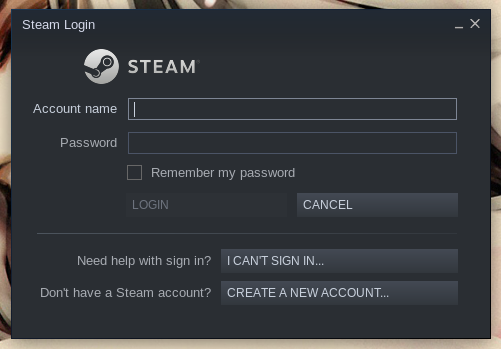
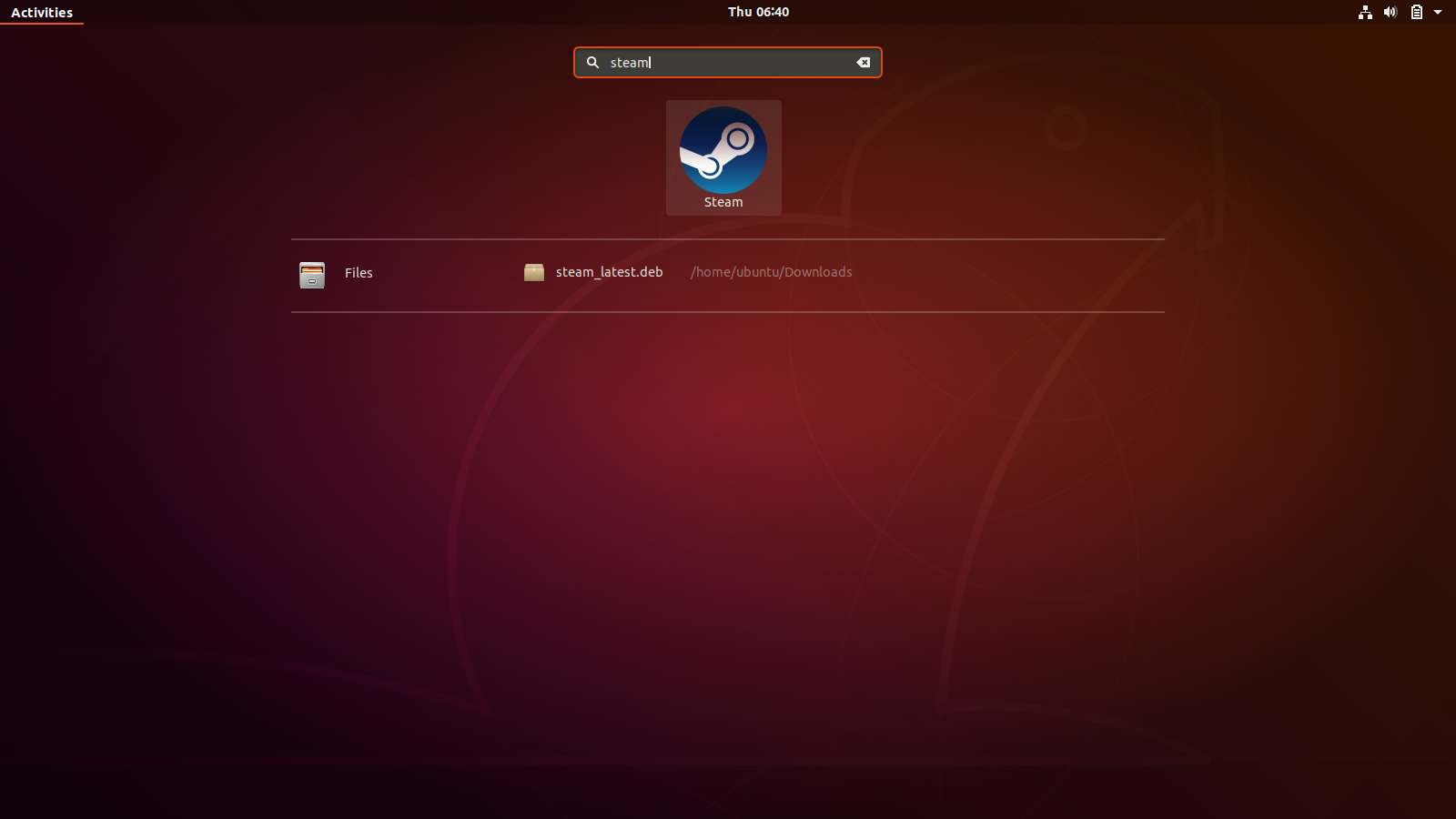
Once the client stops updating, the sign-in window appears. An existing Steam account works here unchanged, and a new one can be created from the same window.
Turning On Proton So Windows Games Run
Proton is Valve’s compatibility layer for Windows games, built on Wine with a Direct3D translation path, and Steam Play is the client setting that switches it on. Steam installs its own Proton versions, so there is nothing to compile.
| Setting | Where it lives | What it changes |
|---|---|---|
| Steam Play for supported titles | Settings, then Compatibility | runs the Windows games Valve has tested |
| Steam Play for all other titles | Settings, then Compatibility | extends Proton to the rest of your library |
| Force a compatibility tool | Right-click a game, then Properties and Compatibility | pins one game to one Proton version |
Check that Steam Play is on
Proton Experimental is enabled by default in current clients. The switch sits under Steam and then Settings and then Compatibility, and it has two parts: one for the titles Valve has tested, and one for everything else.
Turn on the second when a game is not on Valve’s tested list, because that is the case Proton was written for. The setting applies to the whole library rather than to a single title.
Games already built for Linux do not use Proton at all, and forcing it on one of those adds a file system layer for nothing.
Force a version for one game
When a game misbehaves under the default, pin a version instead of changing the global setting. Right-click the game in your library, open Properties, then Compatibility, then tick the option that forces a specific Steam Play compatibility tool.
The step-by-step for that dialog sits in the site’s guide to installing Proton on Ubuntu. Older Proton builds often fix older games, and a per-game choice survives client updates.
See what a game will do before you launch it
ProtonDB collects reports from players on comparable hardware, and it is the fastest check before a purchase. Steam’s own Deck Verified badge answers a narrower question, since it grades a game against the Steam Deck screen, controls, and default settings rather than against your desktop.
Verified, Playable, Unsupported, and Unknown all describe the handheld rather than your desktop. A game marked Unsupported there can still run on a desktop with a different Proton version, so treat the badge as a hint.
Installing a Game and Where It Lands
Installing a game has barely changed since the client first shipped, while what the client writes to disk has grown a layer for Proton. Both matter once a library starts filling a drive.
Install a game and start it
Search the store from inside the client, open the game page, and choose the install option. Steam then asks where the library should go, which matters as soon as a second drive is involved.
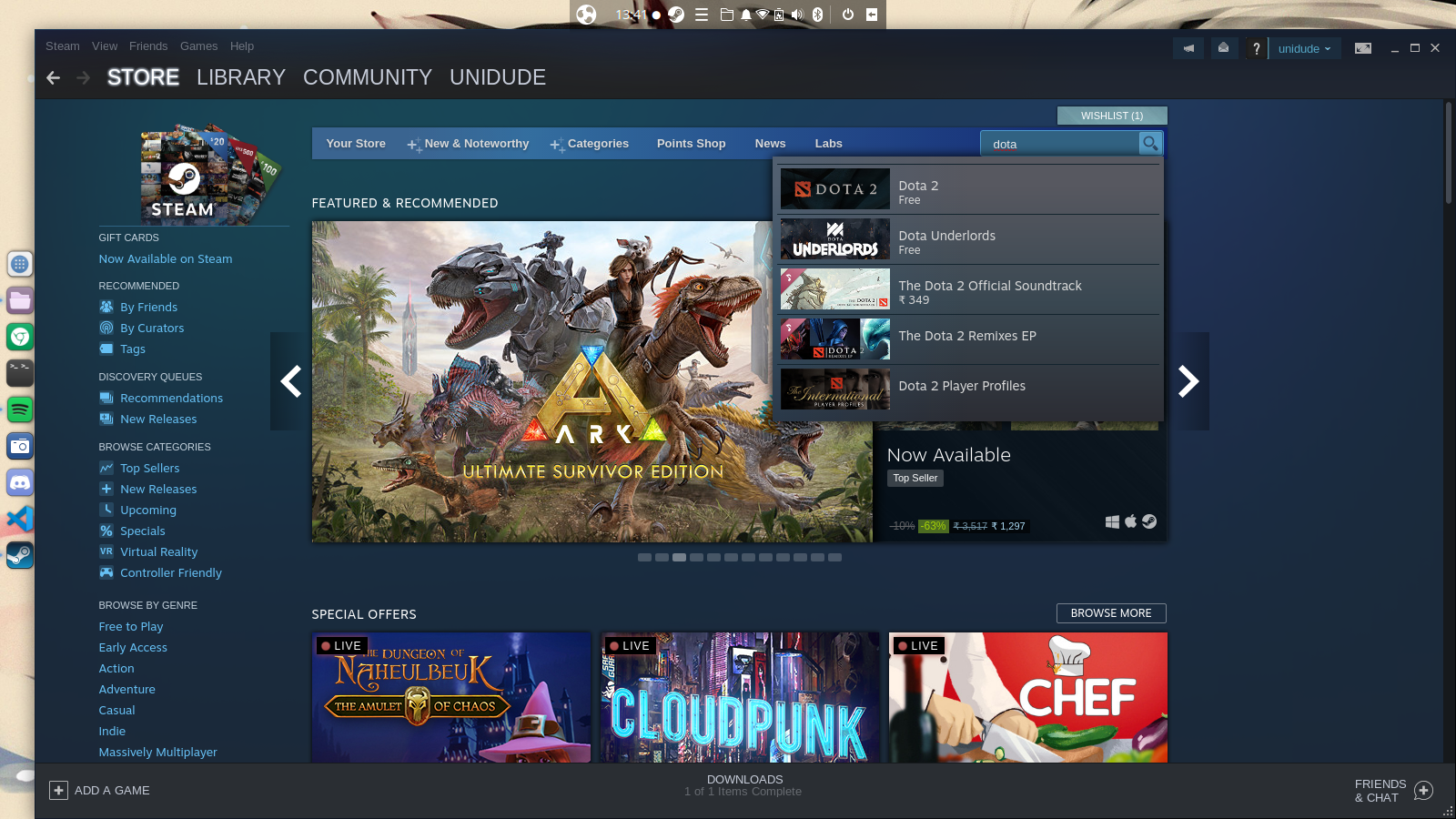
Your library holds the games you own, with downloads, updates, and installed titles in the same list, and downloads keep running while you browse.
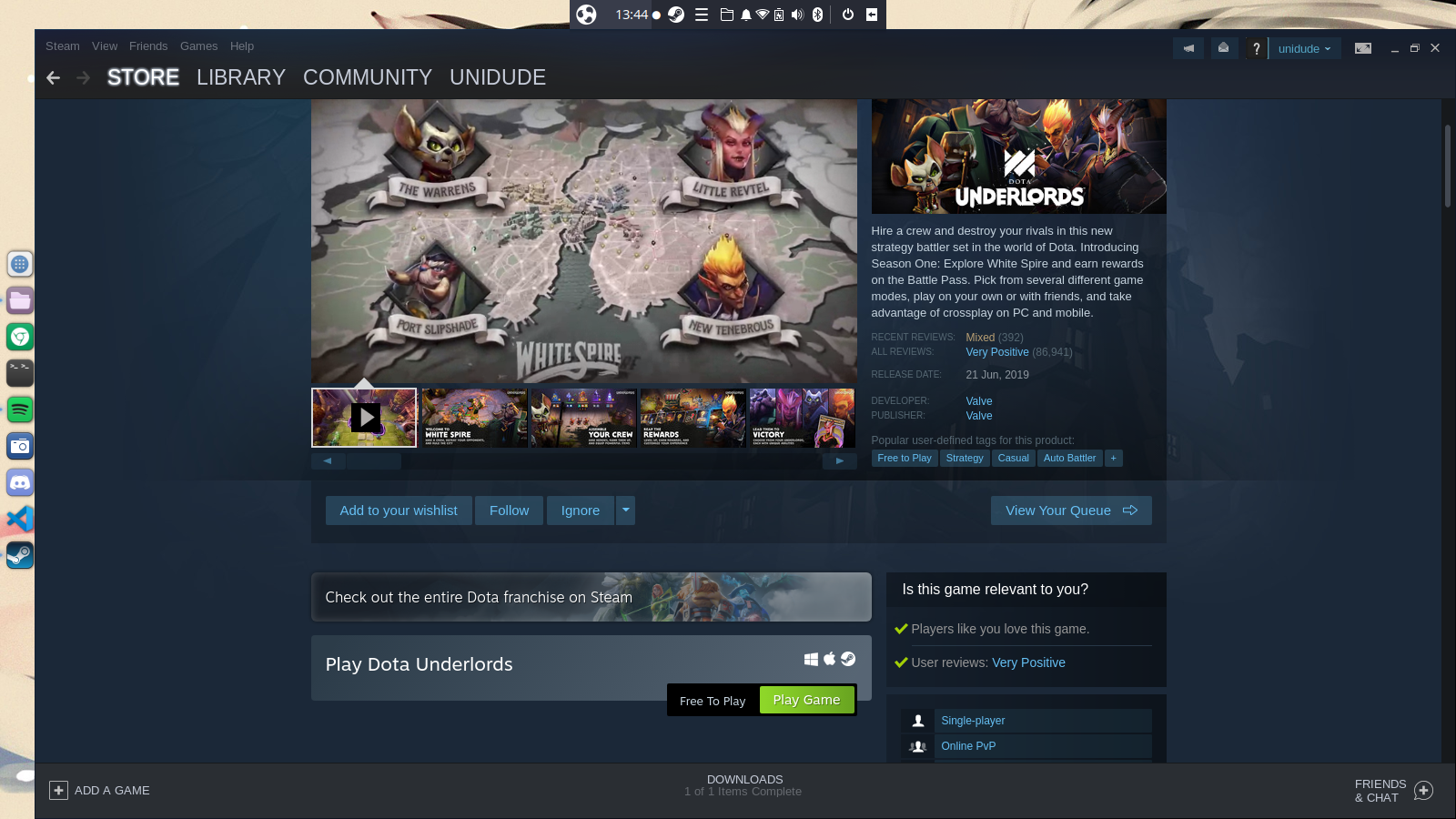
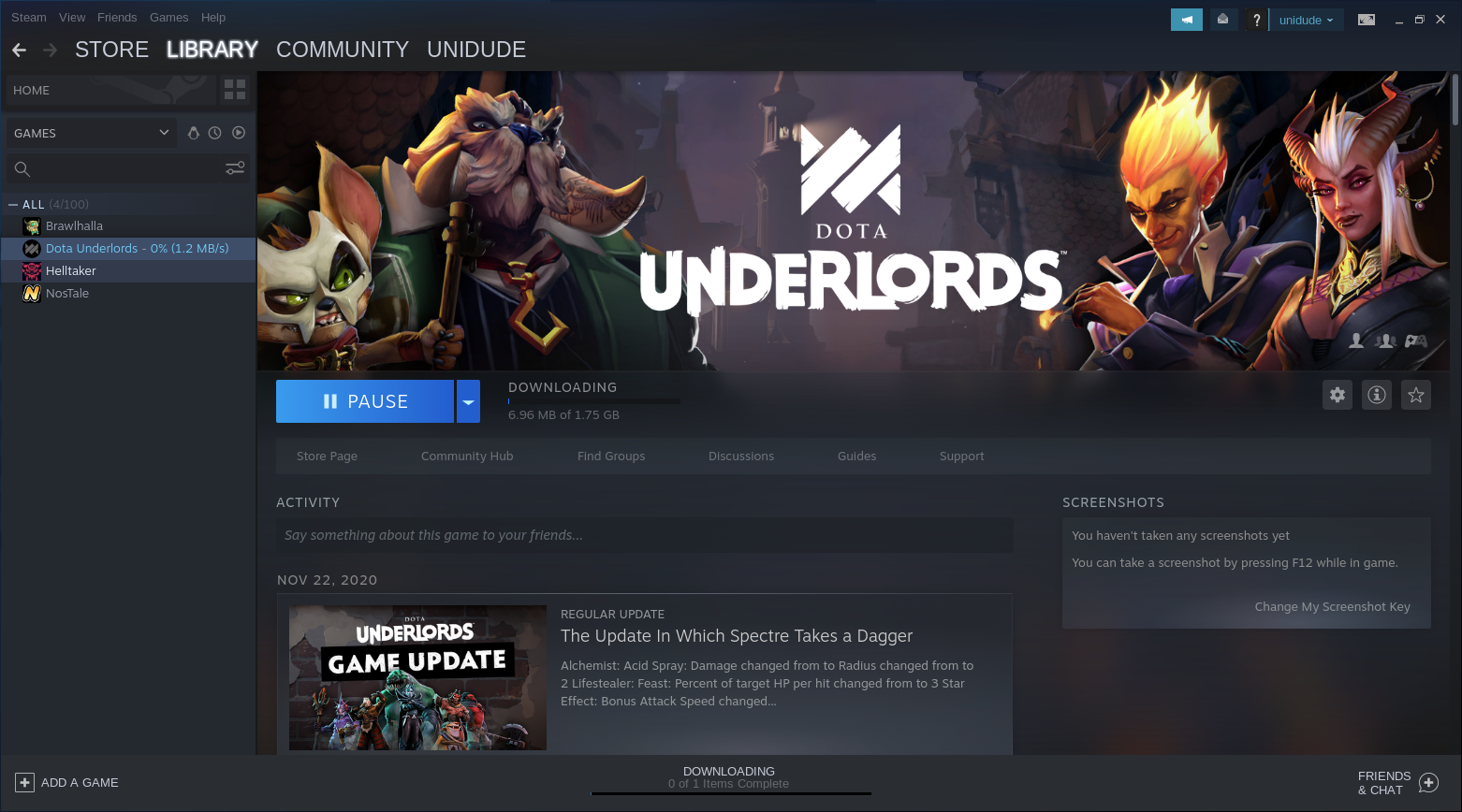
The first launch of a game can take longer than the download. Proton is building that game’s prefix at the same time shaders are being compiled, and the work is cached for the next start.
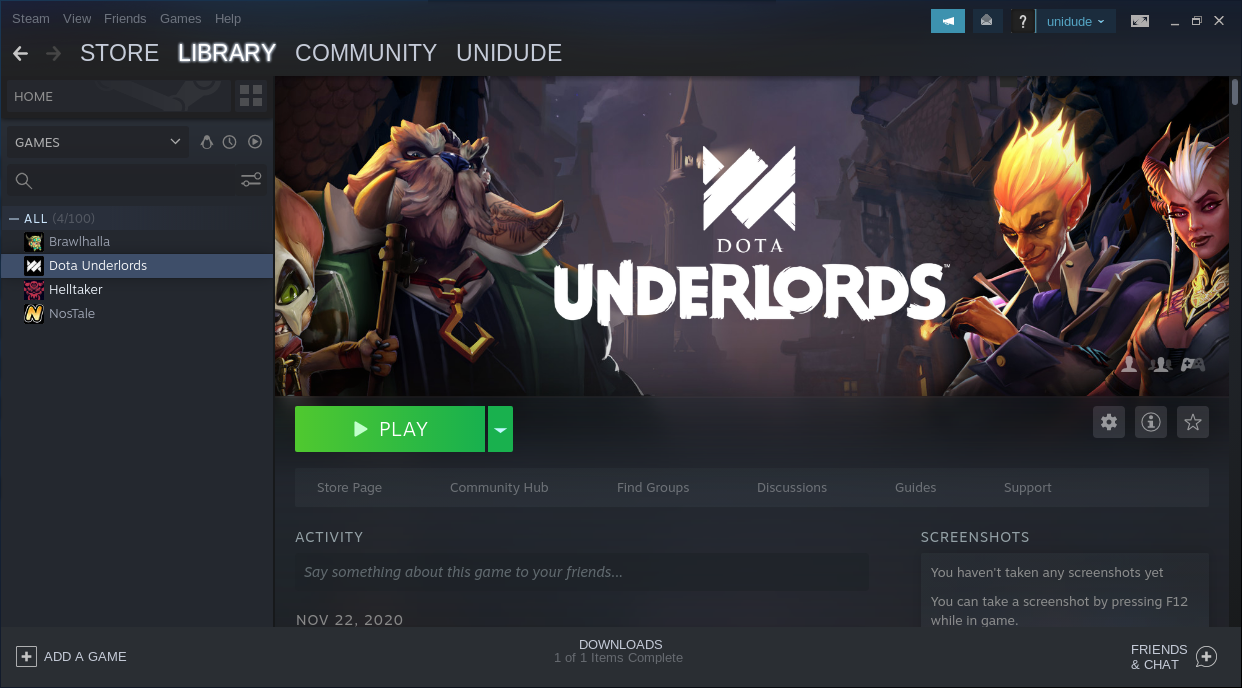
A title that only runs on Windows looks identical from here, because the play button appears once Proton has been picked for it. The store page is what tells you whether a game gets that far, not the platform label.
Games you own elsewhere need a different client altogether, and Lutris covers the titles Steam does not carry, with Heroic handling the Epic and GOG libraries.
The library folder layout
Games do not live in one flat folder. Steam writes a manifest for every installed game and keeps a separate directory for each Proton prefix, which is why copying a game folder between machines rarely works.
| Path inside the library | What it holds |
|---|---|
| steamapps/common | the game files themselves |
| steamapps/appmanifest_<AppID>.acf | the record that tells Steam a game is installed, with its folder name and update state |
| steamapps/compatdata | one Proton prefix per Windows game, which is the game’s notional drive on disk |
| steamapps/shadercache | compiled shaders, rebuilt whenever the driver changes |
That manifest is also why deleting a game folder by hand leaves the client confused, so remove a game through the client when the point is to reclaim space.
Putting the library on a second drive
Steam can hold several library folders at once. The client asks for a location when you install a game, and the storage settings add a drive afterwards.
The Flatpak build needs one extra step, because the sandbox cannot see a mount it was never granted. Flathub documents the override, and the same access can be granted through a graphical tool instead of the command line, which is the route taken by Flatseal.
flatpak override --user --filesystem=/path/to/your/Steam/Library com.valvesoftware.Steam
Games on an external drive are also the case where a Linux file system pays for itself, since ext4 and btrfs do not carry the permission and case-sensitivity problems that NTFS brings to Proton.
Steam is not the only way to play on a desktop, and the wider picture of playing PC games on Linux covers the native titles and the emulators that never touch Steam at all. Controllers are the other half of a desktop setup, and using an Xbox controller with Steam covers the pairing the udev rules in the package make possible.
When Steam Will Not Start
The failures that end a Steam install before a game starts group into four, and each group names its own fix.
| What you see | What it means | Next step |
|---|---|---|
| Launching Steam fails with a missing library | the 32-bit runtime was never installed | install steam-libs-i386, or enable multilib or the i386 architecture and repeat the install |
| Nothing appears for a long stretch after the first launch | the client is still downloading itself | run steam from a terminal and watch the progress instead of clicking the icon again |
| A game closes a second after launch | Proton and that game disagree on defaults | force another Proton version for that game alone, then read the log line naming the failing module |
| A second drive never appears in the storage settings | the Flatpak sandbox has no access to the mount | grant the path to the app with the override command above |
Games that open at the wrong size on a Wayland session are a fifth case with a different cause, and the Wayland scaling fix for Steam games covers it.
Everything else comes down to one habit, which is reading the last lines the client printed. Steam writes the reason a launch failed into the terminal it was started from, and starting it from the applications menu hides that output.
Check the Game Before You Buy It
Installing Steam takes a few minutes, so the time you spend on it is not the thing to optimise. What decides whether you enjoy the result is the game you hand to Proton, and I would look the title up before paying for it rather than after.
When one game misbehaves, the next thing worth running is the logging launch option, which turns a silent failure into a file you can read.
PROTON_LOG=1 %command%
Paste that into the launch options in a game’s Properties, start it once, and the log lands in your home directory. I took that variable from Proton’s own documentation, which also names the file it writes for each game. The Proton prefix under compatdata holds that same run’s file system, so the two together usually name the problem in one line.
Frequently asked questions
These come from the search phrasings and forum questions this topic produces, answered against the package versions named above.
Does Steam work on Linux?
Yes. Valve ships a native Linux client, and Proton runs Windows-only titles on top of it. Your library, purchases, and friends list are the same account you use on Windows, with cloud saves shared between the two.
Can you play Steam games on Linux without Proton?
Games with a native Linux build run directly, and the store page lists a Linux requirement when one exists. Proton only comes into play for titles that were built for Windows alone.
How do I install Steam on Ubuntu 24.04?
Enable multiverse, then install steam-installer with apt. That package pulls steam-libs and steam-libs-i386, so it brings the 32-bit runtime with it. Valve’s repository is the alternative route and carries a newer launcher than the distribution package.
Why is the Steam installer so small?
Because it is a launcher rather than the client. The package carries a script, udev rules, and a bootstrapper archive that reaches Valve’s update service, and the client downloads itself on first launch.
Do I still need the 32-bit libraries in 2026?
Yes. The launcher starts as a 32-bit binary, and the compatibility layer runs 32-bit Windows games, so the i386 libraries or the multilib repository stay part of the install on every distribution.