

Install LibreOffice on Arch Linux with pacman. Choose libreoffice-fresh when you want the feature branch, or libreoffice-still when you prefer the maintenance branch with less frequent changes. Both packages come from Arch’s official repositories, so you do not need an AUR helper for the main office suite.
Choose the LibreOffice package
LibreOffice includes Writer, Calc, Impress, Draw, Math, and Base, and you install them through one package branch rather than separate packages for each app.
| Package | Choose it when |
|---|---|
| libreoffice-fresh | You want the current feature branch from the official repository. |
| libreoffice-still | You prefer the maintenance branch and less frequent feature changes. |
ArchWiki documents both branches, and the Arch package listing confirms that libreoffice-fresh is available from Extra.
Install LibreOffice with pacman
Synchronize your system before adding a large desktop application, then use this Pacman package manager guide if you need a refresher on package flags and repositories.
sudo pacman -Syu
sudo pacman -S libreoffice-fresh
Replace libreoffice-fresh with libreoffice-still if that branch matches your update policy, and let pacman resolve the required dependencies.

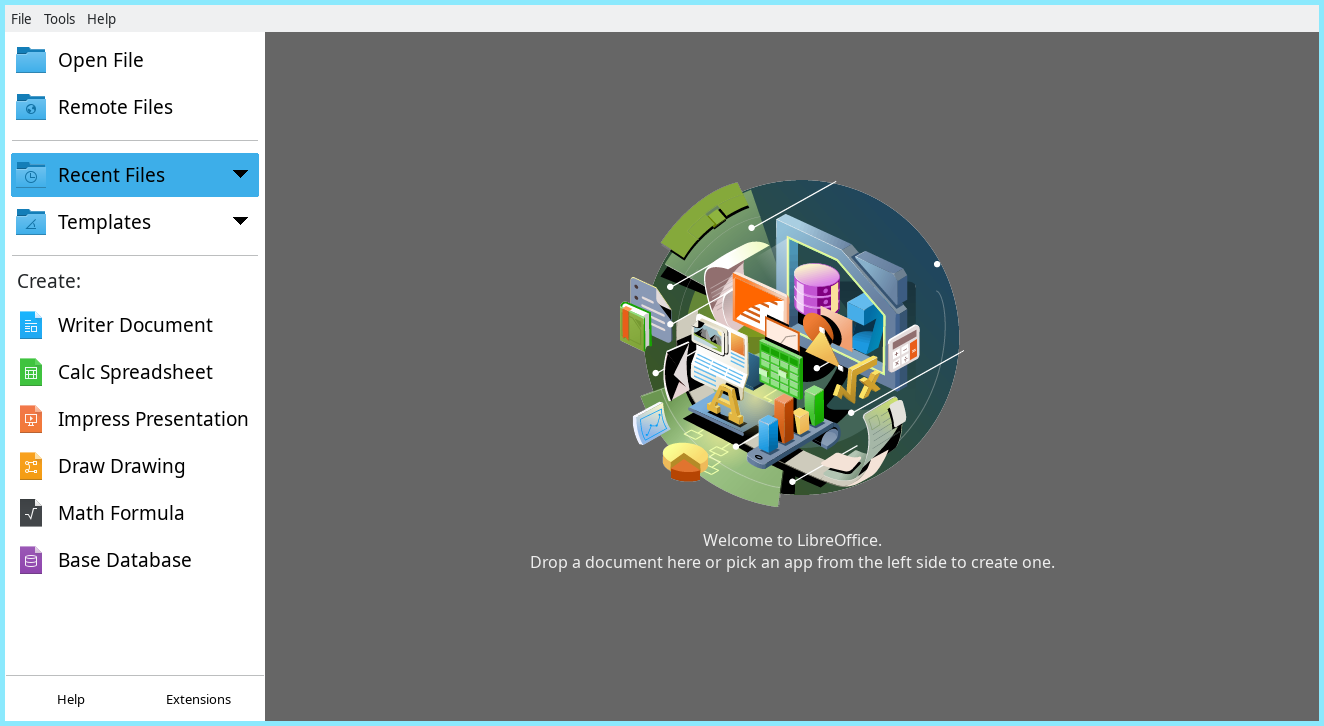
Open LibreOffice from your application launcher after pacman completes, then use the next command to verify the executable path from the terminal.
Verify the installed version
Run the binary directly to confirm the installed branch after a system update or when a launcher entry is missing.
libreoffice --version
The command prints the installed LibreOffice version. Keep normal system updates enabled unless you have a specific compatibility reason to hold a package, and review how to prevent package upgrades on Arch before adding an IgnorePkg rule.
Add dictionaries and language packs
Install a matching LibreOffice language package when you need a localized interface or spell-check resources for another language. Search the repositories first so the package name matches the branch you installed.
pacman -Ss libreoffice-fresh-i18n
Use the search results to choose the language package you need, then install that package with pacman. The broader Linux package-management guide explains why repository packages and their dependencies should be managed together.
Know when to change branches
Do not install fresh and still together, and use a separate pacman transaction when you switch branches so dependency changes remain visible.
sudo pacman -Rns libreoffice-fresh
sudo pacman -S libreoffice-still
Package replacement is different from a version rollback. If an update causes a documented compatibility issue, follow the Arch-specific steps for downgrading a package rather than mixing branches to chase an older version.
Install the suite first, then add only the dictionaries or extensions you use. That keeps package maintenance predictable and makes it easier to remove unused software later with this guide to removing unused Linux packages.
FAQ
Which LibreOffice package should you install on Arch Linux? Install libreoffice-fresh for the current feature branch or libreoffice-still for the maintenance branch. Pick one branch and manage it with pacman.
Do you need an AUR helper to install LibreOffice? No. The main LibreOffice branches are available from Arch’s official repositories, so pacman is the supported installation command.