
Getting VLC onto an Ubuntu computer starts with choosing an installation route. VLC is VideoLAN’s open-source media player for local files and network streams.
This guide walks through installing VLC with APT or Snap, then checking which package is installed.
TL;DR: Install VLC on Ubuntu
APT is Ubuntu’s repository route. Snap gives you VideoLAN’s separately packaged release.
- APT: sudo apt update, then sudo apt install vlc.
- Snap: sudo snap install vlc.
- Open VLC from Show Applications, or run vlc in a terminal.
What is VLC on Ubuntu?
VLC is VideoLAN’s open-source media player for local files and network streams.
VideoLAN says the traditional deb package remains available through APT. A deb package is installed and updated by Ubuntu package tools.
Snap is managed separately by snapd, which refreshes installed packages automatically. See Snapcraft’s refresh documentation for its update schedule.
| Route | Choose it when | Manage it with |
|---|---|---|
| APT | You want Ubuntu’s repository package and system update flow | apt |
| Snap | You want VideoLAN’s separately distributed Snap build | snap |
| Ubuntu Software | You prefer selecting VLC in the desktop store | Ubuntu Software |
For the graphical route, open Ubuntu Software, search for VLC, and select the result. Review the entry before confirming installation.
How to install VLC on Ubuntu step by step
Run only one installer in this section at a time.
Step 1: Refresh the APT package list
Refresh the package list from your configured Ubuntu repositories.
sudo apt update
This refreshes package metadata, not installed software. APT may ask for your password without displaying it. Resolve repository errors before installing VLC.
Step 2: Install the VLC package
Install the vlc package from configured Ubuntu sources. APT lists the packages it will add.
sudo apt install vlc
Review the proposed changes and enter Y to continue.
Step 3: Use Snap instead when that is your preferred source
VideoLAN’s Ubuntu instructions give this command for its Snap build.
sudo snap install vlc
A customized Ubuntu install may lack the snap command. Install snapd for your release first, using the Snap setup guide, then retry.
Step 4: Open VLC and check which package is installed
Open VLC from Show Applications. An APT installation can also start from Terminal with vlc. Use the desktop launcher when Terminal has no graphical display.
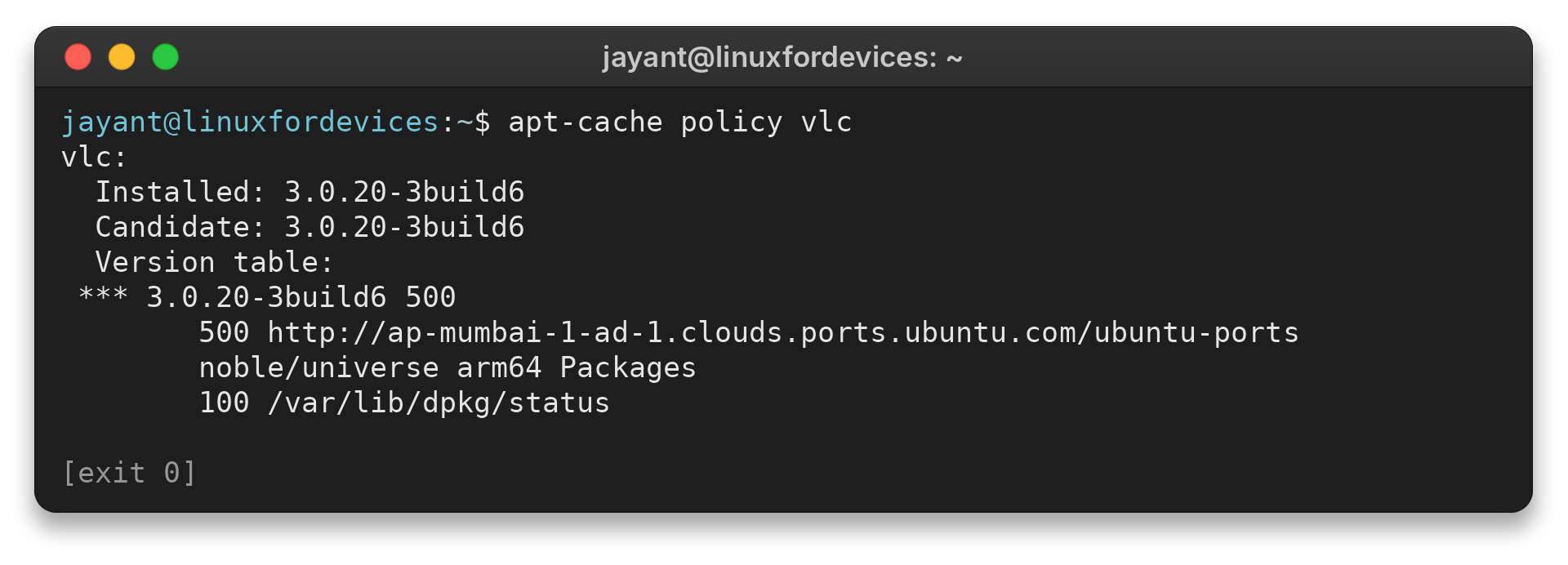
Check APT with apt-cache policy vlc or Snap with snap list vlc.
vlc:
  Installed: 3.0.20-3build6
  Candidate: 3.0.20-3build6
  Version table:
 *** 3.0.20-3build6 500
        500 http://ap-mumbai-1-ad-1.clouds.ports.ubuntu.com/ubuntu-ports noble/universe arm64 Packages
        100 /var/lib/dpkg/status
error: no matching snaps installed
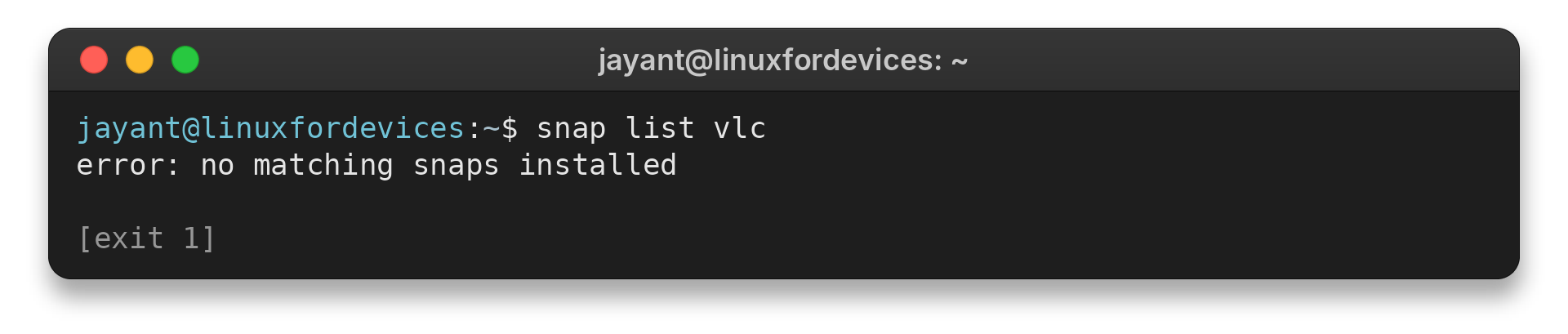
I checked the APT candidate with apt-cache policy vlc and found version 3.0.20-3build6 from noble/universe on arm64. I then ran snap list vlc and saw “error: no matching snaps installed,” though the snap command was present. The snap executable can exist without VLC appearing in the Snap list.
The installed and candidate versions matched. Another Ubuntu release may list a different candidate, so check its package source.
Check the package source and fix common issues
Use the symptom table to choose a focused check before reinstalling VLC.
| Symptom | What to check | Next action |
|---|---|---|
| APT cannot find vlc | Repository components and package-list refresh | Confirm the Ubuntu release’s Universe source is enabled, then run sudo apt update |
| APT reports broken or unavailable dependencies | Configured repositories and held packages | Read the named dependency and repository errors before changing sources |
| Snap says VLC is not installed | snap list vlc | Install with Snap or check APT separately |
| VLC opens but cannot play a stream or file | Input path, stream address, and VLC’s displayed error | Investigate playback access separately from installation |
A community report recorded “E: Unable to correct problems, you have held broken packages.” Check the named dependency and source before changing repositories.
If APT cannot find VLC, enable Universe for your release and refresh the package list. See Ubuntu’s repository instructions.
A launch error appears before VLC opens. A playback error appears after startup. If a removable drive fails, test a file in your home folder, then check package access.
VideoLAN notes that region-locked DVD playback may require libdvdcss2 for deb packages. Ordinary audio and video files do not need this disc-specific step.
Remove an APT copy with sudo apt remove vlc, or a Snap copy with sudo snap remove vlc. For next steps, see the guide to managing subtitles in VLC.
Conclusion
After installation, test a local media file before trying network streams or discs.
For the official route details, consult VideoLAN’s Ubuntu download instructions and Ubuntu’s VLC package listing. Then explore the guides linked above for Snap setup or subtitle use.
FAQ
These quick answers cover common choices after the installation steps.
What is the command to install VLC on Ubuntu?
Run sudo apt update, then sudo apt install vlc. VideoLAN also lists sudo snap install vlc.
Can I install VLC from Ubuntu Software?
Yes. VideoLAN’s Ubuntu instructions say to open Ubuntu Software, search for vlc, and install it. Check the package details if you want to know which package format the store offers.
How do I remove VLC from Ubuntu?
Use sudo apt remove vlc for the APT package or sudo snap remove vlc for the Snap package. Choose the manager that matches the installed copy.