
Every file on Linux has rules for who can read it, change it or run it, and a script you’ve just downloaded often won’t run until you change those rules. chmod is the command that changes them, and chown changes who owns the file.
In this piece, I’ll explain what those permissions mean and walk you through changing them with chmod and chown.
What Linux file permissions and ownership control
Linux permissions answer two separate questions: which account owns a file, and what the owner, its group, and other users may do with it. The ls -l command puts both answers on one line, with the permission mode before the owner and group names.
-rw-r----- 1 owner webteam 640 report.txtThe first character identifies the file type. The next nine characters form three permission sets in order: owner, group, and others. Within each set, r means read, w means write, and x means execute on a file or search through a directory.
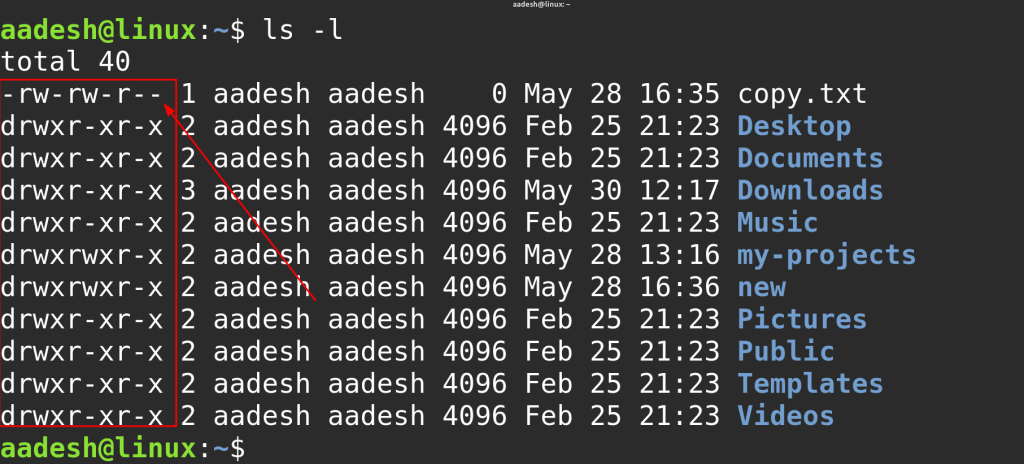
For a directory, read allows a listing of its names, while search permission allows a process to pass through it to reach a known entry. The owner and group columns are different metadata from the mode bits, so changing one does not automatically change the other.
Prerequisites for changing permissions or ownership
Choose the exact file or directory first, then check the names that will appear in the command. The command forms below follow GNU Coreutils syntax, which was checked against its current manuals. Local command checks ran on GNU Coreutils 9.4.
- Use a path you can identify in ls -l, not a broad system directory.
- Confirm the account or group exists before naming it with chown. The Linux guide to finding a user’s groups covers the lookup commands.
- You need to own a file or have suitable privileges to change its mode. Changing its owner generally requires administrative privileges. A group change can be limited to groups available to your account.
- For practice, create a disposable file with touch. The Linux file-creation guide explains the alternatives.
Change Linux file permissions with chmod
Start by reading the current mode. Then choose whether to adjust selected bits or set a complete mode for all three classes.
Step 1: Read the current mode
Run ls -l on the target before changing anything. Reading the owner and group alongside the permission string helps you decide whether the problem is a mode mismatch or an ownership mismatch.
ls -l report.txtIn the example listing above, -rw-r—– means the owner can read and write, members of webteam can read, and others have no listed access. If the account needing access is not the owner, check whether it belongs to the file’s group before changing the mode.
Step 2: Add or remove a permission symbolically
Symbolic mode changes name the class, an operator, and the permission. Use u for the owner, g for the group, o for others, and a for all classes. A plus adds a bit, a minus removes it, and an equals sign sets that class to exactly the listed permissions.
chmod u+x script.sh
chmod g-w report.txt
The first command adds execute permission for the owner. The second removes group write without replacing other bits. Add sudo only when the task needs privileges, not for a file you own.
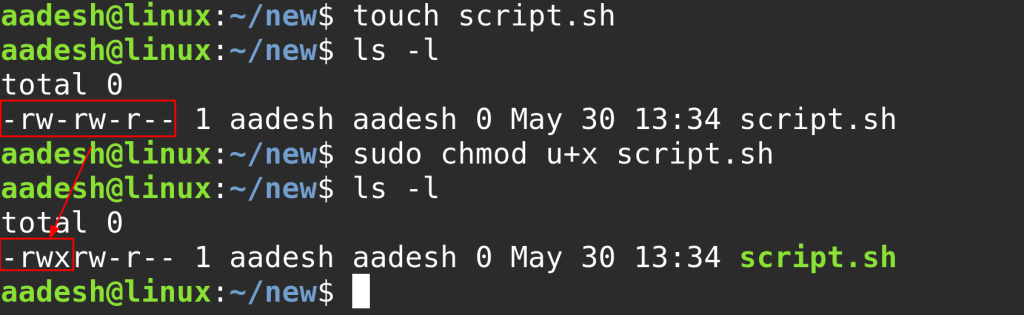
Adding an execute bit does not add a script’s contents or interpreter line. For the launch methods and their requirements, see the guide to running a shell script in Linux.
Step 3: Set an exact mode with octal digits
Each octal digit adds the read, write, and execute values for one class: 4, 2, and 1. A digit of 6 is read plus write, 5 is read plus execute, and 0 grants none of these bits.
chmod 640 report.txt
chmod 600 private-file
chmod 755 script.sh
Mode 640 grants owner read/write and group read, while mode 600 grants read/write only to the owner. Mode 755 grants the owner read/write/execute and gives the group and others read/execute. Mode 777 grants write access to every class, so it is not a general fix for an access error.
Change file ownership with chown
Use chown when the owner or group field is wrong. It does not replace chmod’s permission bits.
Step 4: Set the owner or group
chown changes the owner field, the group field, or both. Its operand uses the form owner:group, with a colon separating the fields.
| Command | Fields changed |
|---|---|
| sudo chown alice report.txt | Owner becomes alice. Group stays as it is. |
| sudo chown alice:webteam report.txt | Owner becomes alice and group becomes webteam. |
| chown :webteam report.txt | Only the group changes when your account may set it. |
Replace the example names with accounts and groups that exist on the machine. A colon followed by no group, as in chown alice:, sets the group to that user’s login group. For the full option set and ownership-specific cases, use the Linux chown command reference.
Step 5: Apply ownership changes to a reviewed directory tree
Add -R only when every entry beneath the selected directory should receive the change. Check the root path and the intended owner/group before running it.
sudo chown -R deploy:webteam /srv/app-data
On GNU Coreutils, recursive chown does not follow symlinks it encounters while walking the tree by default. A symlink supplied directly as a command-line operand is followed by default. Do not add symlink traversal options to a recursive command unless the target paths have been reviewed.
Verify the owner and mode after the change
| Field that is wrong | Command family to review |
|---|---|
| Permission bits | chmod |
| Owner or group | chown |
The permission string should reflect a chmod operation. The owner and group columns should reflect a chown operation.
ls -l report.txt
-rwxr-xr-x
The 755 result appears as -rwxr-xr-x in the permission field. The retained terminal example below shows a numeric mode command followed by a listing that confirms the resulting permission string.
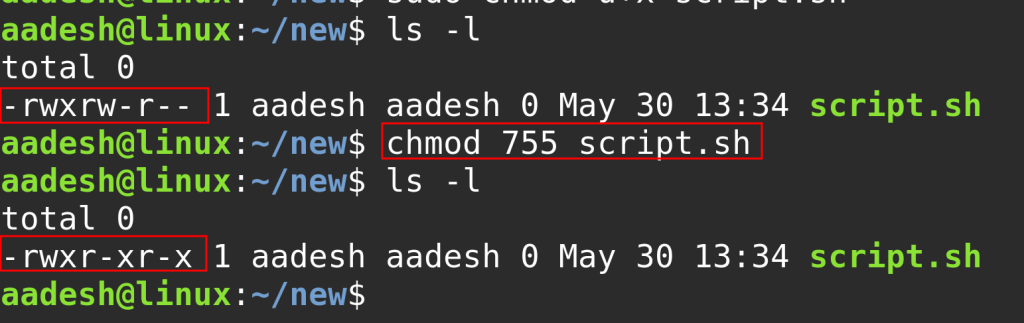
A long listing shows the permission string before the owner and group names. Those values should match the field you changed. If one still has its old value, confirm the command’s target path and whether it had permission to make that change.
When permission denied survives chmod
A file’s own mode is not the only permission checked during path lookup. Inspect the identity running the command and each directory between the starting point and the file.
A file’s mode is only one part of a path lookup. Linux requires search permission on each parent directory in the path, so the file’s own x bit does not let a process pass through a directory above it.
id
namei -l /path/to/report.txt
- Check that the owner or group class matches the account running the command.
- Check search permission on every parent directory in the path.
- Do not add broad write bits when the failing field has not been identified.
id shows the current account and its groups. namei -l shows the permissions and ownership of each path component, so a missing directory search bit is visible without making every file world-writable. If you need to check one user’s group membership, use id -nG username or the guide to listing Linux groups to look up a group name.
If the owner, group, mode, and parent-directory access all match the intended account, stop broadening permissions. The failure may involve a different process identity or an access-control rule outside the basic owner/group/other mode.
Check each path component before widening access
Use the narrowest change that addresses the field shown to be wrong. When the file’s mode looks right but access still fails, trace the path before adding permissions to the file.
namei -l /path/to/report.txt
Linux permission questions
How do I change file permissions in Linux?
Use chmod with a symbolic mode to add or remove selected bits, or an octal mode to set the owner, group, and others’ bits explicitly. For example, chmod 640 report.txt gives the owner read/write access, the group read access, and others none.
How do I check the permissions of a file in Linux?
Run ls -l followed by the file path. The first character shows the file type, the next nine show owner, group, and others permissions, and the following columns name the owner and group.
What is the difference between chmod and chown?
chmod changes permission bits. chown changes the file’s owner or group. Check both in ls -l before deciding which field needs to change.