OpenToonz Linux support comes from community packages because the upstream project ships no official Linux binary. That means your install method decides which version you get. OpenToonz 1.8.0 arrived on 19 June 2026 as the first stable release in about three years.
This guide covers Flatpak, an AppImage, Snap and a source build. It also shows which route gives you 1.8.0 today and which ones are stuck on older releases, so you only install once.
What OpenToonz is and what 1.8 changed
OpenToonz is a 2D animation program published by Dwango and based on Toonz, the software Digital Video built in Italy and Studio Ghibli customised for years. Ghibli used Toonz from Princess Mononoke onward. Dwango released the open-source version in 2016 under a BSD licence.
Version 1.8.0 is a big update. The release notes list stroke replication for the brush tool, screentones and OCA import. Earlier releases added FreeBSD support in 1.5 and Haiku support in 1.7, so the code already travels well beyond Windows and macOS.
OpenToonz features you get on Linux
The official site lists the features below. It marks only one of them, the GTS scanning tool, as Windows only. The rest describe the application itself, so expect them in the Linux builds.
- Raster and vector drawing with anti-aliased lines
- Xsheet and timeline interfaces for scene work
- Effects built from a node tree, plus a plug-in SDK for custom effects
- Palettes kept apart from drawings so a colour change carries through every frame
- GTS, a scanning tool from Studio Ghibli (Windows only)
Which OpenToonz Linux install method should you use
Upstream publishes installers for Windows and macOS only. The 1.8.0 release page carries a Windows setup file, a macOS package and source archives. Linux users therefore rely on a community Flatpak, a Morevna AppImage, a Snap or a build from source.
- Flatpak: version 1.8.0 on Flathub for x86_64 machines. The best pick for most desktops.
- AppImage: the Morevna Edition, based on 1.4.0 from 2020. It runs almost anywhere but lags far behind.
- Snap: a community snap whose stable channel was last updated in May 2021. The edge channel is newer.
- Source build: the exact v1.8.0 tag with no package maintainer in between. It takes the longest.
Pick Flatpak unless you run a non-x86_64 machine or want to patch the code.
The project README names opentoonz.github.io and its GitHub repository as the only official sites. It warns against downloading from any other domain. Some pages that rank for OpenToonz downloads are not on that list.
Install OpenToonz on Linux with Flatpak
Flathub carries OpenToonz as io.github.OpenToonz at version 1.8.0 with a 53 MiB download. The listing says the package is community provided and not verified by Dwango, so it is a community build rather than an official Dwango release. It targets x86_64 only.
Set up Flatpak and Flathub
Most Debian and Ubuntu based systems need Flatpak installed first. Fedora Workstation ships it already, so you only add the Flathub remote (the app repository Flatpak pulls from). Our guide on setting up Flatpak on Linux covers each distro in more detail.
sudo apt update && sudo apt install flatpak
flatpak remote-add --if-not-exists flathub https://flathub.org/repo/flathub.flatpakrepo
The first command refreshes the package index and installs Flatpak through the apt command. The second adds Flathub only if it is missing, so running it twice does no harm. On Arch run sudo pacman -S flatpak instead, then restart if Flatpak does not show up.
Install and run OpenToonz with Flatpak
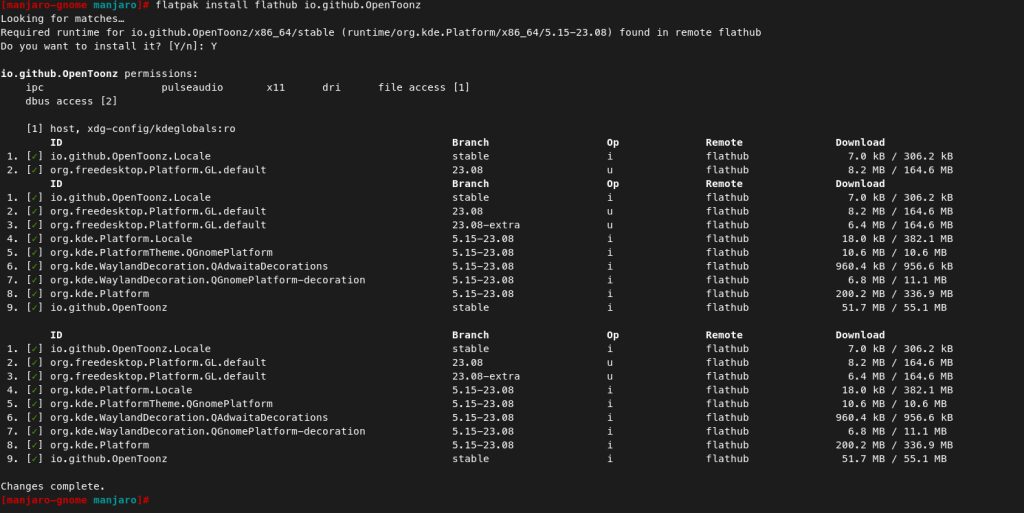
flatpak install flathub io.github.OpenToonz
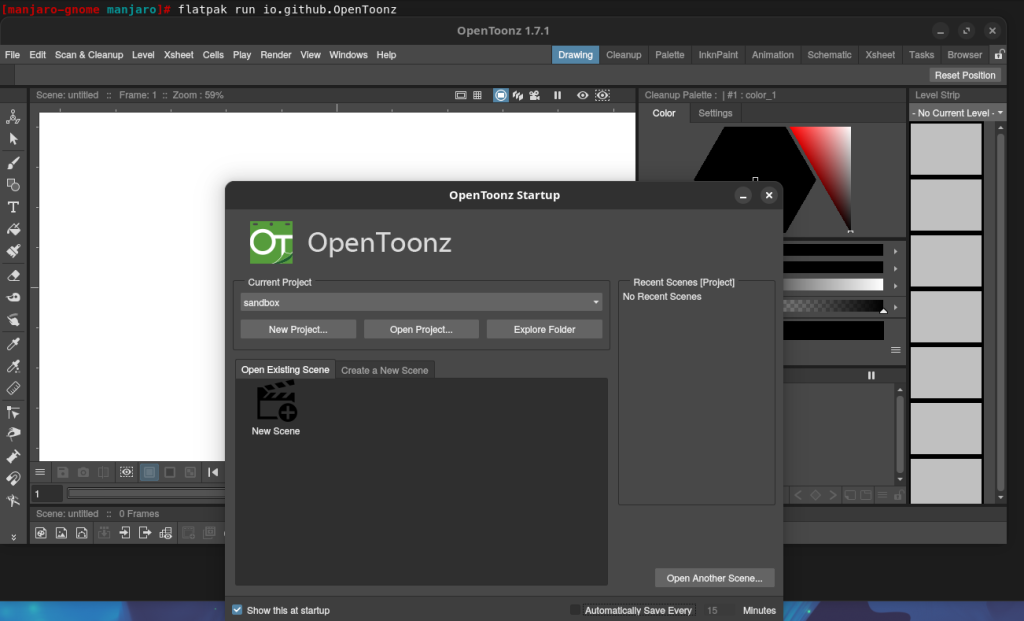
flatpak run io.github.OpenToonz

The install command pulls OpenToonz and any runtime it needs from Flathub. Flatpak asks for confirmation and lists the download size before it starts. When it finishes, start the app from your menu or with the run command.

Check the version with flatpak info io.github.OpenToonz. At the time of writing it should report 1.8.0. Flatpak runs apps in a sandbox, so if a project folder will not open, review the permissions with flatpak info –show-permissions.
Install OpenToonz on Linux with an AppImage
The AppImage route installs the Morevna Edition, a fork maintained by the Morevna Project. Its newest GitHub release is v1.4.0-morevna from March 2020, so it sits several versions behind upstream 1.8.0. Use it if you want a portable file that needs no package manager.
Download and run the AppImage
Download the AppImage from the Morevna Project releases page on GitHub and note where you saved it. Our guide to installing AppImages on Linux covers the general routine. Then mark the file executable and start it from a terminal.
cd ~/Downloads
chmod +x <name-of-file>.AppImage
./<name-of-file>.AppImage
The chmod command (it changes file permissions) adds the execute bit that AppImages need. Replace the placeholder with the real file name, which usually includes the version and build date. If you see a libfuse error on Ubuntu 24.04 based systems, install libfuse2t64 with apt.
Install OpenToonz on Linux with Snap
The opentoonz snap is published by the Snapcrafters community and the Snap Store notes that upstream does not necessarily endorse it. Its latest/stable channel was last updated on 28 May 2021 while the edge channel saw an update on 28 April 2026. Check snap info before you rely on it.
sudo snap install opentoonz
snap info opentoonz
sudo snap refresh opentoonz --channel=latest/edge
Snap needs snapd running first. Ubuntu usually includes it. Debian installs it with apt. Our guide to Snap and snapd on Linux walks through each case.
Run snap info opentoonz to see the version each channel carries. Edge builds can include untested changes, so switch back with sudo snap switch –channel=stable opentoonz followed by sudo snap refresh opentoonz if the app misbehaves. Snaps also refresh on their own by default.
A second snap named opentoonz-morevna carries the Morevna Edition. Its stable channel shows 1.4.0 and the Snap Store warns that the channel has not been updated in a while. Prefer the Flatpak unless you need that edition.
Build OpenToonz from source on Linux
Building from source gives you the exact 1.8.0 tag and does not depend on any package maintainer. Upstream’s own build guide tells you to be patient because compiling is slow. The steps below follow that guide and use Debian and Ubuntu package names.
Install the build dependencies
The guide’s main requirements are Git, GCC or Clang, CMake 3.10 or newer, Qt 5.15 or newer, Boost, OpenCV 3.2 or newer and libmypaint 1.3 or newer. Debian and Ubuntu users can pull most of them with one apt command.
sudo apt-get install build-essential git cmake pkg-config libboost-all-dev qtbase5-dev libqt5svg5-dev qtscript5-dev qttools5-dev qttools5-dev-tools libqt5opengl5-dev qtmultimedia5-dev libqt5multimedia5-plugins libqt5serialport5-dev libsuperlu-dev liblz4-dev libusb-1.0-0-dev liblzo2-dev libpng-dev libjpeg-dev libglew-dev freeglut3-dev libfreetype6-dev libjson-c-dev qtwayland5 libmypaint-dev libopencv-dev libturbojpeg-dev
Older releases lack a libmypaint package. The guide then shows how to build version 1.3.0 yourself, which takes a few extra minutes.
Fedora and openSUSE have their own dependency commands in the same document.
Build and run OpenToonz
git clone https://github.com/opentoonz/opentoonz
cd opentoonz
git checkout v1.8.0
mkdir -p $HOME/.config/OpenToonz
cp -r stuff $HOME/.config/OpenToonz/
cd thirdparty/tiff-4.0.3
./configure --with-pic --disable-jbig
make -j$(nproc)
cd ../../toonz
mkdir build
cd build
cmake ../sources
make -j$(nproc)
Check out the v1.8.0 tag so you build the release rather than the moving master branch. The guide says copying the stuff folder into the OpenToonz config directory is currently required to run the app. It also builds a modified libtiff from the thirdparty folder first.
Run the result from the build folder with the command below. A system install goes to /opt/opentoonz by default. Change that with the CMAKE_INSTALL_PREFIX variable.
LD_LIBRARY_PATH=./lib/opentoonz:$LD_LIBRARY_PATH ./bin/OpenToonz
sudo make install
/opt/opentoonz/bin/opentoonz
OpenToonz Morevna Edition vs upstream OpenToonz
The Morevna fork has historically added a MyPaint brush engine, an advanced colour selector and scripting through an ECMA compatible engine. Check the Morevna Project page before you rely on any of those.
Upstream has since caught up on MyPaint. Its build guide lists libmypaint 1.3 or newer as a dependency. The 1.7 release notes also mention MyPaint brushes.
- Choose upstream 1.8.0 through Flatpak or source for the newest tools and fixes.
- Choose the Morevna AppImage only if you rely on its extras and accept a 2020 base.
Fix common OpenToonz Linux problems
Three problems showed up repeatedly in the Linux reports and build issues I read while updating this guide. Video export may not find FFmpeg. Settings can cause crashes. A source build can fail during configuration.
OpenToonz cannot find FFmpeg
Video formats such as MP4 depend on an external FFmpeg install. Install it with your package manager first. Then point OpenToonz at it in Preferences and follow the official guide to using FFmpeg with OpenToonz, which a Morevna maintainer recommended to users who hit this.
# Debian and Ubuntu
sudo apt install ffmpeg
# Arch
sudo pacman -S ffmpeg
OpenToonz crashes after a settings change
A Morevna maintainer once suggested renaming the config folder to rule out bad settings. Close the app and move the folder aside, then relaunch. Restore it if nothing changes. Source builds need the stuff folder copied back, so use this fix with care there.
mv ~/.config/OpenToonz ~/.config/OpenToonz.bak
This applies to AppImage and source builds. Flatpak keeps app data under ~/.var/app/io.github.OpenToonz instead.
The source build fails during cmake
A 1.7 release candidate build failed on Qt 5.15.9 and newer. The Arch AUR package worked around it by turning translations off. If your cmake run fails the same way, add the flag below and try again. I did not confirm whether 1.8.0 still needs it.
cmake ../sources -DWITH_TRANSLATION=OFF
If SuperLU is not found, add -DSUPERLU_INCLUDE_DIR=/usr/include/SuperLU as the guide suggests. Run make with VERBOSE=1 when a compile error is unclear.
Update or remove OpenToonz on Linux
Flatpak and Snap update from their own commands. An AppImage updates when you download a newer file and delete the old one. A source build updates when you check out a newer tag and rebuild.
flatpak update io.github.OpenToonz
flatpak uninstall io.github.OpenToonz
sudo snap refresh opentoonz
sudo snap remove opentoonz
If you ran sudo make install with the default prefix, delete /opt/opentoonz to remove that copy. Check the path first because the command removes the whole folder.
Next steps after installing OpenToonz
The official documentation is hosted on Read the Docs and covers the interface, drawing tools and export settings. Open it once the app launches and work through the basics before you start a real project.
Key takeaways
- Upstream ships no Linux binary, only Windows and macOS installers.
- OpenToonz 1.8.0 is the latest stable release, from 19 June 2026.
- The Flatpak (io.github.OpenToonz) gives 1.8.0 on x86_64.
- The AppImage is the Morevna Edition, based on 1.4.0 from 2020.
- The stable snap was last updated in May 2021.
- Build from source for the exact v1.8.0 tag.
- Install FFmpeg yourself for video export.
- Trust opentoonz.github.io and the GitHub repo as official sources.
Frequently asked questions
Is there an official OpenToonz Linux installer?
No. The official 1.8.0 release provides a Windows installer, a macOS package and source code. Linux users install community packages such as the Flathub Flatpak or build from source.
What is the easiest way to install OpenToonz on Ubuntu?
Install Flatpak, add the Flathub remote and run flatpak install flathub io.github.OpenToonz. It installs version 1.8.0 on x86_64 systems without compiling anything.
Does the OpenToonz snap have the latest version?
Not reliably. The stable channel was last updated in May 2021 and edge in April 2026. Run snap info opentoonz to see which version each channel carries before installing.
How do I run an OpenToonz AppImage on Linux?
Download the file, run chmod +x on it, then start it with ./ followed by the file name. On Ubuntu 24.04 systems you may need libfuse2t64 first.
Is OpenToonz free for commercial use?
Yes. Upstream says OpenToonz can be used free of charge for commercial and non-commercial work. Its source code uses the New BSD licence.
How do I check which OpenToonz version I installed?
For Flatpak run flatpak info io.github.OpenToonz. For Snap run snap list opentoonz. Other builds show it in the About dialog.