
MarkText is a desktop Markdown editor with a live document view, tables, math, diagrams, and export support. For Linux, the official project publishes an AppImage, Debian package, RPM, Snap package, and portable tarball. Pick the format that fits your distribution instead of adding an unrelated repository.
Choose the right MarkText package
The AppImage is the simplest choice when you want a self-contained download that runs without root access. Ubuntu, Debian, Linux Mint, and Pop!_OS users can install the Debian package, while Fedora, RHEL, and openSUSE users can use the RPM.
| Your system | Recommended format | Why |
|---|---|---|
| Any common desktop Linux distribution | AppImage | Runs as a downloaded executable without a system-wide install. |
| Debian, Ubuntu, Linux Mint, Pop!_OS | Debian package | APT installs it with the package metadata and dependencies. |
| Fedora, RHEL, openSUSE | RPM | Matches distributions that use RPM packages. |
| Arch Linux | marktext-bin from the AUR | The official installation page names this package for Arch users. |
| Snap-enabled distribution | Release Snap package | Use the Snap file from the official release page. |
MarkText’s official installation page recommends the AppImage for most Linux systems. The Snap Store listing currently warns that its latest stable channel has not been updated in a while, so use the official GitHub release files when freshness matters.
Install MarkText with the AppImage
Open the MarkText releases page and download the current Linux AppImage for your CPU architecture. The x86_64 file for the current v0.19.1 release is named marktext-linux-0.19.1.AppImage.
cd ~/Downloads
chmod +x marktext-linux-0.19.1.AppImage
./marktext-linux-0.19.1.AppImage
The chmod command grants execute permission to the downloaded file. If the release page shows a newer filename, use that filename in both commands.
Install MarkText on Ubuntu and Debian
Download the current Debian package from the official release page. Run APT against the local file so it can resolve the package dependencies that MarkText declares.
cd ~/Downloads
sudo apt install ./marktext-linux-0.19.1.deb
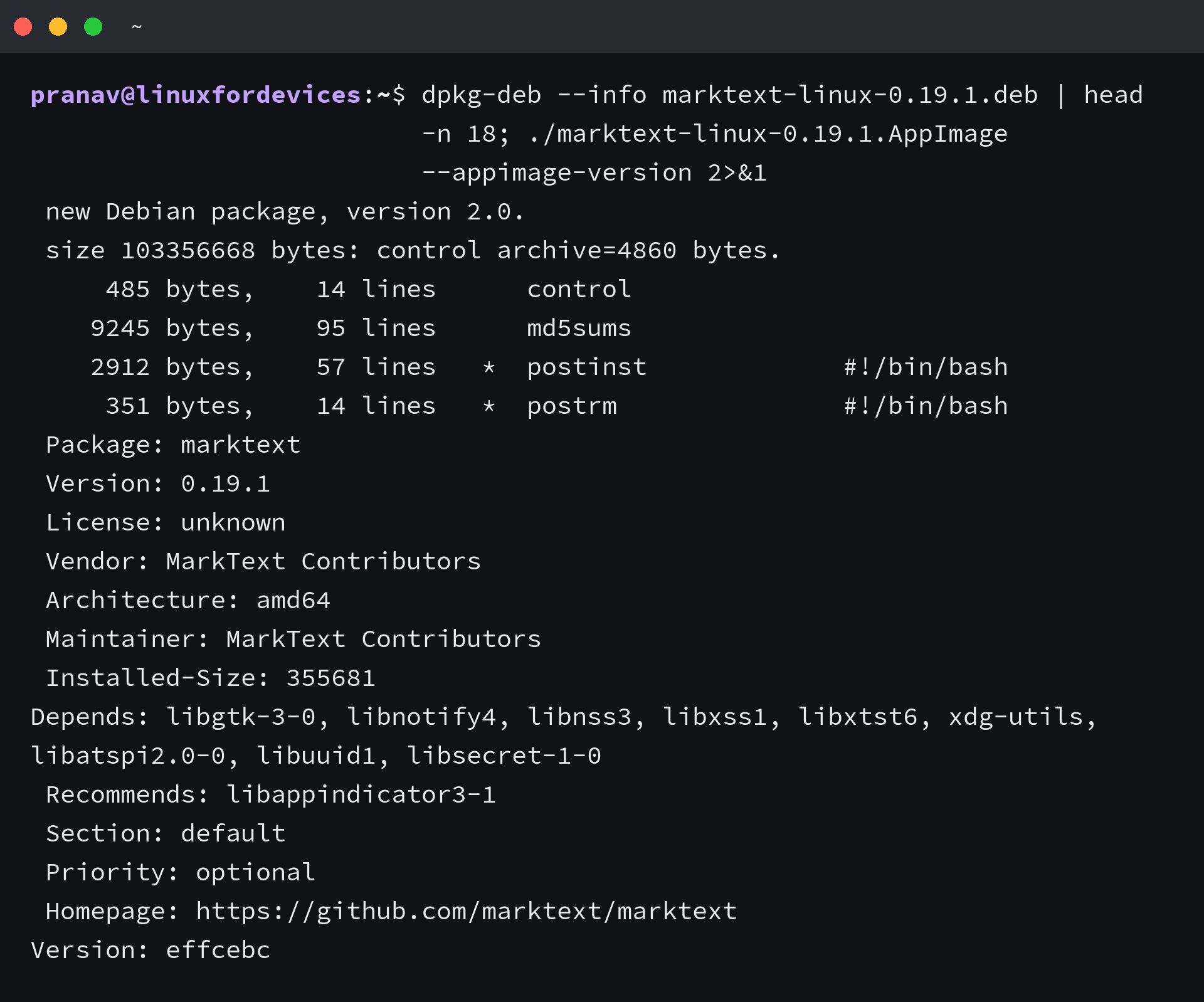
The package inspected for this refresh identifies itself as MarkText 0.19.1 for amd64, with GTK, NSS, and XDG utilities among its desktop dependencies. A headless server can inspect that package but cannot open its graphical window.
Install MarkText on Fedora, RHEL, or openSUSE
For Fedora, RHEL, and openSUSE, download the RPM from the official release page and install that local file with the rpm command.
cd ~/Downloads
sudo rpm -i marktext-linux-0.19.1.rpm
If your distribution’s package tool reports a missing dependency, let that tool install the dependency rather than forcing the RPM. A newer asset on the release page needs its matching filename here.
Install MarkText with Flatpak
Flathub provides MarkText as com.github.marktext.marktext, but its listing currently carries an Unverified label. Inspect the publisher information before you install it.
flatpak install flathub com.github.marktext.marktext
flatpak run com.github.marktext.marktext
You need Flatpak and the Flathub remote configured before this command can work. The first command shows the installation prompt, and the second starts the editor from its Flatpak application ID.
Verify the download before you run it
The official release includes a latest-linux.yml file with SHA-512 hashes. Download that file beside the AppImage, calculate the hash, and compare the values before you execute a file from the internet.
shasum -a 512 marktext-linux-0.19.1.AppImage
Use the command’s output only when it matches the corresponding AppImage entry in latest-linux.yml from the same release. A mismatch means you should delete the file and download it again from the official release page.
Start MarkText and open a Markdown file
Launch MarkText from your application menu after installing a Debian or RPM package. For an AppImage, run the file from the terminal or open it through your file manager.
Create a file with the .md extension, open it in MarkText, and type a heading followed by ordinary text. Its live view updates as you edit, while source code mode lets you inspect the Markdown syntax directly.
Remove MarkText
Delete an AppImage to remove that portable copy. For a Debian package, remove it with APT. For Flatpak, remove the same application ID that you installed.
sudo apt remove marktext
flatpak uninstall com.github.marktext.marktext
Choose the command that matches the installation method you used. Keep the release page bookmarked so you can compare the current build before replacing an AppImage or downloaded package.
Which MarkText package should I use on Ubuntu?
Use the Debian package from the official MarkText release page when you want an APT-managed install. Use the AppImage when you want a portable file without a system-wide install.
Can I install MarkText with Flatpak?
Yes. The Flathub application ID is com.github.marktext.marktext. The listing currently carries an Unverified label, so review its publisher details before installing.
How do I run the MarkText AppImage?
Download the AppImage from the official release page, run chmod +x on the downloaded file, then run it from the same directory.