

Some projects include their own Gradle launcher, while you may also need a Gradle command in your shell for work outside that project. Gradle is a build automation tool that reads a project’s build definition and runs tasks such as compiling or testing code.
This guide shows how to choose between a project’s Wrapper and a global Gradle installation, then install Gradle on Ubuntu or Debian.
TL;DR: Install Gradle on Ubuntu or Debian
For a new machine-wide Gradle command, install a Java 17-or-newer JDK, then use SDKMAN or the official Gradle binary ZIP and add its bin directory to PATH.
- For an existing project, check for gradlew first and run ./gradlew instead of installing a global Gradle.
- Use SDKMAN when you want to manage Gradle versions from the shell.
- Use the official ZIP when you want to control the install directory or avoid a version manager.
- Run gradle -v to verify a global installation.
What is Gradle?
Gradle is a build automation tool. It reads a project’s build definition and runs tasks such as compiling or testing code. Before adding a global command, check whether the repository already provides gradlew because its Wrapper runs the version configured by that project.
| Situation | Use | Reason |
|---|---|---|
| Repository contains gradlew | ./gradlew build | The project selects its Gradle distribution. |
| Starting a new Gradle project or using Gradle outside one repository | Install Gradle | A global gradle command can create or manage project setup. |
Android Studio already includes Gradle for work confined to that IDE. For a repository created elsewhere, inspect the project files before installing anything system-wide.
How to install Gradle step by step
Gradle runs on a Java Virtual Machine and the current Gradle release requires a JDK 17 or newer. I checked the current official installation guide, compatibility matrix and distribution endpoint. They identify Gradle 9.8.1 as current on the research date, but the steps below use a versioned download so the archive and checksum stay matched.
Step 1: Check the Java prerequisite and project Wrapper
Check for the gradlew script in the project root before adding a machine-wide command to PATH.
java -version
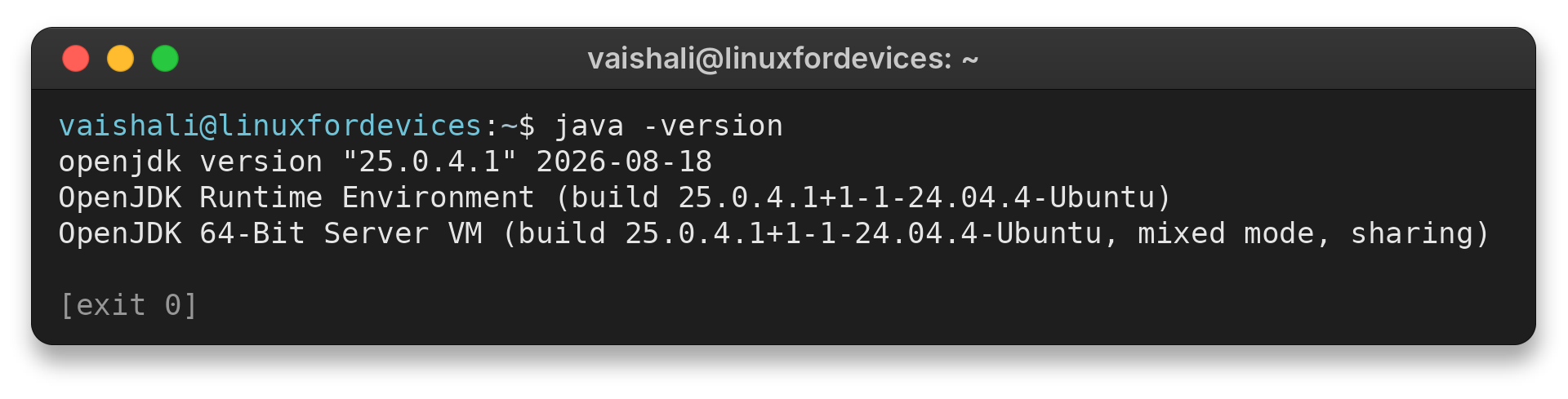
My Java check returned OpenJDK 25.0.4.1. Check the detected version against Gradle’s current prerequisite.
The screenshot shows the full Java version output. The command returned:
openjdk version "25.0.4.1" 2026-08-18
OpenJDK Runtime Environment (build 25.0.4.1+1-1-24.04.4-Ubuntu)
OpenJDK 64-Bit Server VM (build 25.0.4.1+1-1-24.04.4-Ubuntu, mixed mode, sharing)
If java is missing or reports a lower version than 17, install a supported JDK using the distribution’s package instructions before continuing. See the guide to installing Java on Debian for the JDK step.
Step 2: Install Gradle with SDKMAN
SDKMAN manages multiple Gradle or Java versions from the shell. Install it from its official setup page and follow its prompts.
Initialize SDKMAN in the current shell before using it to install Gradle.
curl -s "https://get.sdkman.io" | bash
source "$HOME/.sdkman/bin/sdkman-init.sh"
sdk install gradle
The installer changes files in your home directory and updates shell startup configuration. Read the installer instructions before running a remote script, and do not run it as root. SDKMAN’s official documentation supports Bash and Zsh.
SDKMAN may ask whether to make the selected release the default. Accept that choice only if it matches your normal shell use.
Use sdk install gradle VERSION for a specific project or team requirement. Check the vendor release list before selecting that version.
Step 3: Install Gradle from the official binary ZIP
Choose the manual route when you want the distribution in a known directory without SDKMAN. Gradle provides a binary-only ZIP for running builds. The all ZIP also bundles documentation and source files.
The vendor’s current release endpoint listed Gradle 9.8.1 and the binary archive URL below on 2026-10-18. Check the current release endpoint before using these versioned commands later, because a newer release can replace it.
mkdir -p "$HOME/.local/opt/gradle"
cd "$HOME/.local/opt/gradle"
wget https://services.gradle.org/distributions/gradle-9.8.1-bin.zip
printf '%s  %s\n' 'dce76f55f8e251a3a1f130eb120f30b3d271de2b76c9b0729d316b5a1b6dc01f' gradle-9.8.1-bin.zip | sha256sum --check -
unzip gradle-9.8.1-bin.zip
The checksum comes from the same official release endpoint as the ZIP URL. A successful SHA-256 check prints an OK result. Stop if it reports a mismatch and download the matching checksum from the official release record.
The digest check verifies that the downloaded bytes match Gradle’s published value. It does not verify a third-party mirror. Download both files from Gradle’s official distribution service.
Extract the archive in your home directory to avoid writing to /opt or needing administrator privileges. Its versioned gradle-9.8.1 directory also lets you keep another release beside it when testing an upgrade.
Step 4: Add Gradle to PATH
Set GRADLE_HOME to the extracted version and prepend its bin directory to PATH, the list of directories your shell searches for commands.
export GRADLE_HOME="$HOME/.local/opt/gradle/gradle-9.8.1"
export PATH="$GRADLE_HOME/bin:$PATH"
These exports affect only this shell. Add them to a user-level startup file, then open a new session to make the setting persist.
The guide to setting environment variables in Linux explains the difference between login and interactive shell startup files.
If you use SDKMAN, do not add a separate manual Gradle path unless you intend to override its selected version. The version manager maintains its own active path, while a manually prepended bin directory takes priority during shell command lookup.
Step 5: Verify the Gradle command
Run the version command from a new shell after setup. It confirms that the shell finds Gradle and reports which JVM and operating system the launcher uses.
gradle -v
For an existing project, use the following read-only command to check the project’s configured Gradle distribution.
./gradlew --version
On an installation, compare the Gradle release shown there with the JVM used to launch it. A command that exists can still fail after startup if the selected JDK falls outside that release’s supported runtime range.
For a Wrapper-based build, the project can set additional Java toolchain requirements for compilation or tests. Those toolchains are separate from the JVM that starts Gradle. Check the project documentation as well as Gradle’s runtime compatibility table when the build uses a specific Java toolchain.
Check the Java version, PATH and project Wrapper
When the command fails, check PATH resolution first because it identifies which executable the shell can find. The error message can point to the failing layer.
| Symptom | Check | Next action |
|---|---|---|
| gradle: command not found | command -v gradle | Confirm Gradle’s bin directory is in PATH. Start a new shell after editing a profile. |
| Gradle reports unsupported Java | java -version | Install or select a JDK supported by the Gradle version being run. |
| Project build uses the wrong version | ls -l gradlew | Run ./gradlew from the project root instead of global gradle. |
| JAVA_HOME points to a missing directory | printf ‘%s\n’ “$JAVA_HOME” | Set it to the installed JDK location or remove a stale override. |
- The system which command can show the executable found on PATH, and command -v gradle works in common shells. See the LinuxForDevices guide to the which command. Confirm that a missing-command fix points to the versioned bin directory.
- The current compatibility matrix lists Java 25 support from Gradle 9.1.0 onward.
- Installing Gradle with apt can be convenient when the repository candidate suits the project. Linux package managers may distribute versions that differ from the official release, so check the candidate first. The apt and apt-get guide covers the package manager commands.
- For a manual ZIP, use Wget or curl to download the official URL. Then extract the ZIP archive only after its checksum matches. Keep the archive and its checksum together until verification is complete.
Conclusion: use the project Wrapper for builds
Use the global gradle command for standalone tasks and ./gradlew when a project provides its Wrapper.
See the official Gradle installation guide for current setup details.
FAQ
These answers cover the prerequisite and the two different ways Gradle can be selected.
Which Java version does current Gradle require?
The current Gradle installation guide requires JDK 17 or newer. Check the compatibility matrix because older Gradle releases may support a narrower Java range.
How do I check if Gradle is installed?
Run gradle -v for a global installation. In a project that has a Wrapper, run the Wrapper version command to check the project-selected Gradle distribution.
Do I need to install Gradle for an existing project?
Not if the project includes gradlew and its Wrapper files. Run ./gradlew from the project root; the Wrapper obtains the configured Gradle distribution when needed.