
Ubuntu users who want to work with office documents need a desktop app installed on their system. WPS Office for Linux is a desktop productivity suite for working with office documents on Ubuntu.
I’ll show you how to install WPS from the official Deb package and check that the package is installed and the app opens.
TL;DR
Download the current Deb package from WPS Office for Linux, then install the exact local filename with APT.
- Choose Deb for Ubuntu, not RPM.
- Check the package architecture and filename before installing.
- Use sudo apt install ./filename.deb from the directory that contains the download.
- Open WPS from the application menu and test with a document copy.
What is WPS Office for Ubuntu?
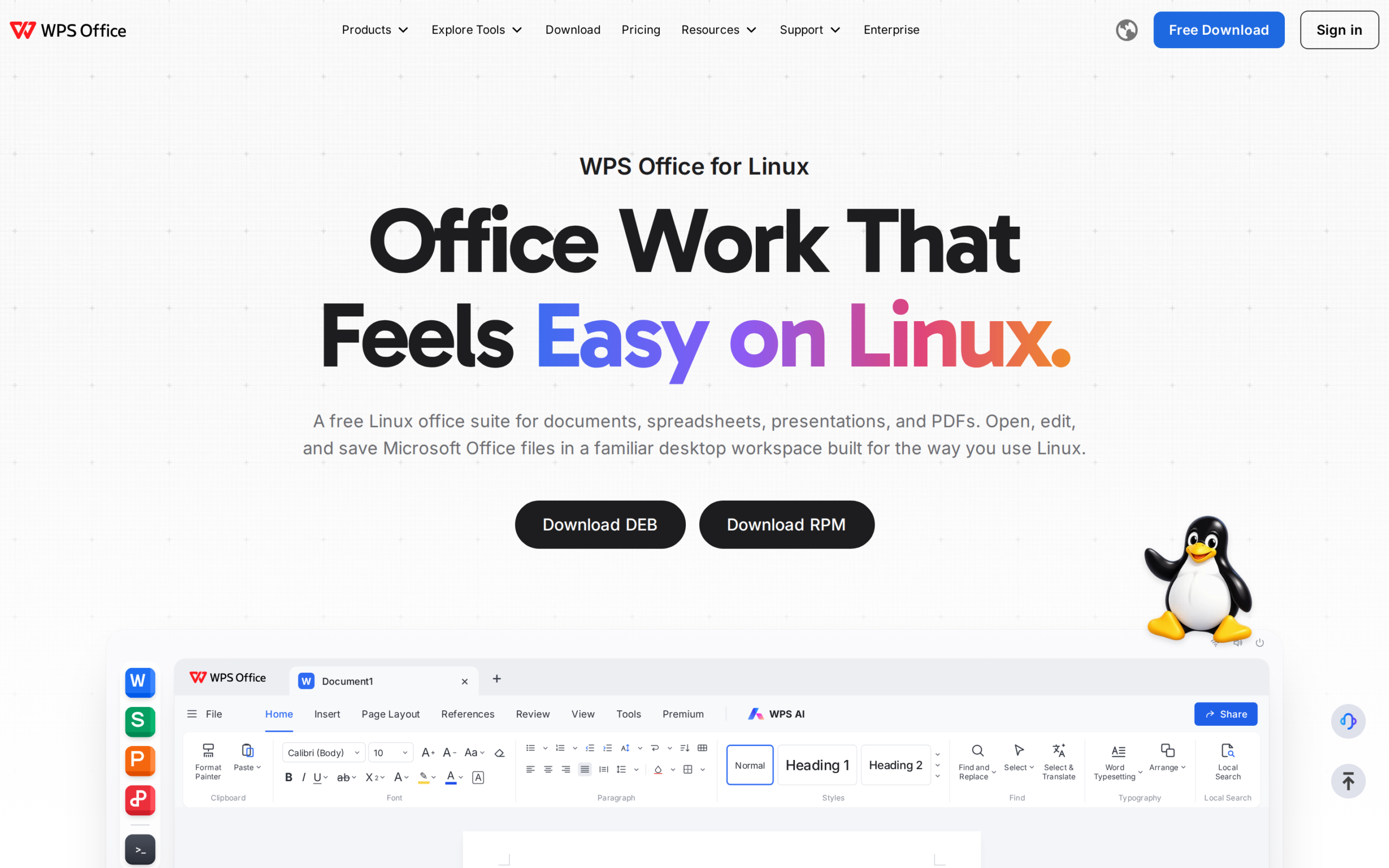
WPS Office for Linux is a desktop productivity suite from Kingsoft. Its Linux offering includes Writer, Spreadsheet, Presentation and PDF tools, as listed on the vendor’s Linux page.
Ubuntu uses Debian packages, whose filenames end in .deb. Ubuntu uses Deb packages. A local Deb is an installation file saved on your computer.
The local file path tells APT to install that download rather than search for a package name in a repository.
| WPS component | Typical file task |
|---|---|
| Writer | Text documents |
| Spreadsheet | Workbooks and calculations |
| Presentation | Slide decks |
| PDF tools | Viewing and working with PDFs |
The component names and broad roles follow the vendor’s product description. The table helps identify which app to open after installation. It does not promise that every feature in another office suite behaves the same in WPS.
Ubuntu’s software installer presents the Deb file in a window. The terminal route prints dependency messages alongside the filename, which helps when troubleshooting.
How to install WPS Office on Ubuntu
Install the downloaded Deb package from the Ubuntu desktop. The steps below check the package, install it and verify the app.
Step 1: Check your Ubuntu architecture
Open Terminal and check both the kernel architecture and the Debian package architecture. These read-only commands do not install or change anything:
uname -m
dpkg --print-architecture
The check on this system printed the following architecture names:
aarch64
arm64
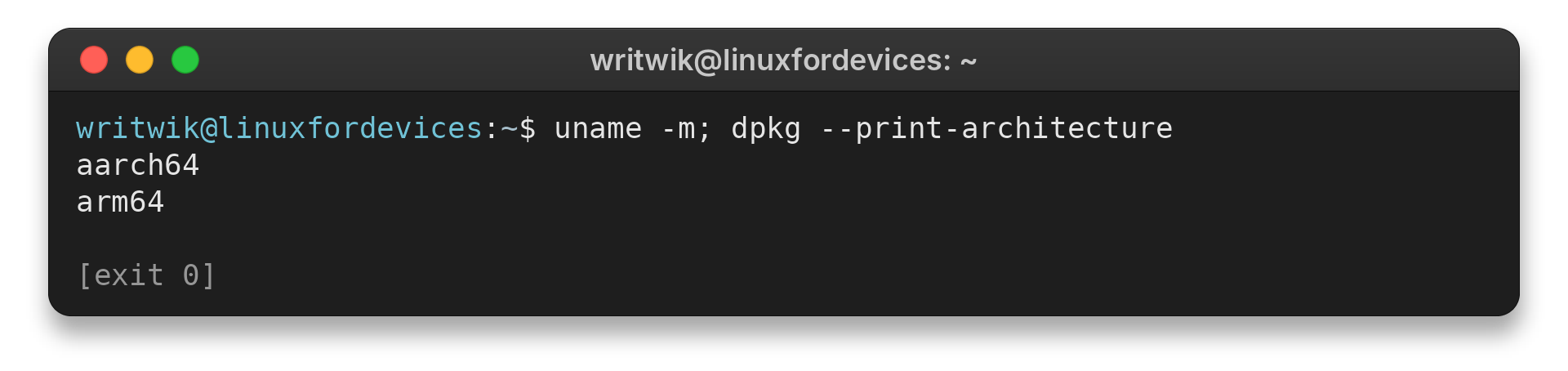
Here, uname reports aarch64 while dpkg uses arm64 for the same 64-bit ARM architecture. A common 64-bit PC instead reports x86_64 and amd64.
Step 2: Download the official Deb package
Open the official WPS Linux download page and choose the Deb option. Save the file, then open Terminal and list the matching downloads:
ls -lh ~/Downloads/wps-office*.deb
Use the full filename printed by your command in the next step. A version string in the name changes as WPS publishes new packages, so do not copy an old filename from a tutorial. If the command finds no file, check the browser’s download location and whether you chose the Deb option.
You can also double-click the downloaded file in the file manager and use Ubuntu’s software installer. The terminal route below makes the local file path explicit, which helps when you need to read APT’s dependency messages.
Step 3: Install the local package with APT
Change into Downloads and replace the example filename below with the Deb file you listed. This package installation needs administrator permission.
cd ~/Downloads
sudo apt install ./wps-office_VERSION_amd64.deb
Output not captured: this install needs administrator permission.
The ./ prefix identifies a file in the current directory. This package install was not run here because it changes system package state and needs administrator permission.
Review the filename and APT’s proposed changes before confirming. Cancel if the plan includes an unexpected removal.
APT uses the repositories already configured on Ubuntu to look for missing dependencies. If the installer stops, note the dependency names it reports. The next section describes how to use those details.
Step 4: Confirm the package and open WPS
Check the installed package status with dpkg, then find WPS in Ubuntu’s application menu:
dpkg -l wps-office
A configured package normally has ii at the start of its status columns. Open WPS Writer from the menu and test with a copy of a DOCX file. For spreadsheet or presentation work, test a copy of an XLSX or PPTX as well.
WPS’s terminal guide notes that launcher names can vary by build. If you prefer a terminal launch, inspect the installed package’s files first rather than assuming a command name. The application menu is the direct check for a desktop install.
What should you check after installation?
The right next step depends on the symptom: a dependency error differs from a missing application-menu entry.
| Symptom | What to check | Next action |
|---|---|---|
| APT reports unmet dependencies | Read the package names and proposed changes | Run apt repair only when APT reports a broken dependency state, then retry the local Deb install if needed |
| Package architecture is rejected | Compare uname -m and dpkg --print-architecture | Download only a matching package currently offered by WPS |
| WPS does not appear in the menu | Check dpkg -l wps-office | If package status is not configured, follow APT’s reported error before retrying |
| App opens but a file looks wrong | Test a copy and compare with the source app | Successful installation does not establish how a document will render in another suite. Test a copy before choosing an app |
APT may propose removing other software when a dependency cannot be satisfied. If that happens, cancel and investigate the named package instead of adding random libraries.
The Snap Store listing labels its WPS package as testing and shows a 2018 update date. Flathub describes its package as community-provided, without Kingsoft affiliation or support.
Also distinguish a desktop install from a server setup. WPS Office for Linux is a graphical application, so its normal use requires an Ubuntu desktop session. A package status check alone does not prove that the app opens in that session.
A headless Ubuntu server has no normal desktop menu or window for these apps. Use the package in a graphical session where you can open and inspect documents.
If the menu entry opens but no window appears, launch from a graphical terminal to read the error. Copy the exact message before changing packages or adding libraries.
When a download appears to finish but no Deb is present, return to the vendor page and choose the Deb download again. Confirm that the browser saved the package rather than an HTML page or an incomplete temporary download. The filename listing is a quick check before invoking the installer.
To update later, download the newer Deb from WPS and install that local file with the same APT command. To remove the installed package, use APT’s remove action and review its proposed changes. Keep personal settings unless you specifically want to remove them.
If you are comparing suites rather than troubleshooting WPS, see the LinuxForDevices guides to installing LibreOffice on Linux, installing OnlyOffice and comparing FreeOffice and LibreOffice.
Conclusion: Use the official Deb package
Install its Deb file with APT. Confirm the package status and open the app from your desktop menu. For another office suite, compare the LibreOffice and OnlyOffice options above before choosing a workflow.
FAQ
These answers cover the package source and the checks that matter after installation.
Is WPS Office free to download for Ubuntu?
WPS provides a free Linux download page with a Deb package for Ubuntu. Check the vendor’s current product details for account-based or paid features.
Can I install WPS with sudo apt install wps-office?
That command asks APT to locate a repository package. For the official downloaded Deb, use sudo apt install ./exact-filename.deb from the directory containing the file.
How can I tell whether WPS installed?
Check dpkg -l wps-office for a configured package, then open WPS from Ubuntu’s application menu and test with a copy of a document.