

Searching a folder with find goes through every subfolder inside it, so one directory full of files you don’t care about can crowd your results. Excluding that directory tells find to skip it entirely, so it never looks at the files under it.
Here I’ll skip one directory with find’s -prune option, then extend the same command to skip several.
What does excluding a directory with find mean?
Excluding a directory with find means pruning the matched path so search stops before entering its children.
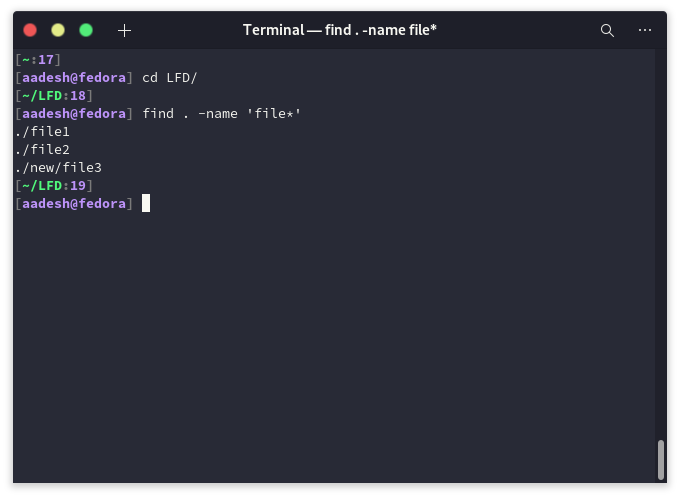
A normal search descends into every reachable subdirectory unless an expression changes that behavior. This existing screenshot shows the baseline: matching files appear from both the current directory and the new subdirectory.
find . -name 'file*' -print
What you need before pruning a path
GNU find uses the search starting point to build the candidate path tested by -path. If the command starts at the current directory, ./new names a child directory called new.
The find command reference covers other predicates, while separate guides explain hidden files in Linux and counting files in a directory.
- Start find in the directory you want to search, or adjust the path test to match its starting point.
- Quote shell wildcards with straight quotation marks so the shell passes them to find unchanged.
- Choose whether you want regular files only or other filesystem entries as well.
How to exclude a directory with find
A path match sends the directory to -prune, while the OR branch handles everything else.
Step 1: Prune the matching path
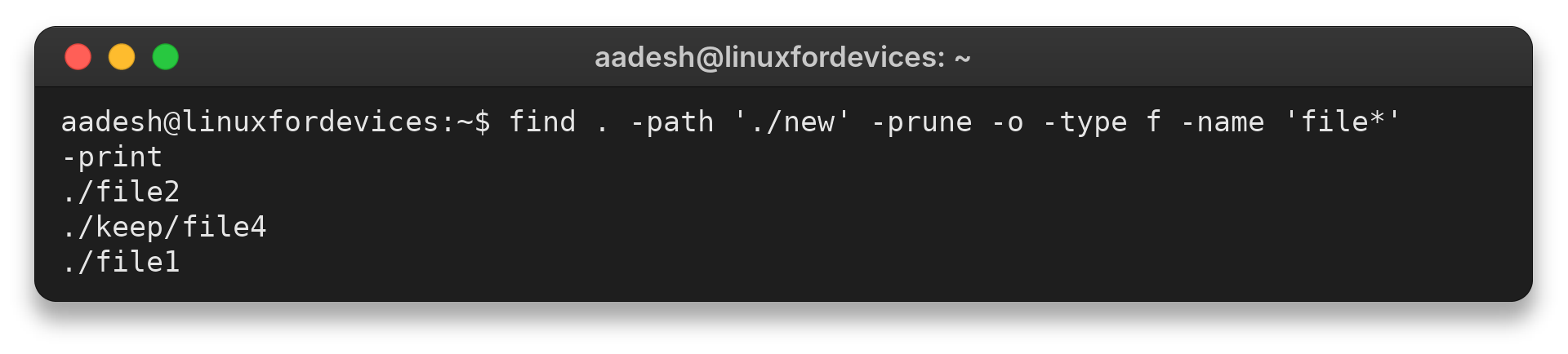
Match the directory before the other search tests, then connect that branch to the rest of the expression with -o. I ran the command below against a small tree containing file1 and file2 at the search root, file3 under new, and file4 under keep.
find . -path './new' -prune -o -type f -name 'file*' -print
The left side succeeds for ./new and prunes it. For every other path, that side is false, so -o evaluates the right side, which selects regular files whose names start with file and prints their paths.
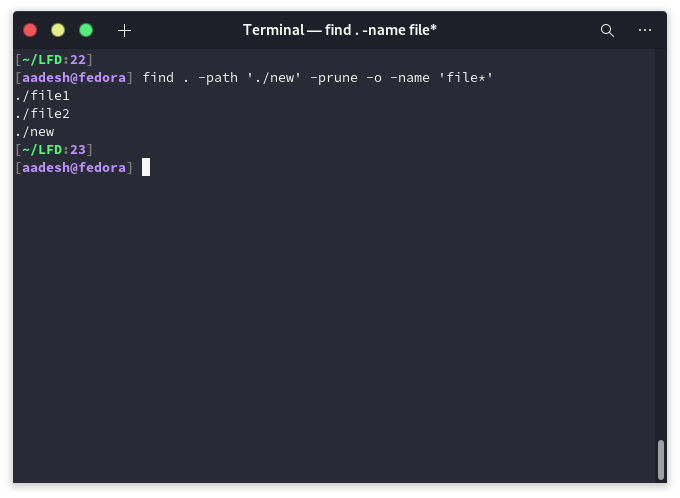
The earlier screenshot demonstrates the pruned search. Because the expression has no action other than -prune, GNU find supplies its default print action for paths where the expression is true. Adding an explicit -print makes the intended output clear and prevents confusion about why a matching directory itself may still appear.
The fresh command with an explicit -print produced file1 and file2 at the root plus keep/file4. It did not visit or print new/file3.
Step 2: Prune more than one directory
Add another path-and-prune branch before the final -o. Each matching directory is pruned, while paths that match neither exclusion reach the file tests.
find . -path './new' -prune -o -path './keep' -prune -o -type f -name 'file*' -print
In my second run, the output contained only file1 and file2. Both excluded directory trees were skipped before the filename test ran.
Why a directory still appears in find output
When pruning misses, compare the candidate path with the -path test. The command’s starting point determines whether the candidate begins with ./new, src/new, or an absolute path.
| Symptom | Cause | Adjustment |
|---|---|---|
| Files under the directory still appear | The -path test does not match the candidate path | Run find from the expected start point and match its relative path |
| The excluded directory itself appears | The right-hand expression prints paths that do not match the prune branch, or implicit printing is active | Use an explicit -print after the tests you want |
| Files disappear from output but search still visits their directory | ! -path filters results after traversal | Use -prune when the goal is to stop descending |
A negated path test can filter matching entries from output without pruning the directory. GNU’s manual recommends -prune when you want find to stop descending. Once find selects paths, grep searches file contents, and a line-count command measures file length.
Match the path before changing the expression
Keep the -path match tied to the starting point, then let -prune remove that branch from traversal. If the match is uncertain, inspect the paths first with a plain find command and adjust the -path value to what it prints.
find . -path './new' -prune -o -type f -name 'file*' -print
Frequently asked questions about find exclusions
These answers cover the distinction between skipping a directory and filtering the results.
How do I exclude a directory in the find command?
Match its path with -path, apply -prune, then use -o to run the remaining tests on other paths. For example: find . -path ‘./cache’ -prune -o -type f -print
How do I exclude multiple directories from find?
Add one -path DIRECTORY -prune branch for each directory, joined with -o, then place the file tests and -print at the end.
Does ! -path stop find from searching a directory?
No. ! -path filters paths from the expression’s results, but find may still descend into the directory. Use -prune to stop traversal below a matched directory.