

In GNOME Software, “Chromium Web Browser” can sit beside a similarly named game in the search results. I like that spotting the right entry makes the browser choice feel less mysterious before you install it.
You can pin down whether Chromium or Google Chrome is the browser you mean, rather than choosing by name alone. Their different package sources give you the Fedora distinction that matters for that decision.
Chromium and Chrome come from different sources
Chromium is an open-source browser project, and Fedora packages its browser as chromium in Fedora’s repositories. Google Chrome is Google’s browser, installed as google-chrome-stable from Google’s RPM repository.
| Browser | Fedora package | Package source |
|---|---|---|
| Chromium | chromium | Fedora repositories |
| Google Chrome | google-chrome-stable | Google’s RPM repository |
Fedora’s browser installation notes describe both packages. If you want another Chromium-based browser, see how to install Brave on Fedora.
For a different browser project, see the LibreWolf installation guide.
Check these Fedora prerequisites first
These steps target Fedora Workstation’s RPM package system. Before choosing Chrome, check that your system matches Google’s 64-bit Linux RPM path.
- Use a supported Fedora Workstation release with GNOME Software or the DNF5 command line.
- Have administrator access for installing packages and enabling Google’s repository.
- Use an internet connection that can reach Fedora’s package repositories and, for Chrome, Google’s package repository.
- Install the browser through the source you intend to keep using for updates. The Linux package management guide explains how repositories and package managers fit together.
Install Chromium from Fedora’s repositories
Fedora publishes Chromium in its own repositories, so this install does not require Google’s Chrome repository. Pick GNOME Software if you want a graphical search, or use DNF5 in a terminal.
1. Search for Chromium in GNOME Software
Open Software from the Applications menu and search for Chromium Web Browser. Select that browser entry rather than the separate game listed in the same results.
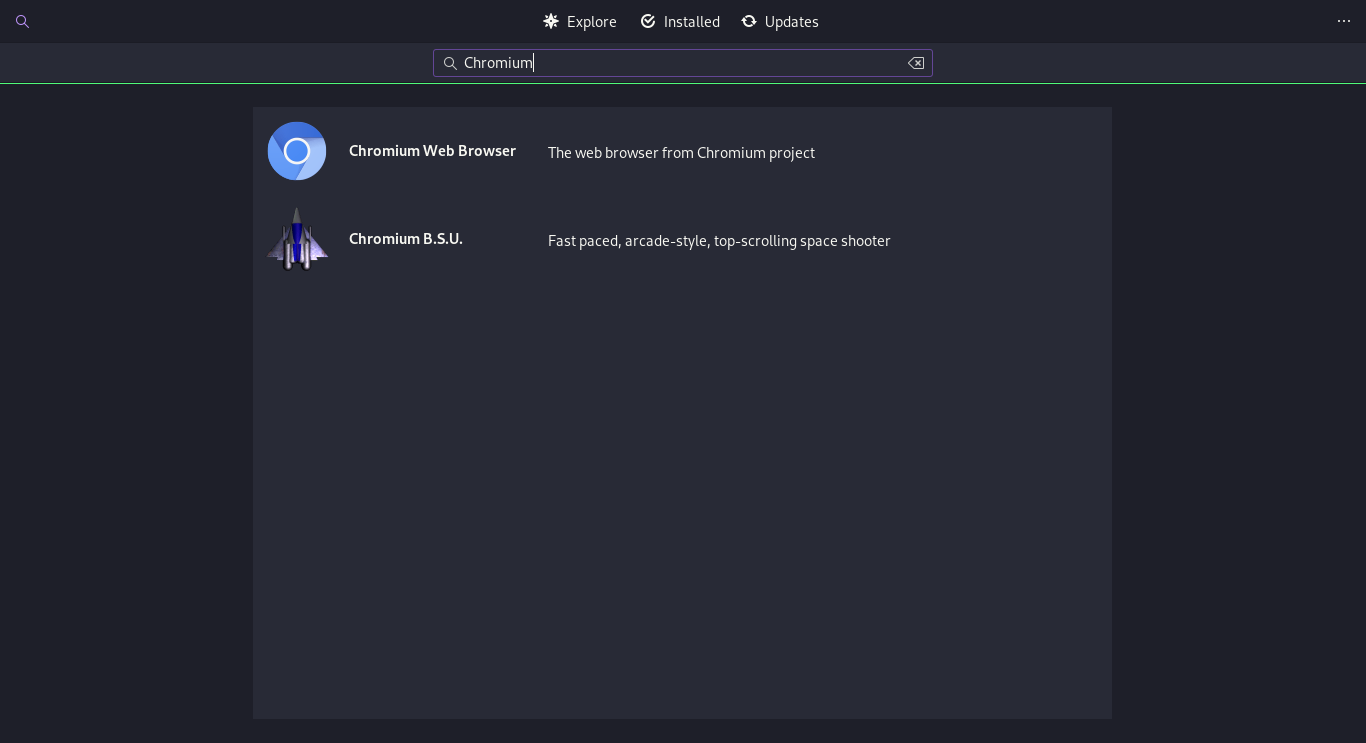
Open the browser’s result and select Install. GNOME Software will show the package action and ask for authentication before it changes the system.
2. Install Chromium with DNF5
The terminal route asks Fedora’s package manager to install the same repository package. Run this command and review DNF’s transaction before confirming it.
sudo dnf install chromium
After DNF completes the transaction, open Chromium from the Applications menu. The package name stays chromium when you update or remove it.
Install Google Chrome from Google’s RPM repository
Chrome is not the Fedora chromium package. Fedora’s fedora-workstation-repositories package supplies selected third-party repository definitions, including Google Chrome, and you enable that source before installing the stable Chrome package.
| Route | Before installation | Install action |
|---|---|---|
| GNOME Software | Enable Google Chrome under Software Repositories | Search for Google Chrome and select Install |
| DNF5 | Install Fedora’s repository definitions and enable google-chrome | Install google-chrome-stable |
1. Enable Google’s repository in GNOME Software
Open Software, choose Software Repositories from its menu, and find Google Chrome under third-party repositories. Switch on that entry, not the general new-repositories setting.
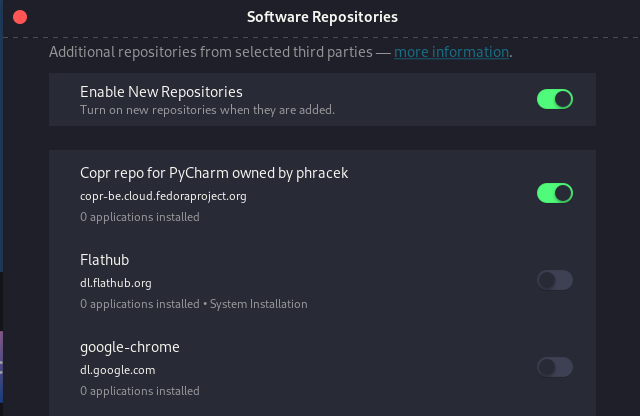
Return to Software, search for Google Chrome, and install it. If the result is absent, check that the Google Chrome repository itself is enabled.
2. Install the repository definitions with DNF5
The Fedora Workstation repositories package adds definitions that GNOME Software and DNF can use. Install it first so DNF knows the Google repository ID.
sudo dnf install fedora-workstation-repositories
3. Enable the Google Chrome repository
DNF5 uses the config-manager setopt form to change a repository option. This saves an enabled override for the repository ID instead of relying on the older DNF4 flag.
sudo dnf config-manager setopt google-chrome.enabled=1
Fedora’s repository management guide explains this kind of source change, and the DNF5 config-manager reference documents setopt. Google’s Linux package-signing notes explain GPG verification for packages and repository updates.
4. Install the stable Chrome package
Once the repository is enabled, install Google’s stable package by its DNF package name. DNF will ask you to review the transaction before it installs the browser.
sudo dnf install google-chrome-stable
Google’s package repository supplies Chrome updates through DNF after installation. The Fedora VS Code installation example shows the same general repository-owned update model for another vendor RPM.
Update or remove the browser you installed
Use DNF for the package you installed, and keep the package name matched to that browser. These commands update or remove only the selected package.
| Browser | DNF package name | Update action | Removal action |
|---|---|---|---|
| Chromium | chromium | dnf upgrade | dnf remove |
| Google Chrome | google-chrome-stable | dnf upgrade | dnf remove |
DNF reads the enabled repository that owns the package, so the command depends on your browser. Run it with either chromium or google-chrome-stable.
sudo dnf upgrade chromium
sudo dnf remove chromium
sudo dnf upgrade google-chrome-stable
sudo dnf remove google-chrome-stable
For package actions and repository ownership, see the DNF command reference and the Linux package management guide.
Fix the repository error before retrying
Fedora 41 and later use DNF5. Its config-manager command uses setopt instead of the older –set-enabled option.
| What you see | What to do |
|---|---|
| Unknown argument –set-enabled | Use DNF5’s config-manager setopt command to enable google-chrome.enabled. |
| No matching repo to modify: google-chrome | Install fedora-workstation-repositories first, then enable the repository ID. |
| Chrome does not appear in Software | Confirm the Google Chrome repository is enabled, then reopen the search. |
Enable the repository with config-manager setopt, followed by the repository option and its value. This is the current DNF5 form.
Keep updates attached to the package source
Installing from a repository gives DNF a source to check for later package updates. Use Fedora’s normal system upgrade when you want to update the browser together with the rest of the packages from your enabled repositories.
sudo dnf upgrade
Frequently asked questions
Is Chromium the same as Google Chrome?
No. Fedora’s chromium package comes from Fedora’s repositories, while Google Chrome is Google’s browser installed as google-chrome-stable from Google’s RPM repository.
Why does –set-enabled fail on Fedora?
Fedora’s DNF5 config-manager does not use the older –set-enabled option. Enable the repository with the config-manager setopt form instead.
How do I uninstall Chromium or Google Chrome?
Use DNF’s remove action with the package name you installed. Chromium uses the package name chromium, and Google Chrome uses google-chrome-stable.