

After a command is installed, its name may be clear while the executable’s location is not. The which command searches directories in PATH, the list of places used to find commands, and prints the path of a matching executable.
You’ll learn how to look up a command and what to check when which prints no path.
TL;DR: Find a Command with which
The which command prints the path of a matching executable found through the directories in PATH. Use which -a name to ask for multiple matches when your installed version supports that option.
- which name checks for a matching executable in PATH.
- which -a name can list each matching path.
- Use your shell’s type or command -v when you need to identify builtins, aliases, or functions too.
What Does the which Command Do?
which searches for a command name in the directories listed by the PATH environment variable and prints a matching executable path. PATH is a colon-separated list of directories that programs and shells use when resolving command names.
which searches the directories in PATH rather than scanning the entire filesystem. A file outside those directories will not be found by its name alone, even if it exists and has execute permission. Use a dedicated file-search tool when you need to locate files elsewhere on disk.
printf '%s\n' "$PATH"
Each colon separates one search directory. An empty PATH entry can have shell-specific meaning, so avoid editing PATH based on a simple visual reading alone. See our guide to setting environment variables in Linux when you need to change it.
How to Find a Command Path with which
The output depends on the PATH and installed tools on your machine. This captured example shows the command and its result.
Step 1: Look up one executable
Pass one command name to which. This example asks where the shell command name sh resolves to as an external executable.
which sh
The command printed this exact output:
/usr/bin/sh
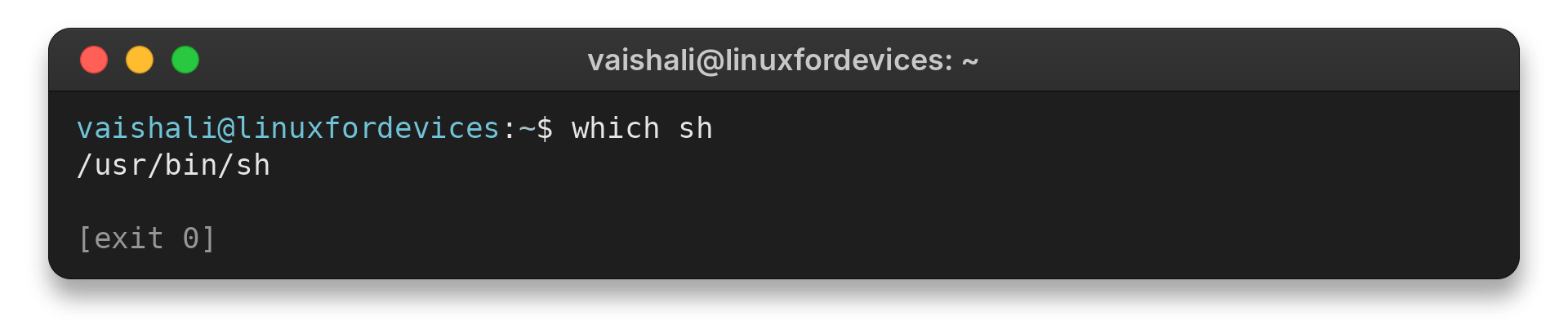
The printed path is the executable location found in this environment. A different distribution or PATH order can produce a different path, so treat the result as local to the shell session where you ran the command.
Step 2: Check more than one command
Give which several names to look each one up in a single invocation. It reports found paths, but a plain list of paths may not make it obvious which argument produced each line when a lookup fails, so check names individually when you need an unambiguous diagnostic.
which sh bash
Expect one path for each found executable. The actual paths depend on which programs are installed and where their directories occur in PATH. If you are documenting a machine, run the same command there rather than copying paths from another system.
When one requested name is not found, the output may not label the remaining paths with their input names. Run separate lookups if you need to match each result to a particular argument.
Step 3: List every matching path
Use the -a option to request all matching executable paths instead of only the first match. This helps when a custom installation earlier in PATH shadows a system copy.
which -a sh
When multiple paths appear, compare their order with PATH. The first match is the one selected by a PATH search. If your which implementation does not accept -a, check its local manual with man which or use your shell’s lookup tools.
Common Errors with the which Command
No printed path usually means which did not find a matching executable in its search. The program may be absent, its directory may be missing from PATH, or the name may refer to a shell builtin, alias, or function rather than a file on disk.
Check the shell’s view of a name with Bash’s type builtin. It can describe shell builtins and aliases as well as external commands, which makes it useful when which prints nothing.
type cd
command -v cd
These commands query the current shell, so their answer may differ from an external which lookup. For scripts, command -v is often a better fit when the question is whether the shell can resolve a command name. Do not treat the output as proof that a program is installed for every user or every execution environment.
| Tool | What it helps identify | Use it when |
|---|---|---|
| which | A matching executable path in PATH | You want a familiar path lookup |
| type | How the current shell classifies a name | You need to see aliases, builtins, functions, or files |
| command -v | How the current shell resolves a name | A script needs a shell-level lookup |
| whereis | Related binary and manual locations | You want broader file-location information |
Use man to read the manual installed on your system. Implementations differ, so that local documentation is the right place to confirm available options.
| Symptom | Possible reason | Next check |
|---|---|---|
| No path appears | No matching executable was found in PATH | Check the spelling and inspect PATH |
| which finds a different version | Another directory occurs earlier in PATH | Compare the output of printf ‘%s\\n’ “$PATH” with the reported path |
| A shell command is missing | The name may be a builtin, alias, or function | Ask the current shell with type or command -v |
These checks separate two questions: whether an executable file is reachable through PATH, and what the current shell will do with a command name. A shell script can run with a different PATH from an interactive terminal, so repeat the lookup in the environment where the script executes. In a service or scheduled job, inspect that process’s environment instead of assuming it inherits your terminal settings.
Conclusion: Use the Lookup That Matches Your Question
which answers a focused question: where is a matching executable in PATH? For shell-level resolution that includes builtins or aliases, use type or command -v instead. Compare the result with PATH when multiple executable versions may be installed.
For related command-line work, see our guides to using man pages and Linux environment variables.
FAQ
These answers cover common questions about executable lookup and shell resolution.
What does which do in Linux?
It searches PATH for a matching executable and prints a path when it finds one.
How do I show all matching paths?
Use which -a name when your implementation supports the -a option.
Why does which return no output?
The executable may not be found in PATH, or the name may be a shell builtin, alias, or function rather than an external executable.